This thread has been locked.

If you have a related question, please click the "Ask a related question" button in the top right corner. The newly created question will be automatically linked to this question.

The Image Analyzer of tools in CCS v5

Hi, I have a question about the use of CCS v5.

When I used the image analyzer, I found that if the resolution of image is large, it can't display in the interface, for example the resolution of image is 800*576.

Could you tell me how do I use the tools.

Thank you.

  • Hi,

    I managed to load and visualize a very large image (2960 x 1050, 24bpp) on the Image Analyzer. I am running CCSv5.2.0.00069 on Windows 7 64-bits.

    Therefore I wonder if the parameters are not quite correct with your image. Please check the forum threads below that talk about several usage scenarios of the Image Analyzer:

    http://e2e.ti.com/support/development_tools/code_composer_studio/f/81/t/120924.aspx

    http://e2e.ti.com/support/development_tools/code_composer_studio/f/81/t/73454.aspx

    Depending on the CCS version (if older than 5.1.1), the issue below may happen:

    http://e2e.ti.com/support/development_tools/code_composer_studio/f/81/t/150448.aspx

    If you are using Linux, please be aware that versions older than 5.2.0 will have the problem described in the forum thread below:

    http://e2e.ti.com/support/development_tools/code_composer_studio/f/81/t/161213.aspx

    Hope this helps,

    Rafael

  • Hi,

    I am running CCSv5.0.3.00023 on Windows XP 32-bits.

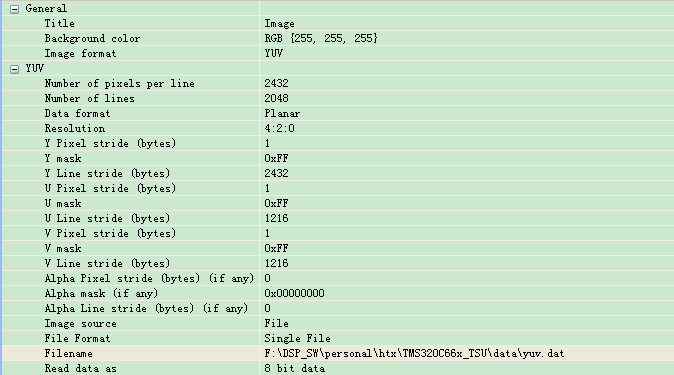
    The parameters of my image as followed:

    And the result as follow:

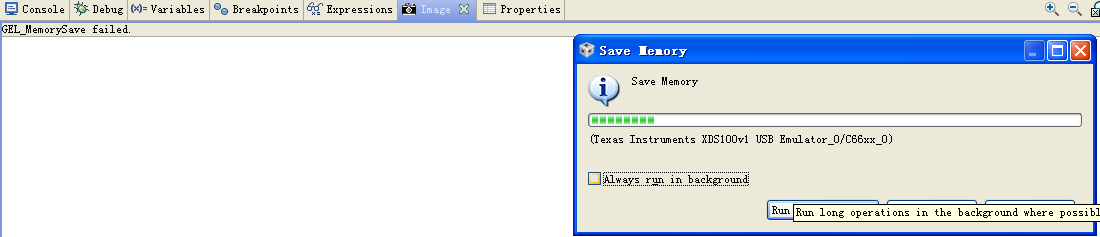
    There is not image in the window.

    However when I set the height of  image is 40, there is a image in the window, as follow:

  • Hi,

    One thing that strikes me in the first screenshot is the contents of the start address fields: use full integers for the addresses - these fields to not accept mathematical operations on them (the start address + some offset).

    Since the second screen shows full integer values for the start address fields and a partial image, I guess the suggestion above is correct and will help you at least start visualizing the desired data. Unfortunately it is very hard to make any assumptions about the other options without the source image, but the white edge may indicate either an normal element of the image or maybe a horizontal displacement caused by header information or the way the data is organized in memory.

    If you are wiling to send the image I could also try to have a more educated guess on how the configurations would be applied.

    Hope this helps,

    Rafael

  • Hi, Thank you for your reply.

    I try the full integers for the addresses, however the image don't show in the window.

    The image file as follow:

    3286.img20.rar

    The YUV420p data file as follow: 

    5822.yuv.dat

    When I got the image use the yuv.dat file, it can show the image successful, however when I save the data as an array in the code, it can't show successful.

    For example:

    1. Show the image from yuv.dat.

    2. Show the image from array in the code.

    Uint8 g_ui8YUV420p_2[2048*1216*3] = {0x5B,0x5F,0x5F,0x59,0x58,0x5F,0x5E,0x5A,0x5D,0x62,0x63,0x63,0x62,0x64,0x61,0x5C, ... };

    The  value of g_ui8YUV420p_2 is 0X88000000, so the address of Y is 0X88000000, the address of  U is 0X884C0000, the address of V is 0x885F0000.

    But the image don't show in the window.

  • Hi, 

    I can't use the analyzer yet, if you have some advices.

    Thank you.

  • Hi,

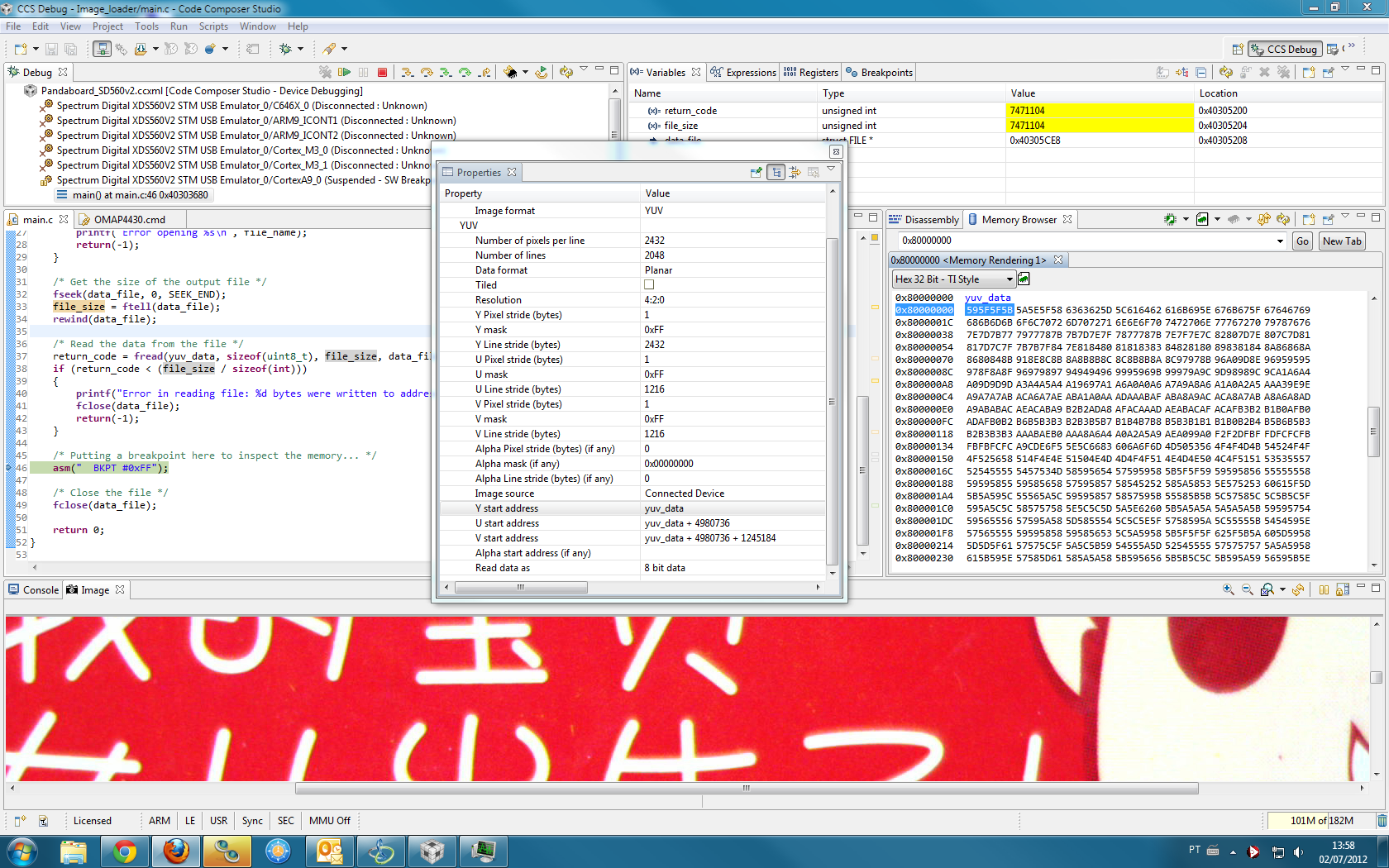
    I managed to properly display the file <yuv.dat> image you sent, but instead of creating an array I simply loaded the file to the memory using console I/O routines as shown in the attached project. This does not have any effect on the image displayed, since the Image tool only cares about the variable addresses and not the way they were loaded to the target.

    Just FYI, due to the high volume of data and the intensive processing on the target device, loading this image via C/IO is only recommended if your device and your emulator are fast - even still it took quite some time to complete the fread() operation.

    Therefore I suggest a few things:

    - Make sure the start address of the image is in fact 0x88000000, the memory at this address is properly initialized via GEL script and you have enough memory to show the entire image (14MB per my account). If the image is shown truncated or errors are shown, then this could be a root cause for that.

    - Also, can you try to use the variable name g_ui8YUV420p_2 instead of the actual address? I used the initial variable name (yuv_data in my case) and, contrary to what I said before, the tool automatically put the offsets as arithmetic operations (check the image below). This way you guarantee the image tool is pointing to the correct address.

    - I am not sure if you are doing this, but you can try to load the image directly to memory and display it from there. Change its extension to something else other than .dat (the tool expects a specific file format with this extension) then open a Memory Browser view, click on the black triangle close to the small green chip icon and select Load Memory. Then select the Start address (0x88000000 in your case) and select type-size as 32-bits (if using ARM or C6000 devices). This will help investigate if the Image tool is somehow unable to read data directly from the target.

    I will try to think about additional details and reply to this thread if I have some additional ideas, ok?

    Hope this helps,

    Rafael

    Image_loader.zip