This thread has been locked.

If you have a related question, please click the "Ask a related question" button in the top right corner. The newly created question will be automatically linked to this question.

CCS Cloud - changing optimize level of project imported from Resource Explorer


I have imported the SimpleLink SensorTag "SensorTag" project and "SensorTagStack" project  from Resource Explorer in CCS cloud.

I can perfectly load them on the sensortag and execute them.

What I can't do is change the optimize level of the compiler. I'd like to set it to 0 while debugging.

The Project's Properties dialog doesn't allow me to adapt this. s there a way to set the Optimize level in a CCS cloud project imported from Resource Explorer?

  • Hi Jan,

    As you are aware, we do not support modifying the project properties as of now.  But you have two options to work around this.

    The first is the safest. You simply download the project to your desktop, import the project into CCS desktop, change the compiler option, and import it back to cloud.

    The second is more of a hack and I'm debating if I should really mention this on the forums. Well why not (I hope I don't get into trouble :) ). What you can do is use the option to show hidden files:

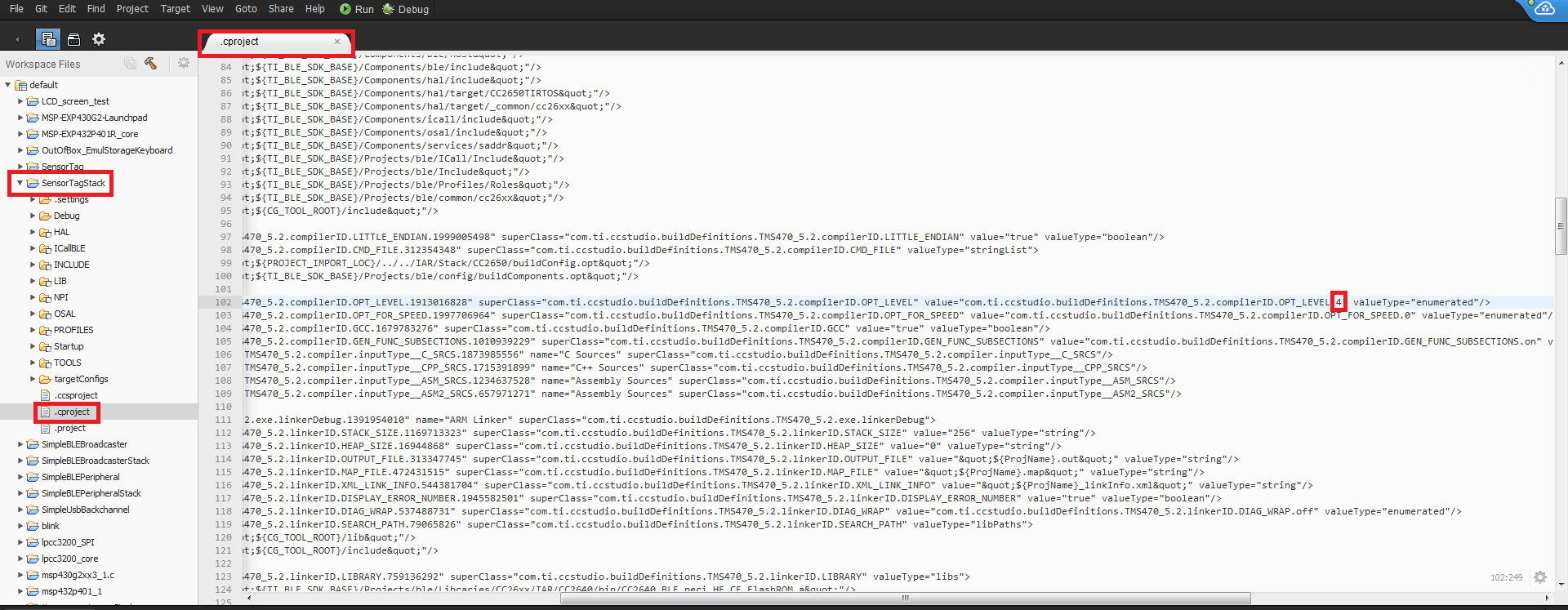
    And then open the .cproject file in the editor. This file has your build options. It is not so easily to read and find the options since you have to know what to look for. In your case, search for OPT_LEVEL. You should find an entry that looks like the below screenshot.

    For the "value" change the "4" to "0" to change the optimization to 0. Save the file. Then you must restart cloud to have your changes take effect (you can close your browser tab for cloud and then go to cloud in a new tab). Then when you build, you will notice the optimization level will be 0.

    Note that we really don't recommend people modifying these project meta files like .cproject whether on cloud or desktop since it is very easy to mess up your project if you are not careful (it is why they are hidden by default in the first place). So please be very careful when doing any changes to them and actually if you can avoid messing around with them at all, that is best.


    Hope this helps!

    ki

  • I've tried your option 2, and it works perfectly. Thanks!

    Build output snippet:

    "@ccs/tools/compiler/ti-cgt-arm_5.2.5/bin/armcl" -mv7M3 --code_state=16 --abi=eabi -me -O0 --opt_for_speed=0 --include_path