This thread has been locked.

If you have a related question, please click the "Ask a related question" button in the top right corner. The newly created question will be automatically linked to this question.

LAUNCHXL-F28069: BOOSTXL-BUCKCONV: Cannot connect to serial COM port for SRFA Software Frequency Response Analyzer

Part Number: TMS320F28069M
Other Parts Discussed in Thread: BOOSTXL-BUCKCONV, SFRA, CODECOMPOSER, LAUNCHXL-F28069M

Tool/software: Code Composer Studio


LAUNCHXL-F28069: BOOSTXL-BUCKCONV


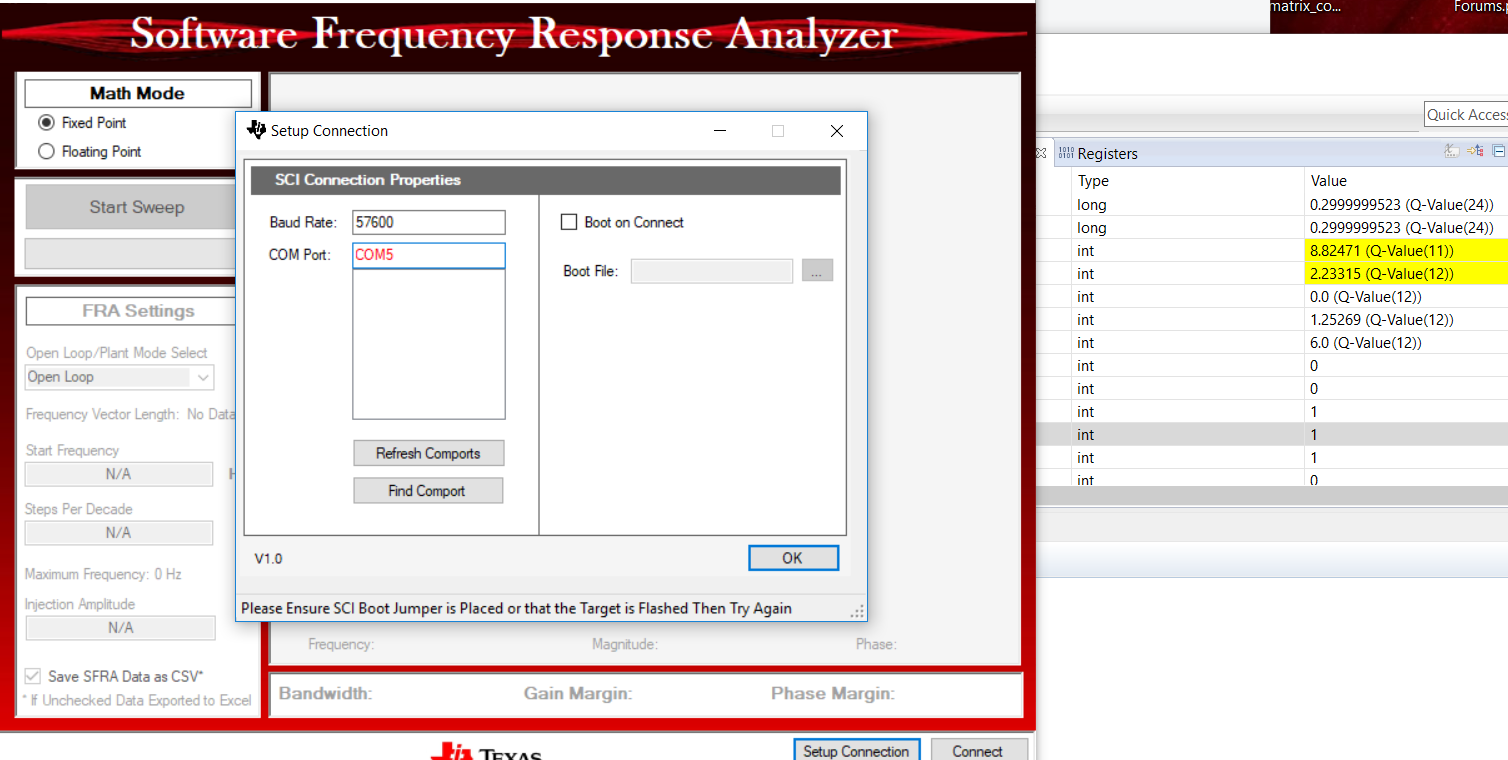
I am working with the LAUNCHXL-F28069 with the Digital Power Buck Converter BoosterPack BOOSTXL-BUCKCONV. I can build the Open Loop Buck Converter Example and run the power supply code on the LAUNCHXL-F28069. However, the LAUNCHXL-F28069 will not show up as a serial COM port on my Windows 10 machine, so I cannot run the SFRA Software Frequency response Analyzer. The error I receive is below.

Debug methods I have tried.

  1. Connecting and disconnecting the USB cable to see if the computer will assign the board a COM port.

  2. Completely uninstalling CCSv6 and codeComposer studio. And reinstalling.

  3. I also found out the XDS100drivers are not digitally signed. So I allowed Windows 10 to install. unsigned drivers and the XDS100driverA and B are installed
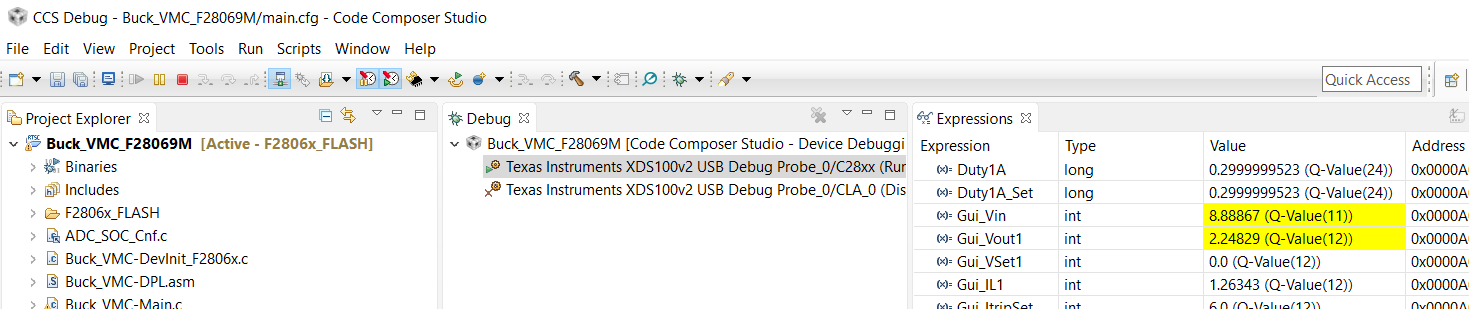
The XDS100v2 USB debuggger is working and I can flash and debug the microprocessor.
 

The XDS100drivers show up as USB controller but do the board does not show up as a Serial COM port.


  • Looks like the XDS100 is not programmed correctly, please refer to processors.wiki.ti.com/.../XDS100

    and follow the instructions to program the CPLD through MProg or FTProg.
  • John,

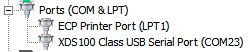
    I saw the same behavior on my new LAUNCHXL-F28069M.  Can you check to see if there's an XDS100 Class USB Serial Port when you have the board plugged in?

    If not, the XDS100 EEPROM may not have been programmed correctly at the factory.

    I was able to reprogram my EEPROM to enable the COM port with the following steps:

    1. Download MPROG 3.5 from FTDI (I found the link from here)
    2. Extract and run MPROG
    3. Connect your LaunchPad to the PC
    4. Device >> Scan to find your XDS100
    5. Tools >> Read and Parse to decode your programmed settings
      1. The description should look like an XDS100v2 using an FT2232H
      2. On my board, the Side B Driver was set to D2XX Direct instead of Virtual COM Port
    6. File >> Save As (for backup)
    7. File >> Edit 
    8. Update the Side B Driver to be RS232 UART + Virtual COM Port
    9. File >> Save As (your choice)
    10. Device >> Erase
    11. Device >> Program
    12. Unplug LaunchPad
    13. Plug in LaunchPad

    Hopefully, you will see a USB serial port after reprogramming.

    -Tommy

  • This worked and I now see a COM port assigned.
    One additonal question. Should both Side A and B be programmed to a Virtual COM or just Side B?
  • John,

    Good to hear that it is working now.

    Only Side B should be configured as a UART COM port. Side A is used for controlling the XDS100 JTAG probe.

    -Tommy