This thread has been locked.

If you have a related question, please click the "Ask a related question" button in the top right corner. The newly created question will be automatically linked to this question.

TMS320F28377S: Powersuite main.cfg is empty

Part Number: TMS320F28377S
Other Parts Discussed in Thread: TIDM-1000, POWERSUITE, CONTROLSUITE

Hi C2000 champion

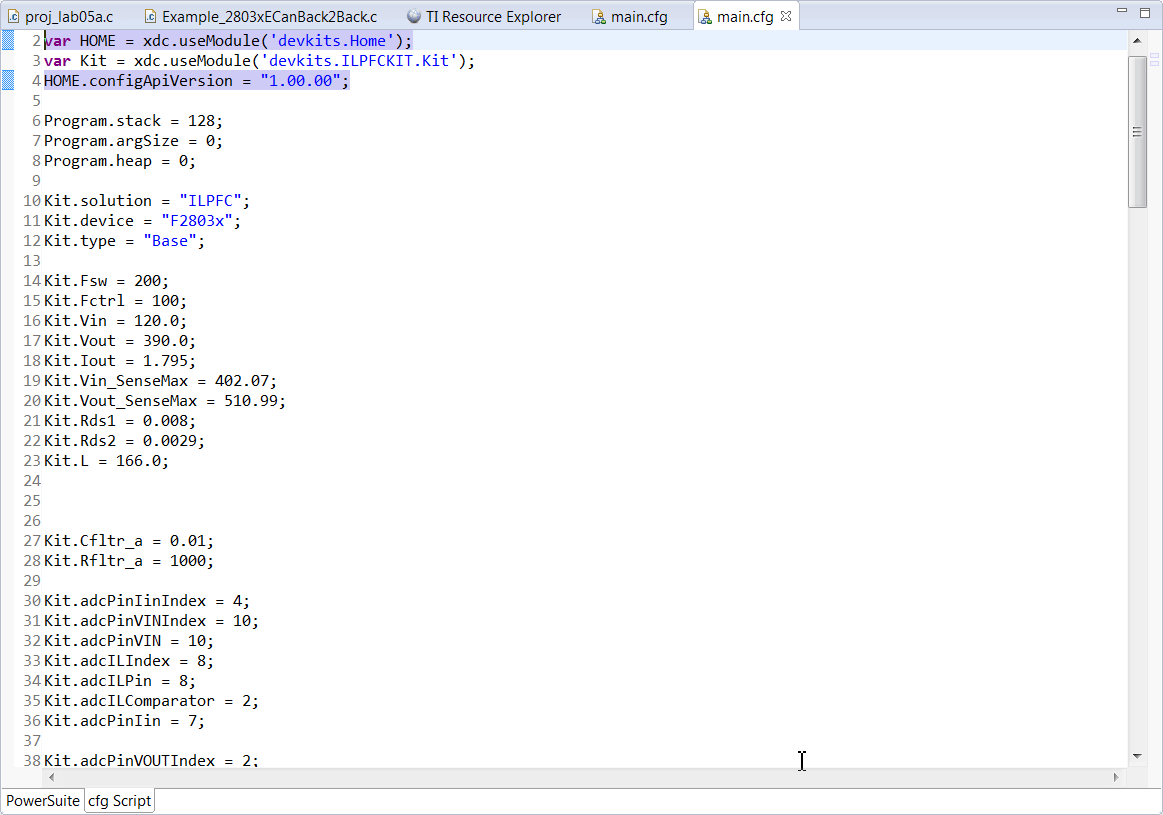
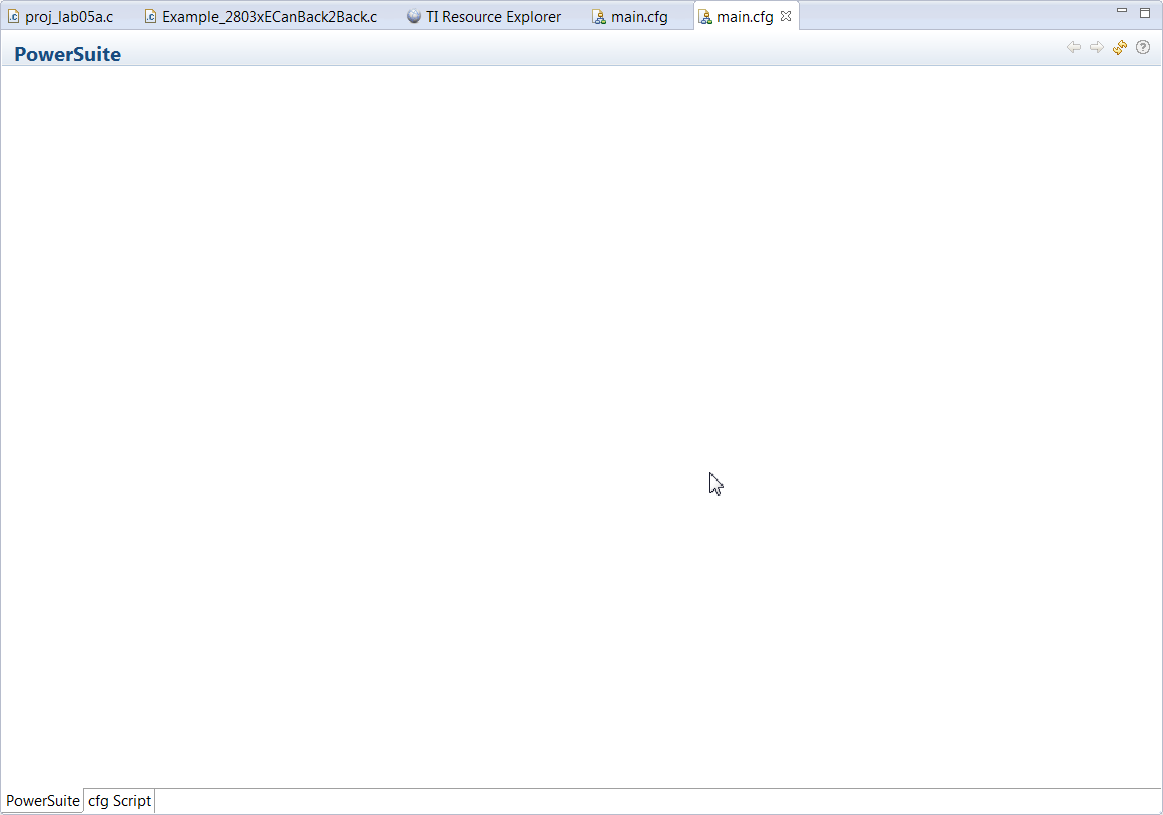
I loaded the PFC 3PH: Vienna Rectifier (TIDM-1000) solution in CCS 7, but the main.cfg GUI show empty, except the script.

Please help to check what is the problem.
  • Eric,

    1. Check if you have GUI Composer Installed. GUI Composer is required to run powerSUITE projects. To install GUI composer in CCS, go to View-> CCS App Center. You should see GUI Composer under Code Composer Studio Add-ons. If it says "Up to Date" that means you have GUI composer installed. Otherwise select it and click on "Install Software" . This will download GUI composer and install it on your machine.

    2. Check if powerSUITE is installed inside CCS:

    Create a "new workspace" in CCS. As the workspace is opened, Code Composer Studio will automatically discover powerSUITE and ask you to install it. Select yes to install powerSUITE. A restart of CCS will be required for the change to be effective.

    To verify that powerSUITE is installed properly go to Windows->Preferences->Code Composer Studio -> RTSC -> Products, you will see powerSUITE listed under "Installed Products" .

    If not, click on Install New and browse to "controlSUITE\powerSUITE\[version]" , and select to install.

    This will install powerSUITE and ask you to restart the CCS workspace.

    you will need version v1_06_00_00 or later of powerSUITE to run the example. 

    You can also verify if powerSUITE is installed by clicking inside CCS at Help -> Installation details 

    Let us know if the above two do not fix the issue and see if powerSUITE (IDE Client) shows up with the correct version in the list. 

    The above information is also in FAQ section inside resource explorer.. 

  • Hi Manish
    After install Composer inside CCS, it is work now! Thank you!

    Eric
  • Manish Bhardwaj said:

    Eric,

    1. Check if you have GUI Composer Installed. GUI Composer is required to run powerSUITE projects. To install GUI composer in CCS, go to View-> CCS App Center. You should see GUI Composer under Code Composer Studio Add-ons. If it says "Up to Date" that means you have GUI composer installed. Otherwise select it and click on "Install Software" . This will download GUI composer and install it on your machine.

    2. Check if powerSUITE is installed inside CCS:

    Create a "new workspace" in CCS. As the workspace is opened, Code Composer Studio will automatically discover powerSUITE and ask you to install it. Select yes to install powerSUITE. A restart of CCS will be required for the change to be effective.

    To verify that powerSUITE is installed properly go to Windows->Preferences->Code Composer Studio -> RTSC -> Products, you will see powerSUITE listed under "Installed Products" .

    If not, click on Install New and browse to "controlSUITE\powerSUITE\[version]" , and select to install.

    This will install powerSUITE and ask you to restart the CCS workspace.

    you will need version v1_06_00_00 or later of powerSUITE to run the example. 

    You can also verify if powerSUITE is installed by clicking inside CCS at Help -> Installation details 

    Let us know if the above two do not fix the issue and see if powerSUITE (IDE Client) shows up with the correct version in the list. 

    The above information is also in FAQ section inside resource explorer.. 

    Hi everyone,

    I'am sorry to make use of Eric's topic but i have the same problem even if all your points are checked.

    I can add more precisions : when I make a right click on the main.cfg => open with => XGCONF, I can see a (very fast) loading bar before an empty window.

    Do you have another advice please ?

    Thank you very much,

    Jérémy

  • Jeremy,

    Hm.. please see the above

    e2e.ti.com/.../600473

    see if any of this resolves your issue..

    what XDC tool are you using.. ?
  • Try going to a new workspace, importing the project and try opening the GUI. You could also rename the project and do the import step without changing the workspace. I've had it happen that the project gets hosed somehow and starting fresh fixes the issue.

  • Hi Manish, Hi ProgrammableSolution,

    Thank you for your answers but the problem is still here. I am almost in the same conditions as matusan's topic :

    CCS : 7.1.0.00016
    XDC : 3.31.0.24 or 3.32.1.22 or 3.50.1.12
    PowerSuite : 7.24.0.04
    Compiler : TI v16.9.1.LTS or v6.4.6
    windows 7

    I can add two facts :
    1- In the "view" menu, I have GUI composer tag, I can select "Designer (online)" but other tags are empty ("Applications" and "Applications v1"). And on the GUI composer is up to date on the app center.

    2- I have installed CCS 6.2.0.00050 and it works with XDC 3.31.0.24.

    Maybe this hints can help you for helping me :)

    Have a nice day,
    Jérémy
  • Thanks Jeremy,

      I also had a different problem that went away when I installed CCS 7.2.0.00012.  

      You might NOT want to do the uninstall part.

    https://e2e.ti.com/support/microcontrollers/c2000/f/171/p/599965/2209507?tisearch=e2e-sitesearch&keymatch=F283*#2209507

    Well, I uninstalled all CCS versions from my computer and installed 7.2.0.00012

    When I tried to compile, I got 
    Product 'com.devkits' v1.7.0.00 is not currently installed and no compatible version is available. Please install this product or a compatible version.

    I went to Window>Preferences>Code Composer Studio>Products Rediscover and it PowerSuite stuff.
    PowerSuite is now at 1.7.0.00 and the missing #define VAC_TYPICAL 110 is no longer missing