This thread has been locked.

If you have a related question, please click the "Ask a related question" button in the top right corner. The newly created question will be automatically linked to this question.

CC3220: How to measure Wi-Fi throughput.

Expert 2780 points
Part Number: CC3220


Hello,

How to measure Wi-Fi throughput

Q1:
How do I measure the throughput of Wi-Fi using two CC3220SF-LAUNCHXL (Master and slave)?
I want to check the data sheet UDP 16 Mbps.

Q2:
When measuring throughput, is there an influence such as optimization level of compiler setting?

Regards,
Da

  • Hi Da,

    To measure the Wi-Fi throughput, we recommend using the network_terminal SDK example. That example comes with a variety of tools for evaluating the CC3220, including UDP and TCP throughput testing demos.

    The Wi-Fi fundamentals SimpleLink Academy goes over how you would use two CC3220SF-LAUNCHXL to connect to each other and perform a variety of networking exercises:
    dev.ti.com/.../

    For a true throughput test to verify the 16 Mbps number, you'll want to connect a CC3220SF-LAUNCHXL to a PC or other non-CC3220 device. We test with a PC running iperf v2. Other than using iperf, there are no other optimizations you would need to make to the network_terminal to measure the throughput.

    Let me know if you need more clarification, or help on running the throughput test.

    Regards,
    Michael
  • Thanks for your reply.

    We wrote Terminal to CC3220 and confirmed it, but the result was not good.

    The tool used is iperf 2.0.9.

    The command procedure was as follows.

    CC3220 TX

    1. iperf -s -p 1234

    2. send -c 10.123.45.4 -p 1234

    <<<<<<<<<<<<<<<<<<<<<<<<< LOG >>>>>>>>>>>>>>>>>>>>>>>>>>>>>>>>>>>>>>>>>>>>>.
    iperf log
    ------------------------------------------------------------
    Server listening on TCP port 1234
    TCP window size: 208 KByte (default)
    ------------------------------------------------------------
    [ 4] local 10.123.45.4 port 1234 connected with 10.123.45.1 port 52524
    [ ID] Interval Transfer Bandwidth
    [ 4] 0.0- 1.4 sec 1.34 MBytes 8.18 Mbits/sec

    Do not return to the prompt.


    CC3220 RX

    1. recv -s -p 1234 -n 1000

    2. iperf -c 10.123.45.1 -p 1234 -n 1000


    <<<<<<<<<<<<<<<<<<<<<<<<< LOG >>>>>>>>>>>>>>>>>>>>>>>>>>>>>>>>>>>>>>>>>>>>>.

    iperf log
    ------------------------------------------------------------
    Client connecting to 10.123.45.1, TCP port 1234
    TCP window size: 208 KByte (default)
    ------------------------------------------------------------
    [ 3] local 10.123.45.4 port 55656 connected with 10.123.45.1 port 1234
    [ ID] Interval Transfer Bandwidth
    [ 3] 0.0- 0.0 sec 128 KBytes 274 Mbits/sec

    Return to prompt.

    >>>>>>>>>>>>>>>>>>>>>>>>>>>>>>>>>>>>>>>>>>>>>.

    CC3220 log

    Protocol: tcp
    Traffic: Rx
    Client\Server: Server
    Port: 1234
    Number of Packets to receive: 1000

    Connected to client: 10.123.45.4
    TCP Client closed the connection
    Received 93 packets (131108 bytes) successfully

    *********************************Rx Statistics**********************************
    Received Packets: 513
    Average RSSI for management: -72 Average RSSI for other packets: -42

    ----------------------- RSSI Histogram -----------------------

    <... abridgement ....>
    >>>>>>>>>>>>>>>>>>>>>>>>>>>>>>>>>>>>>>>>>>>>>.


    Regards,
    Da
  • Hi Da,

    I just retested the network terminal example and have gotten the results as expected in the datasheet:

    I advise you to check your test setup and environment to ensure that nothing is impacting the throughput test. In your terminal capture in your previous post, the client you are transmitting to has IP address xxx.xxx.xxx.4. Is there more than one device connected to your AP?

    Regards,

    Michael

  • Hi Michael,

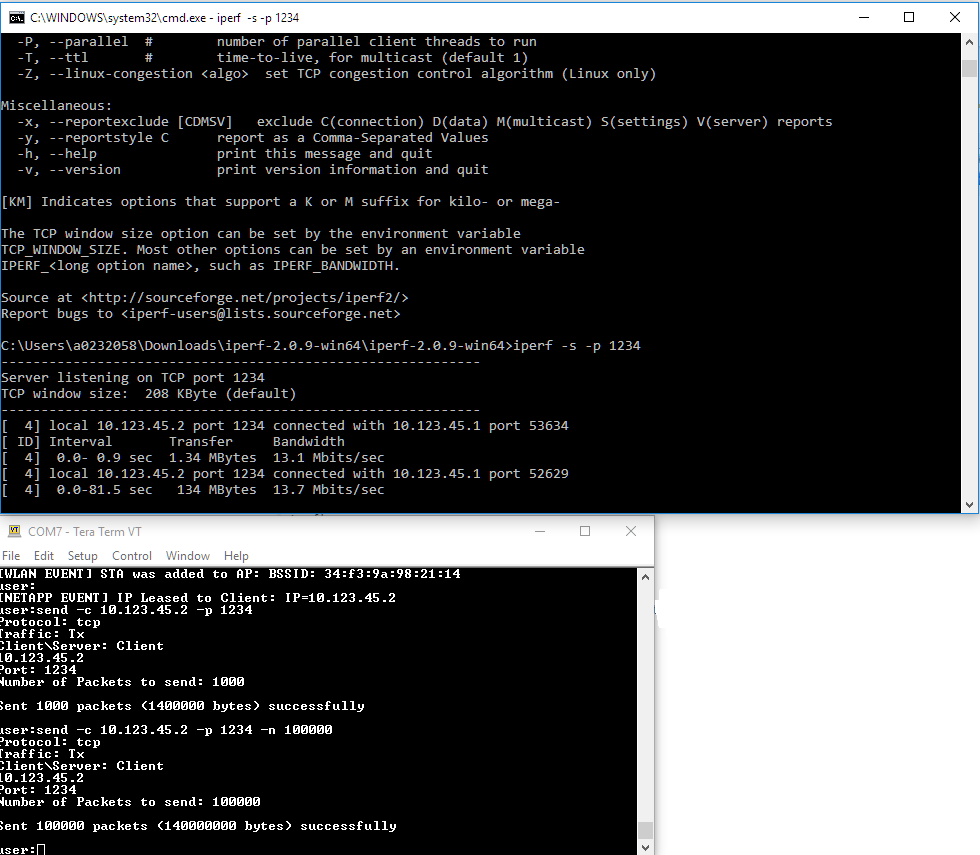
    We were able to transfer from CC 3220 (client) to PC (server).
    When I set it again, IP changed from xxx.4 to xxx.2.

    Is not this reverse transfer possible?
    Also, UDP transfer does not work, how should I set options?

    Successful log

    CC3220 side

    user:send -c 10.123.45.2 -p 1234 -n 100000
    Protocol: tcp
    Traffic: Tx
    Client\Server: Client
    10.123.45.2
    Port: 1234
    Number of Packets to send: 100000

    Sent 100000 packets (140000000 bytes) successfully

    user:send -c 10.123.45.2 -p 1234 -n 100000
    Protocol: tcp
    Traffic: Tx
    Client\Server: Client
    10.123.45.2
    Port: 1234
    Number of Packets to send: 100000

    Sent 100000 packets (140000000 bytes) successfully

    user:send -c 10.123.45.2 -p 1234 -n 10000
    Protocol: tcp
    Traffic: Tx
    Client\Server: Client
    10.123.45.2
    Port: 1234
    Number of Packets to send: 10000

    Sent 10000 packets (14000000 bytes) successfully

    user:

    PC side

    C:\Users\136867\Desktop\iperf-2.0.9-win64>iperf -s -p 1234
    ------------------------------------------------------------
    Server listening on TCP port 1234
    TCP window size: 208 KByte (default)
    ------------------------------------------------------------
    [ 4] local 10.123.45.2 port 1234 connected with 10.123.45.1 port 57805
    [ ID] Interval Transfer Bandwidth
    [ 4] 0.0-86.8 sec 134 MBytes 12.9 Mbits/sec
    [ 4] local 10.123.45.2 port 1234 connected with 10.123.45.1 port 50250
    [ 4] 0.0-85.5 sec 134 MBytes 13.1 Mbits/sec
    [ 4] local 10.123.45.2 port 1234 connected with 10.123.45.1 port 64491
    [ 4] 0.0- 8.5 sec 13.4 MBytes 13.1 Mbits/sec

    Regards,
    Da

  • Hi Da,

    I see that you are getting the expected TCP throughput numbers now.

    TCP RX can be tested with the same network terminal.
    On the CC3220 side, you would run the following network terminal command:
    recv -s -p <port> -n <number of packets>
    On the PC side, using iperf you would run:
    iperf -c <cc3220 IP> -p <port> -n <number of bytes>

    UDP also works with network terminal.

    For UDP RX:
    CC3220 command:
    recv -s -u -p <port> -n <number of packets>
    Iperf command:
    iperf -c <ip> -u -p <port> -n <number of bytes>
    For UDP TX:
    CC3220 command:
    send -u -c <ip> -p <port> -n <number of bytes
    Iperf command:
    iperf -s -u -p <port> -n <number of bytes>

    Do note that for UDP, you will have to calculate the throughput yourself based on bytes sent over time elapsed, since iperf doesn't give the most useful UDP throughput numbers by default.

    Let me know if you need further help or have additional questions.

    Regards,
    Michael
  • Thank you for your reply.

    I tried RECV command and UDP, but both did not work well.
    In the RECV command, the number of bytes specified by -n was not transferred, and it became a numerical value such as 270 Mbytes.

    The configuration of UDP does not appear to be communicating.

    I got a log of three cases.

    <<<<<  RECV COMMAND >>>>>>>>
    cc3220

    user:recv -s -p 1234 -n 10000
    Protocol: tcp
    Traffic: Rx
    Client\Server: Server
    Port: 1234
    Number of Packets to receive: 10000

    Connected to client: 10.123.45.2
    TCP Client closed the connection
    Received 93 packets (131108 bytes) successfully


    PC

    >iperf -c 10.123.45.1 -p 1234 -n 10000
    ------------------------------------------------------------
    Client connecting to 10.123.45.1, TCP port 1234
    TCP window size: 208 KByte (default)
    ------------------------------------------------------------
    [ 3] local 10.123.45.2 port 58987 connected with 10.123.45.1 port 1234
    [ ID] Interval Transfer Bandwidth
    [ 3] 0.0- 0.0 sec 128 KBytes 270 Mbits/sec

    <<<<<<<<<< UDP & RECV >>>>>>>>>>>>>>>

    CC3220

    user:recv -s -u -p 1234 -n 10000
    Protocol: udp
    Traffic: Rx
    Client\Server: Server
    Port: 1234
    Number of Packets to receive: 10000

    Timeout expired before receiving all packets
    Received 17 packets successfully

    *********************************Rx Statistics**********************************
    Received Packets: 7564
    Average RSSI for management: -52 Average RSSI for other packets: -70

    :
    :

    PC

    \iperf-2.0.9-win64>iperf -c 10.123.45.1 -u -p 1234 -n 10000
    ------------------------------------------------------------
    Client connecting to 10.123.45.1, UDP port 1234
    Sending 1470 byte datagrams, IPG target: 11215.21 us (kalman adjust)
    UDP buffer size: 208 KByte (default)
    ------------------------------------------------------------
    [ 3] local 10.123.45.2 port 49627 connected with 10.123.45.1 port 1234
    [ ID] Interval Transfer Bandwidth
    [ 3] 0.0- 0.1 sec 10.0 KBytes 1.04 Mbits/sec
    [ 3] Sent 7 datagrams
    [ 3] WARNING: did not receive ack of last datagram after 10 tries.

    <<<<<<<<<< UDP & SEND >>>>>>>>>>>>>>>

    PC

    >iperf -s -u -p 1234 -n 10000
    ------------------------------------------------------------
    Server listening on UDP port 1234
    Receiving 1470 byte datagrams
    UDP buffer size: 208 KByte (default)
    ------------------------------------------------------------

    <no return>


    CC3220

    user:send -u -c 10.123.45.1 -p 1234 -p 10000
    Protocol: udp
    Traffic: Tx
    Client\Server: Client
    10.123.45.1
    Port: 10000
    Number of Packets to send: 1000

    Sent 1000 packets successfully

    Regards,
    Da

  • Hi Da,

    As I mentioned before, testing UDP throughput with iperf is problematic. With TCP, due to the ack mechanism the sender knows the throughput of the data transmission. However, with UDP the transmitter cannot know what is the true throughput since there is no mechanism for it to know how quickly data is arriving at the receiving side or if the data is even getting to the receiver successfully.

    If you want to measure UDP throughput, you'll need to code your own mechanism to provide the throughput at the receiving end. You can use the Clock_getTicks() API to get the time before you start receiving, and then call that to get the time after your stop receiving to calculate the time elapsed and throughput. This will allow you to get the throughput of the CC3220 as the UDP receiver. For UDP TX, you will need something similar on your PC.

    Regards,
    Michael
  • Thanks Your Reply.

    Thank you for comment on how to measure UDP.
    I will give it a try if I have time.


    Regards,
    Da