This thread has been locked.

If you have a related question, please click the "Ask a related question" button in the top right corner. The newly created question will be automatically linked to this question.

TMDSCNCD280039C: Error -260 when downloading through USB-C connector with CCS

Part Number: TMDSCNCD280039C
Other Parts Discussed in Thread: C2000WARE

I am able to download using external XDS110 Debug probe but when I thy do download using USB-C I get error -260.

As specified in the error message I used xdsdfu to download the latest firmware as well as tried to set the serial number. The serial number did not seem to work.
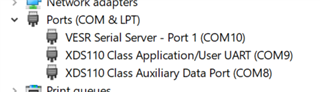
I noticed that when I connect the external debug probe I can see that it uses COM3 and COM4 in the device manager whereas when I connect the USB-C the device is unknown. That make is seem like a windows driver is missing but I do not know where to get it.

The external device is disconnected from the PC's USB and from the developer board when the download fails.

2 S1 switches are both on. I have tried different positions.

Your help would be most appreciated.  

  • Hi,

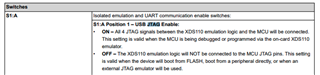
    Please check the switch S1A, Pin1, it should be ON position. for on-board XDS emulator.

    Thanks & Regards,

    Santosh

  • As I mentioned in the original text "2 S1 switches are on". I assume that the S1A is the bottom switch (1) of the double dip switch which are labelled 1 and 2 since the S1A label is below the switch.

  • Hi,

    Are you using external power or it i powered by USB cable?

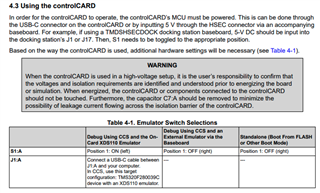
    Please take a look at the control Card User's guide :

    https://www.ti.com/lit/pdf/spruiz4

    If everything looks okay, can you try different USB-C cable?

    Thanks & Regards,

    Santosh

  • Hi Santosh,

    When I answered before I did not realize that S1:A was separate from S1. The 2 dip switches of S1:A are in the ON position (left) and S2 now has the left dip switch (called 0 on board) in the up position and the right switch (called 1 on the board) in the down position under the assumption that 0 corresponds to position 1 and 1 corresponds to position 2. I have a USB connection to J17 and the switch on such that D1 on the docking station is bright. I have tried several USB ports on my laptop and tried a different USB-C cable with different USB ports and still I get -260 error. S1 is in the up position towards the little white dot and S3 is in the down position but also towards the white dot. Still I get error -260.

    I will mention again that xdsdfu seemed to find the port and allow a download and windows device manager shows that there is a USB device connected when I connect the USB-C between the PC and developer board but unlike external debug probe windows does not recognize what the device is. Is that signficant?

  • Christopher,

    The fact that Windows cannot recognize the device is significant. It means the device is not programmed correctly.

    For now you can operate the controlCARD without the docking station. The controlCARD can be powered directly from the USB port. Can you clarify which LEDs are on in the controlCARD under this setup? You should see LED1:A and D3. 

    There are two steps to download firmware to the embedded XDS110 on the controlCARD: flashing the bootloader and flashing the firmware. Both steps are documented here:

    https://software-dl.ti.com/ccs/esd/documents/xdsdebugprobes/emu_xds110.html

    Make sure you are using xdsdfu from the latest CCS release. This release will also have the latest bootloader and firmware. 

    The controlCARD comes with the XDS110 already programmed, so I am curious as to why you wanted to manually update it.

  • Hi Gus,

    My eventual goal was to use the RS-232 that is supposed to be accessible from the USB-C and since the external debugger appeared to have it working I thought it would be a similar in that the onboard USB-C would show up in windows as com ports if I had the correct drivers installed.

    I only re-installed the onboard driver because of what the error message said. Are there any detailed instructions as to how to access that RS232 port through the USB-C ? I have been unsuccessful in finding them but I am new to TI documentation.

    I had given up on the onboard RS232 through the USB-C to the point where I was looking into wiring a USB-RS232 converter directly to the pins for GPIO-11 and GPIO-12 in SCI mode.

    Thanks!

  • Christopher,

    I only re-installed the onboard driver because of what the error message said. Are there any detailed instructions as to how to access that RS232 port through the USB-C ? I have been unsuccessful in finding them but I am new to TI documentation.

    When operating properly, the RS-232 port enabled through USB-C will appear as a separate COM port in Windows. The instructions on how to configure the controlCARD to enable this port are given in the controlCARD user's guide.

    I had given up on the onboard RS232 through the USB-C to the point where I was looking into wiring a USB-RS232 converter directly to the pins for GPIO-11 and GPIO-12 in SCI mode.

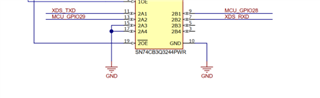
    I want to point out one clarification, GPIO28 and GPIO29 are the pins connected to the USB-C COM port. Wiring different pins will require some board rework on your part.

  • Hi Gus,

    Thanks for the helpful information. I tried switching to GPIO 28 and 29 but got the same gibberish from my USB to RS232 converter. I am starting to suspect that piece of hardware.

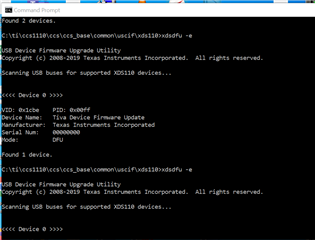
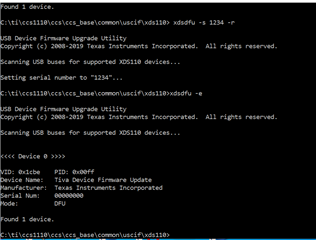
    Going back to the controlCARD I tried reflashing again to get it to behave but it doesn't seem to be working. Here is a result of my efforts:

  • So xdsdfu sees the onboard emulator and thinks it is downloading but it doesn't seem to work. Suggestions?

  • Christopher,

    It does look like the embedded emulator is programmed and ready to go. 

    You were able to see the COM ports on your Windows PC, then? Can you please clarify? If so, it could be a baud rate mismatch that is causing the gibberish.  I would recommend you try the SCI echoback example in C2000ware with the following COM port settings:

    //! - Bits per second = 9600
    //! - Data Bits = 8
    //! - Parity = None
    //! - Stop Bits = 1
    //! - Hardware Control = None

    C:\ti\c2000\C2000Ware_4_01_00_00\driverlib\f28003x\examples\sci

    This document also has a useful JTAG debug flow:

    https://www.ti.com/lit/an/spracf0a/spracf0a.pdf 

  • Hi Gus,

    no, I have never been able to see the com ports associated with the usb-c debug port. I AM able to see the for the external XDS debug probe. I tried to download firmware to the onboard XDS-110 emulator to try and remedy that.

    Thanks!

  • Note that you will not see the COM ports if the XDS110 is in DFU mode. You can get out of DFU mode by simply power-cycling the board. 

    To set the serial number, you need to be in DFU mode. You can use the following command:

    Note that the "-r" gets the XDS110 out of DFU mode. 

    I would also recommend that you connect the USB cable directly from the controlCARD to your PC (i.e. not through hubs or docking stations).

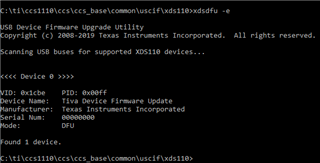
  • We maybe found the source of the problem. I have never seen that board not in DFU mode. When I plug it in it starts of in DFU mode according to the xdsdfu -e


    Then if I try setting the serial number with -r at the end it does not boot into normal mode.

  • Christopher,

    Can you try to program the bootloader as well? Here is part of a batch file we use to program these EVMs. Posting here only for reference on the steps.

    %xdsdfu% -m
    %xdsdfu% -b %~dp0ccs_base\common\uscif\xds110\boot_loader.bin
    %xdsdfu% -f %~dp0ccs_base\common\uscif\xds110\firmware_3.0.0.13.bin -r
    %xdsdfu% -e
    %xdsdfu% -m
    %xdsdfu% -s "CC391074" -r
    %xdsdfu% -e

  • That did it. Many thanks!