This thread has been locked.

If you have a related question, please click the "Ask a related question" button in the top right corner. The newly created question will be automatically linked to this question.

VCP auto-connection

Other Parts Discussed in Thread: CONTROLSUITE, CCSTUDIO, DRV8312, INSTASPIN-BLDC

Hi:

I am trying to bring up a C2000 for a brushless dc motor (BDCM). When I launch the GUI DRV8312GUIv2 I receive an error message "VCP auto-connection is enabled, but no ports are available." There appears to be USB ports available that I see when using the Control Panel. 

What should I do next?


Regards,

Art Wagner

  • Hello:

    I still cannot get past the error message "VCP auto-connection is enabled, but no ports are available." 

    I have the ControlSuite both downloaded from the ti website and also on a thumbdrive supplied by ti for my motor control kit, DRV8312-C2-KIT. When I plug in the USB cable connected to the CC2803X control board, which has the TMS320F38035PNS microcontroller, I see appear on the device manager screen, Other Devices: Texas Instruments XDS100+RS232 V1.0, on two lines. When I double-click on one of these lines I see appear that the driver for this device is not installed.

    How do I install the drivers?

    The drivers seem to be listed on both my thumb drive and on my ControlSuite down load; they are identical. So apparently the drivers are present but not installed.

    Can someone please offer a suggestion?

    Thank you,

    Art Wagner


  • Hi Art,


    Did you follow the hardware setup procedure listed in the quickstart guide: QSG-DRV8312-C2-KIT-GUIv1.pdf ?

  • Vishal:

    Thank you for answering. Yes, I have followed the quickstart guide: QSG-DRV8312-C2-KIT-GUIv1_1.pdf. This is where I get stuck:


    If not you will be prompted to install the driver.


    Installing

    driver for USB to serial


    : Do not let Microsoft search for the driver, instead browse to the following

    Windows does not ask me for a location of the drivers. As far as I can tell, I have the drivers on the memory stick, and I downloaded them, just in case, from the ti website. But I don't know how to execute the drivers.

    Regards,

    Art Wagner

  • Art,

    This happens from time to time on our end too, that the XDS 100 drivers don't install automatically.

    If you look in the Device Manager under "Universal Serial Bus controllers", do you see two nodes named "TI XDS 100 Channel A" and "B" when you have the kit USB cable plugged?

    If so, right click the Channel A node and select "Properties". In the Properties dialog, switch to the "Drivers" tab and click "Update Driver". This should open a new dialog where one of the choices is to browse for driver software. Click this button and navigate to the XDS 100 v.1 driver folder - either on the kit USB stick or as you've mentioned in the controlSUITE installation (C:\TI\controlSUITE\development_kits\~Utilities\XDS100 Drivers v1.0), then click OK/Next.

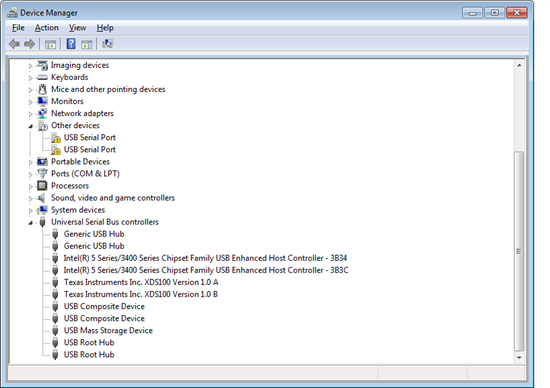
    This should find and install the driver correctly, just remember to do the same for Channel B. If drivers for both channels install properly you should see a new (virtual) COM port in the Device Manager group "Ports (COM & LPT)". If not, open the Properties dialog for Channel B again and enable VPC on the Advanced tab. You may have to unplug and replug the USB cable for this to take effect. I've included a screenshot of showing my own configuration for the XDS100, just for illustration

    .

    Hope this helps!

    Regards,
    Espen Øyan
    Field Application Engineer
    Crosshairs Embedded

  • Espen:

    Thank you for your reply. When I follow your instructions, I don't see "TI XDS Channel A and B", as you suggest. Instead I see the following when my USB cable is connected between my pc and the driver board CC2803X ISO DIMM REV 1.3.

    Instead I see

    Other Devices

            Texas Instruments XDS100+R232 V1.0

            Texas Instruments XDS100+R232 V1.0

    .......

    Universal Serial Bus controllers

        Generic USB Hub

        Generic USB Hub

        Interl(R) 5 Series/3400 .......

         Interl(R) 5 Series/3400 .......

         USB Composite Device

          USB Composite Device

         USB Root Hub

         USB Root Hub

    (I cannot seem to copy in a screen shot.)

    When I disconnect the USB Cable from the mentioned kit, the two lines under "Other devices" disappear. When I reconnect the USB cable, the two lines reappear.

    When I right click on those lines and follow all paths on the window, everything is a dead end.

    Can you offer a suggestion?

    Thank you,

    Art Wagner

  •  

     Espen:

    Here is the screen shot.

    Art Wagner

  • Art,

    It almost sounds like there might be an issue with your controlCARD FTDI chip, but unfortunately I'm not a HW expert.

    I did some searching here on the forums and came across this XDS100 wiki's Troubleshooting section: http://processors.wiki.ti.com/index.php/XDS100#Q:_How_can_I_check_if_the_VID.2FPID_for_the_EEPROM_are_programmed_correctly.3F

    On that page there are instructions for verifying a correctly programmed FTDI, and if not there are instructions on how to reflash the FTDI chip. These instructions seem somewhat outdated, as the mentioned "MProg"  utility from FTDI has been replaced by another called "FT_Prog", found on this page:

    http://www.ftdichip.com/Support/Utilities.htm (with drivers found here: http://www.ftdichip.com/Drivers/D2XX.htm)

    I don't know if this is a recommended course of action though, but at least you can check if your FTDI EEPROM has been programmed correctly. Hopefully someone from TI can chime in...

    Regards,
    Espen

  • Art,

    I've also seen cases where the USB drivers are not automatically installed - or the installation is not successful and you are left with "dead" devices in your device manager.

    I would suggest trying the following

    1. With the USB cable hooked up between the hardware and your computer (and hardware being powered on), right-click on the two devices in your device manager and select "Uninstall"
    2. Disconnect the cable and connect it to a different USB port on your computer than the one it was connected to previously
    3. After Windows does what it needs to do in order to install drivers, revisit the Device Manager page to see if the drivers installed correctly. If not, right click on the devices and select "Update Driver Software"
    4. Depending on your Windows version, the text in the following screen varies - but select "Browse computer for drivers"
    5. Point it to the location where the drivers can be found (select the root folder of for example the USB stick) and check "Include subfolders"
    6. Click OK and see if this alleviates the problem.

    Please also remember that you will have to enable VCP for the second channel in order to use it for serial communication once the drivers are installed correctly.

    Best regards,
    Andreas
    Crosshairs Embedded
    http://crosshairsembedded.com

  • Espen and Andreas:

    After trying your suggestions, I feel like I am getting closer because things on the Device Manager are changing. Other devices show "USB Serial Port" and "Univ ...controllers" show "Texas ..1.0A" and "...B".

    However, when I launch DRV8312GUIv2.exe, I still get a notification regarding VCP, no VCP ports available.

    Can you suggest what to do next?

    Thank you,

    Art Wagner


  • Art,

    If you look back at my first post in this thread I included a screenshot showing that VCP (Virtual Com Port) was enabled for Channel B. Try to right click on the Channel B node and select Properties, then see if "Load VCP" is checked in the Advanced tab. When everything is set up properly, you will see a new COM port in the Device Manager Ports (COM & LPT) group as well.

    Espen

  • Art,

    I am 90% sure that the flash image on the controlCARD does not match the file needed by the GUI. (the manufacturer probably did not program correctly...)


    You will need to re-flash the controlCARD using CCStudio v4

    C:\ti\controlSUITE\development_kits\DRV8312-C2-KIT_v123\~GUI\CCSv4HowToFlashcontrolCARDS.txt

    For the ISO controlCARD make sure that SW3 = DOWN

    load program

    C:\ti\controlSUITE\development_kits\DRV8312-C2-KIT_v123\~GUI\DRV8312GUIv2.out

    and then use your DRV8312GUIv2.exe

    BTW - if you have your own motor I recommend using

    InstaSPIN-BLDC_GUI_DRV8312_v100.out

    InstaSPIN-BLDC_GUI_DRV83xx_v100.exe


  • Hi Chris:

    I cannot find CCSv4HowToFlashcontroCARDS.txt.  I have searched repeated times in the kit software, the TI website, the Internet, etc. I found, from one of your communications in 2010, http://drop.io/tmds2mtrpfcgui; but it would not load.

    Regards,

    Art Wagner


  • Hi:

    I did find "CCSv4HowToFlashcontroCARDS.txt" in the ti folder, c:\ti, just like I was instructed. I was not aware of this folder on my computer.

    Now, I am stuck trying to "launch ccsv4". Do I have to download somelthing from the ti website, or is the executable on my computer already? I can't find such an executable.

    Thank you.

  • Art,

    Sorry, I was on vacation. Where do you stand with this?


  • hey chris

    when i tried to reflash the card i get errors like this

    CLA_0: File Loader: Data verification failed at address 0x003F7C20 Please verify target memory and memory map.
    CLA_0: GEL: File: C:\ti\controlSUITE\development_kits\HVMotorCtrl+PfcKit_v2.0\~GUI\HVMTRPFCKIT-PM-ACI-GUI.out: a data verification error occurred, file load failed.

    what this means i think i might damage my board

    looking forward your reply

  • I just plugged in an F2803x controlCARD into HVMTRPFCKIT (r1p1).

    Made sure M3-J9 is pop and M3-J5 is no-pop.

    powered the 15V supply.

    Used the USB connector to xds100v1

    CCS target config for xds100v1 and F28035

    connected (when you are connected make sure you are highlighting the /C28xx connection and NOT the /CLA_0

    loaded

    C:\ti\controlSUITE\development_kits\HVMotorCtrl+PfcKit_v2.0\~GUI\HVMTRPFCKIT-PM-ACI-GUI.out

    all worked well.

    Make sure you have followed similar steps.

  • Hi!

    I have the same problem as discussed above.
    By following your instructions, I achieved a correctly installed driver but while opening the HVMTRPFCKIT-PM-ACI-GUI the problem as follows remains:

    "VCP auto-connection is enabled for this interface, but there was a problem retrieving COM ports from  your system. This may be due to a WMI corruption"

     As I tried the installation on different Windows versions, it does not seem to be a Microsoft problem but a driver issue.

    Do you have any idea how to solve this problem?

    Kind regards