This thread has been locked.

If you have a related question, please click the "Ask a related question" button in the top right corner. The newly created question will be automatically linked to this question.

TMS320F28027: TMS320F28027 C2000 Lab 1 Not Showing Variables in the debug window- Using Launch XL (TMS320F28027F)

Part Number: TMS320F28027
Other Parts Discussed in Thread: C2000WARE

Tool/software:

Hello- I'm trying to figure out what's happening with my code from lab 1 located here (C2000 Workshop: C2000 Piccolo 1-Day Workshop)

I'm fairly new to the C2000 series MCU and CCS: Using C2000 Launchpad XL for device TMS320F28027F and CCS Version is 12.8.0

The documentation (present in the C2000 workshop link) is for Gen 2 devices as Gen 3 does not have my Launchpad XL listed there.

The lab documentation contains a step-by-step pdf and I'm also following the youtube C2000 workshop videos. So reference material is plenty and readily available.

Lab 1 asks to:

1- Create a Target Config file. Here i'm using XDS100 V2 as I have onboard JTAG and i tested this selection when I was creating the Target Config File.

2- Use a supplied linker command file for mapping.

3- Run and debug a very simple piece of code (also supplied with the linker command file).

All of this is straight forward:

I created the Target config file and when creating the CCS project, I made sure to select the linker command file to "none". The Run time support library was kept as automatic.

The code compiles and loads successfully. I verified the memory register as instructed in the tutorial and indeed the values are loaded form the code to memory.

However, unlike the video, the variables in my debug view disappear upon running the code.

Any idea why this could be?


Thx for looking!

8686.Project.zip

  • Hello UM,

    If you are new, welcome to C2000! For a bit of context, our C28x Academy is intended to be a scalable platform for learning modules and hands on workshop/labs to learn the Generation-3 C2000 devices. Older devices such as F2802x are considered Gen-2. While these devices aren’t supported directly in the Academy, there are indeed oLe workshops and videos as you note- glad you have been able to leverage these.

     
    To clarify your question, are you going to the CCS tool bar “View” > “Expressions” to open the watch expressions window and then clicking into the new window to type in your variables? Once you do so, you should be able to run the program and turn on the continuous refresh to see the variables update automatically as you run. 

    In case it helps, there is CCS debug documentation available as well, such as https://software-dl.ti.com/ccs/esd/documents/users_guide/index_debug.html >>specifically: https://software-dl.ti.com/ccs/esd/documents/users_guide/gel/sym_expr.html?highlight=watch%20expression

    Best Regards,

    Allison

  • Yes, I am using the View > Expressions window to observe the expressions and indeed I have selected the small yellow arrows for continuous updating. 

    But the variables do disappear when I run the code. I suspect it may be tied to CMD file that I'm using (which is also supplied in the lab documentation).

    Would it be possible for you to review the lab 1 files in C2000 workshop session for Gen 2. It's not extensive and the code is exceptionally simple.

    FWIW, I did attach my files to the original post as a zip file. 

  • Hi UM,

    I imported your project and single-stepped through the main() as described in the workshop instructions. I see the variables updating with each step correctly and ending at the while() statement. Can you double check that you can do so as well went you step through the lines?

    Best Regards,

    Allison

  • I downloaded the zip filed that i attached into a new workspace. just to make sure we can compare proverbial "apples to apples".

    The following is a screen shot after successfully building and loading the code but NOT as yet running it. You can see that the variables are loaded into the expression and variable watch windows.

    Here is the picture, right after I press the run button:

    The values are indeed updating: z = 9 and all of the expressions and variables do show up. I placed a breakpoint just like you and was able to review the variables and expressions. All good here; the lab objective is met.

    However, the following occurs when I just straight press the run button without any breakpoint in the code:

    Why does z go to a random # and why do the variables disappear? Is it because the program had no idea about them once it passed them i.e. getting to the trap statement? I suspect the following statement has something to do with it?

    No source available for "_system_post_cinit() at C:\Users\owner\new_ws_1\lab1\Debug\lab1.out:{3} 0x3ff5f5{4}" 

    Can you briefly explain the reason behind it and what does the above statement from the complier mean? This explanation will be helpful towards me better understanding the compiler, controller and the tools. Plus it may help some other lost soul in the future as well :D

  • Hi,

    Allison will be out of office until early January, please expect a delayed response.

    Best Regards,

    Ben Collier

  • Hello UM,

    I want to clarify that the workshop instructions explicitly say you need to single step through the code, not press the "run" button. The lab was intended to be used as a step-through example for a simple equation (no peripheral activity etc necessary). 

    If you compare this lab C code to the rest of the examples in C2000ware, you will notice that all the C2000ware examples typically have device/system and peripheral initializations in their main(). This lab does not have these initializations, so my assumption is that when you press the run button, the watchdog is still active and causing a reset -> the device jumps back into the bootROM.

    No source available for "_system_post_cinit() at C:\Users\owner\new_ws_1\lab1\Debug\lab1.out:{3} 0x3ff5f5{4}" 

    The above message simply means that the symbols haven't been loaded so CCS is unable to show you the source code (it cannot find where to access it). This is because the CPU has jumped to address 0x3ff5f5 which is located in the device's BootROM (we can tell by checking the device "Memory Map" in the F2802x datasheet). If you want to see exactly where this is at in C code, you need to load the symbols. When you get to the above message, you may be prompted with the option to "Locate File" - you can click on this button to load the symbols. I will expand a bit more below:

    You can step through the device boot ROM by loading the boot ROM symbols (.out file) to the device.  Loading symbols can be a valuable debug method. This option adds the symbols available in a generated project '.out' file for debugging purposes and does not actually load/program the '.out' program onto the core via CCS - this is why you can use this method with the boot ROM to debug and get visibility without altering the current state of the device within your program. Below are steps to load Boot ROM symbols from the very start of opening CCS. However, if you are hitting the compiler statement from above, you can jump to step 5 below.

    1. Open CCS to a workspace
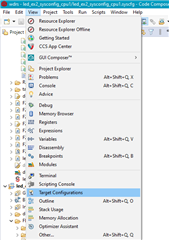
    2. Click 'view' > 'target configurations':
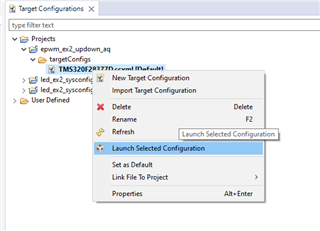
    3. You can import a project for this device to CCS and use that to connect to the device, or copy the raw target config from C2000Ware to the "user defined" target configurations in this window. Either way, find the device target config (example for F28377D below) and launch it:
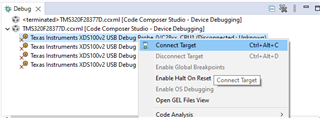
    4. When it brings up the debug window, select the device CPU and connect to the target:
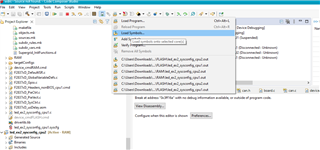
    5. Navigate to the toolbar and click the button to "load symbols"
    6. Load the bootrom .out file. For this device, it should be in C2000ware. For example, for F2802x: 
      1. C:\ti\c2000\C2000Ware_5_04_00_00\libraries\boot_rom\f2802x\v2_0\rom_sources\Release\TMS320x2802x_boot_rom_Gold_v200.out
      2. If a window pops up saying it can't find the source file, you can select "Locate File" and find it in C2000Ware
        1. Usually here C:\ti\c2000\C2000Ware_5_04_00_00\libraries\boot_rom\f2802x\v2_0\rom_sources\source
    7. The file should open to show the location of the bootrom you are at, and you can step through/debug

    Best Regards,

    Allison