Part Number: TMS320F28P550SJ
Following are the ones in which one can configure the E-Meterology library on F28P55x/F28P65x based on their requirement.
- I want to enable single phase support - By default the library enables 3 phase support. If you want to enable single phase support instead then you can follow these steps.
- Go to the template.h file in the E-Metrology library and make the change to enable SINGLE_PHASE_SUPPORT.
Change from this:-

To this :-

- Also, go to empty_driverlib_main.c and comment out the following lines

With these changes, rebuild and run the library.
These changes will indeed help us to free some RAM. For some context, here is a comparison between the memory allocation when 3 phases are enabled vs when only 1 phase is enabled.
Memory Allocation in CPU1_LAUNCHXL_RAM build with 3 phases support

Memory Allocation in CPU1_LAUNCHXL_RAM build with 1 phase support

As we can see, a portion of the RAMGS_ALL becomes available.
- Go to the template.h file in the E-Metrology library and make the change to enable SINGLE_PHASE_SUPPORT.
2. I don't want to calculate all the meterology parameters mentioned, I want to only calculate a subset of them .
You can choose which parameters you want the meterology library to calculate. You can enable and disable the support for them from template.h

3. Where can I see my Meterology Parameters values?
Once you have succesfully built the CCS project with the E-meterology Library, right-vlivk on the project and select Debug Project. Load the program on C28xx_CPU1.
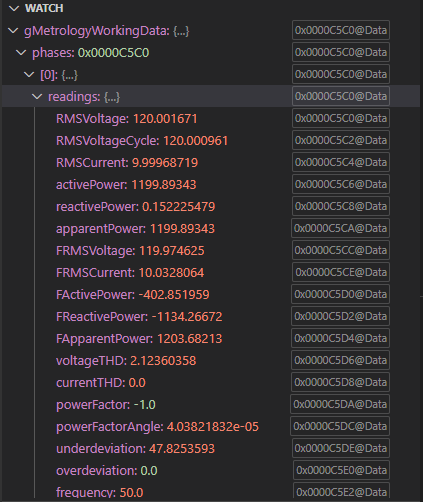
Once you have loaded the program, go to the Watch window and click on "+" option to Add Expression. Add gMeterologyWorkingData variable to the Watch space.
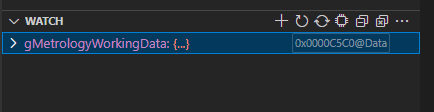
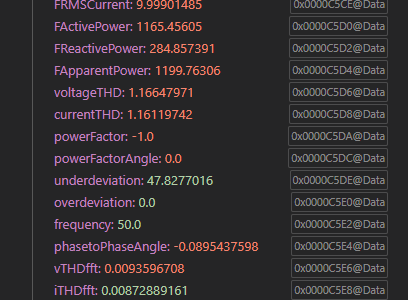
Under that you can choose the phase you want to monitor, and then click on readings. Make sure to enable continuous refresh option. Now you can click on "continue" and you can observe the changing parameter values.