TMS320F28P650DH: CCS does not recognize the C2000 ware

Part Number: TMS320F28P650DH
Other Parts Discussed in Thread: C2000WARE

Hello,

I have copied a complete project (developed with CCS12.6.0.00008) the another notebook. On this machine CCS12.6.0.00008 is also installed. In this project I need some includes from the C2000Ware 5.04. During the first compilation attempt, this c2000ware was not yet installed, so I received an error message. So I have installed the C2000Ware 5.04 on this machine (see screenshots) in the default directory.
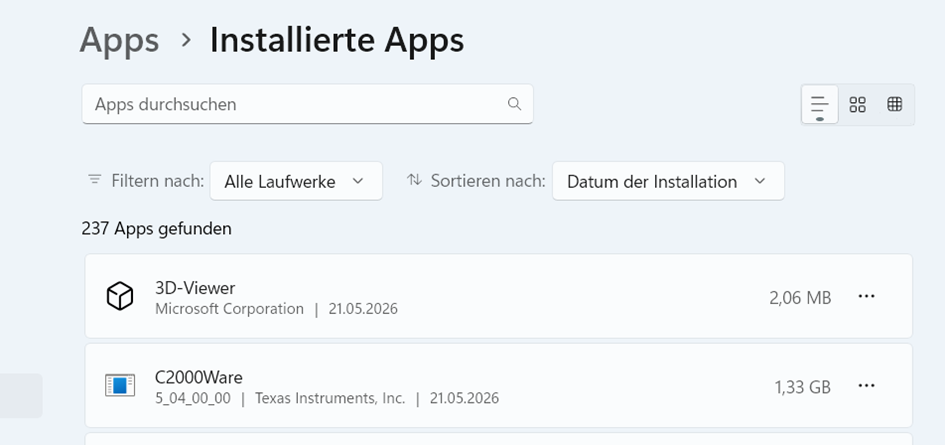
grafik.png

grafik.png

Although the correct C2000Ware 5.04 is now installed, I get the same error message. I have restarted the notebook, but this doesn’t help.

grafik.png


Why is the C2000ware 5.04 is not recognized from the CCS12.6?


Thank you very much.


Ralf

  • Hello Ralf,

    This is a common issue when moving projects between machines. Even though C2000Ware 5.04 is properly installed, CCS needs to be made aware of the installation. Here are the solutions in order of likelihood:

    Solution 1: Update CCS Product Discovery (Try this first)

    1. In CCS, go to Window → Preferences
    2. Navigate to Code Composer Studio → Products
    3. Click "Rediscover Products" or "Refresh"
    4. CCS should now detect C2000Ware at C:\ti\c2000\C2000Ware_5_04_00_00
    5. Click Apply and OK
    6. Clean and rebuild your project

    Solution 2: Manually Update Project Include Paths

    Since you copied the project from another machine, the include paths may still reference the old directory structure:

    1. Right-click your project → Properties
    2. Go to Build → C2000 Compiler → Include Options
    3. Update all include paths to point to C:\ti\c2000\C2000Ware_5_04_00_00...
    4. Remove any paths referencing the old machine
    5. Apply and rebuild

    Solution 3: Update C2000Ware Product Variables

    1. Go to Window → Preferences → Code Composer Studio → Build → Variables
    2. Look for C2000WARE_ROOT or C2000WARE_INSTALL_DIR
    3. Update to point to C:\ti\c2000\C2000Ware_5_04_00_00
    4. Apply and rebuild

    Solution 4: Repair C2000Ware Installation

    1. Close CCS completely
    2. Run the C2000Ware installer again
    3. Choose "Repair" or "Modify"
    4. Ensure it registers with CCS during installation
    5. Restart CCS and rediscover products

    I recommend starting with Solution 1 as it typically resolves this issue quickly. If that doesn't work, proceed to Solution 2 to manually update the include paths.

    Please let me know which solution works for you or if you need additional assistance.

    Best Regards,

    Zackary Fleenor

  • Dear Zackary,

    solution one was already succesful. 

    Thank you very much

    Ralf