This thread has been locked.

If you have a related question, please click the "Ask a related question" button in the top right corner. The newly created question will be automatically linked to this question.

Workshop Guide, F2837xD-TTO

Other Parts Discussed in Thread: TMS320F28377D

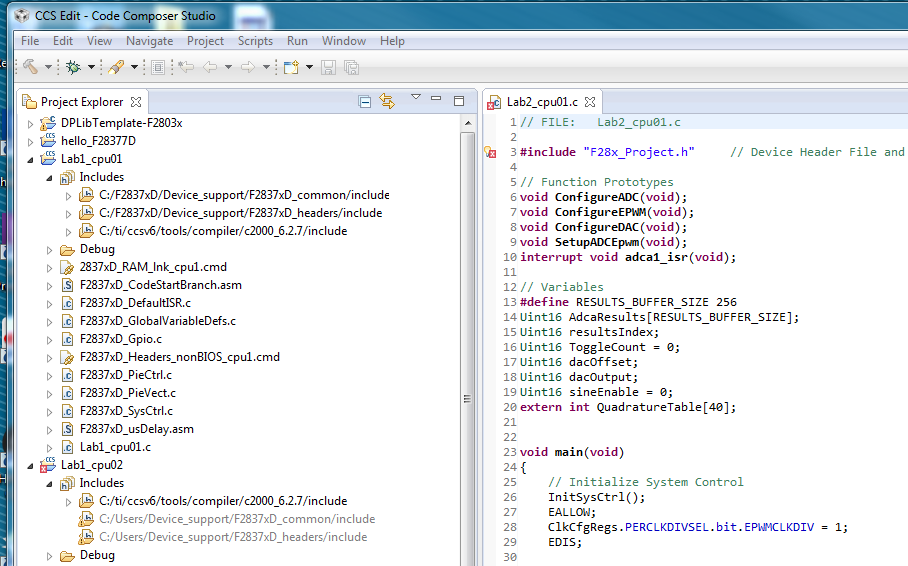
I am working through the F2837xD workshop Guide.  The first Lab is to blink two LEDe, each controlled by a different processor.   CCS will not let me add files to the project for CPU2.  The code will blink the LED using CPU1.  When looking at the Project Explorer window, the Include files for Lab1_cpu01 are listed and used ok during the build of the code.  Two of the three Include files for Lab1_cpu02 are listed, but grayed-out.  When I us "Add Files" to add the files to Lab1_cpu02 a window pups up with the message: "Could not add:" then it list the files I am trying to add.

  • Roger,

    Could you please let me know what development kit and which version of CCS you are using?  Also, can you confirm that you are installing the workshop labs in the default location (i.e. C:\F2837xD)?  In lab 1 you need to create the Lab1_cpu01 project, which you did and it looks like it is working.  Then you need to import (not create) Lab1_cpu02 project.  Did you import the project or try to create a new one?

    I did some more testing and noticed an issue that may be related to CCSv6.1.3, but I need to investigate this further.  The workshop materials were built using CCSv6.0.1, and I tried to run the labs on CCSv6.1.3.  When I imported the projects using CCSv6.1.3 I noticed some of the build settings changed.  For example, when viewing the properties the device variant changed from "TMS320F28377D" to "TMS320C28xx.F28377D" and I needed to change the linker command file to <none> again. After making the changes everything worked fine.  If you are using CCSv6.1.3 could you please let me know if you experienced the same issue?

    - Ken

  • Hi Ken,

    Thanks for looking at this with me.

    The kit has the F28377d controller card with Docking Station R4.1.  The Lab Manual is F2837xD-TTO Revision 1.1.  I am using CCSv6.0.1.  When doing the first lab, I did each of the steps.  I did import Lab1_cpu02 the same way Lab1_cpu01 was imported.  I did notice that Includes sub-directory in the Lab_cpu01 Project, (the file that runs), has three file references.  The same sub-directory in the Lab_cpu-02 project has the same three file references, but two are gray.  Could this be the issue and how did I create the problem?

    I also found that when running "Make" and I get error "cannot open source file "XXX" " I need to remove file XXX and re-add the file.  In the lab there is not a step to the files I am missing.

    Roger

  • Roger,

    Thanks for the quick reply.  I noticed the paths for the two references in question are NOT the same as for the Lab1_cpu01 project - C:/User/... should be C:/F28377D/... .  This is most likely the cause of your problem.  You could fix the path and it should work.  But, since the Lab1_cpu02 project is imported (and not user created for this lab exercise), there might be an issue with your CCS workspace.  To test this, delete (or rename) the "workspace_v6_0_1" folder.  This folder will get recreated when you start CCS again.  After starting CCS you will need to set your taget configuration active - see step 5 in the lab directions.  Next, either import the "solution" lab 1 or your lab 1.  You might want to try the solution first, but your choice.  Note, you can import both projects for CPU1 and CPU2 at the same time (see Lab 4, step 1, on page 90 for reference).  Did this help?

    - Ken

  • Hi Ken,

    I clicked on the wrong link in the email and unsubscribed. This was an error. How do I set e2e to email me when I get a replay?

    I will be a littler time before I can make the changes you suggested.

    Roger
  • Roger,

    I think all you need to do is log in, select settings, and then update your E2E email preferences.  I hope this helps.

    - Ken

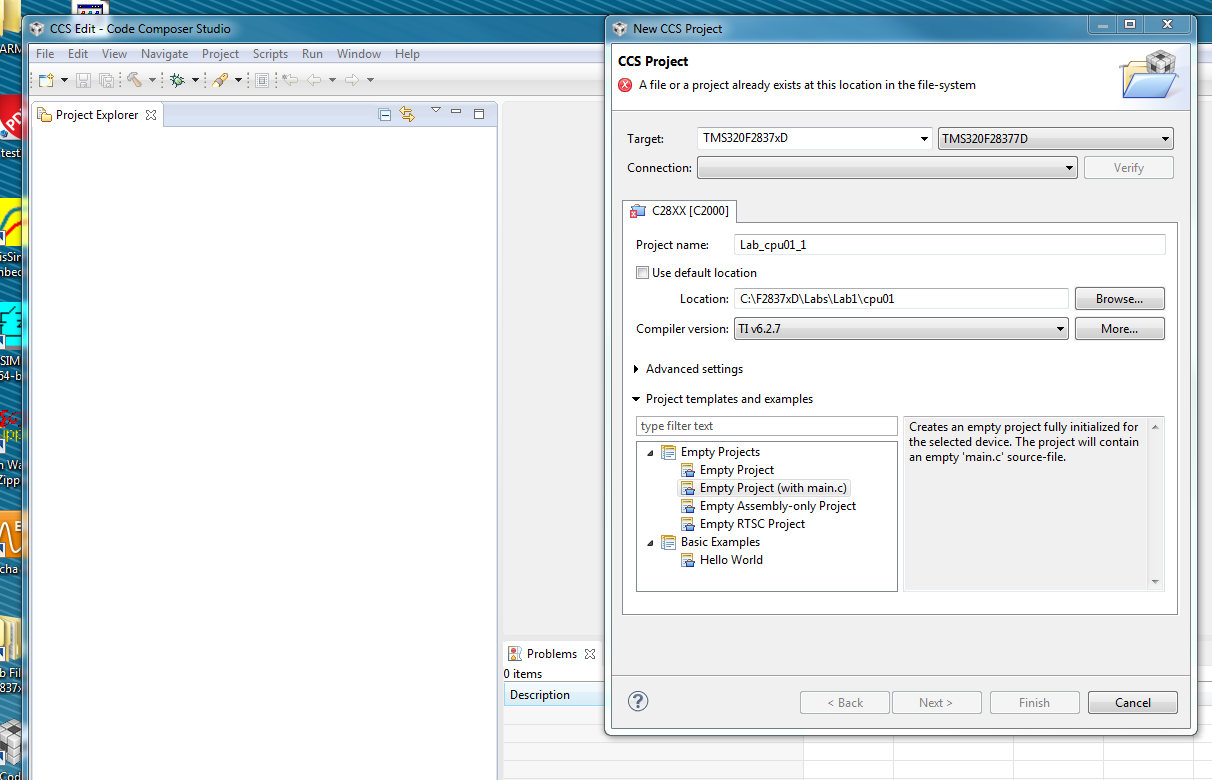
  • I renamed the workspace as "old" and updated the Target Configuration File of the workspace.  Take a look at the screen shot.  In the lab the next step is to create a new project.  When I Browse to the Lab1\cpu01 file there is an error: file/project exists.  I do not see the file or project. 

    This is a little confusing.  This first time through the lab the project could be created.  I am not sure why it will not add now.  If it is possible to make software not work, I can find a way.

    Thanks again for your help.  I know this must be a simple problem.

    Roger

  • Roger,

    If you want to create the project again in the cpu01 folder, then delete the .project, .cproject, .ccsproject files, and the .settings and debug folders from the cpu01 folder.  To make it simple just delete everything in the folder (i.e. empty folder) just like it was when you started.  You could also uninstall and then reinstall the lab files to get a clean start.

    - Ken

  • Hi Ken,

    Thanks for the help. Lab 1 is blinking both LEDs. The fix was to delete the files and start the lab over. I think the Includes director was not setup correctly. I could have set the include files location wrong the first time through Lab1 instructions. Thanks again for the help.

    Roger
  • Roger,

    I am glad you got it working.  Thanks for letting me know.

    - Ken