This thread has been locked.

If you have a related question, please click the "Ask a related question" button in the top right corner. The newly created question will be automatically linked to this question.

TMS320F28035: Uniflash verify function with password

Part Number: TMS320F28035
Other Parts Discussed in Thread: UNIFLASH,

Dear TI team,

I want to check use Uniflash verify function (with password) is ok or not? (Device: TMS320F28035)

My step as belop:

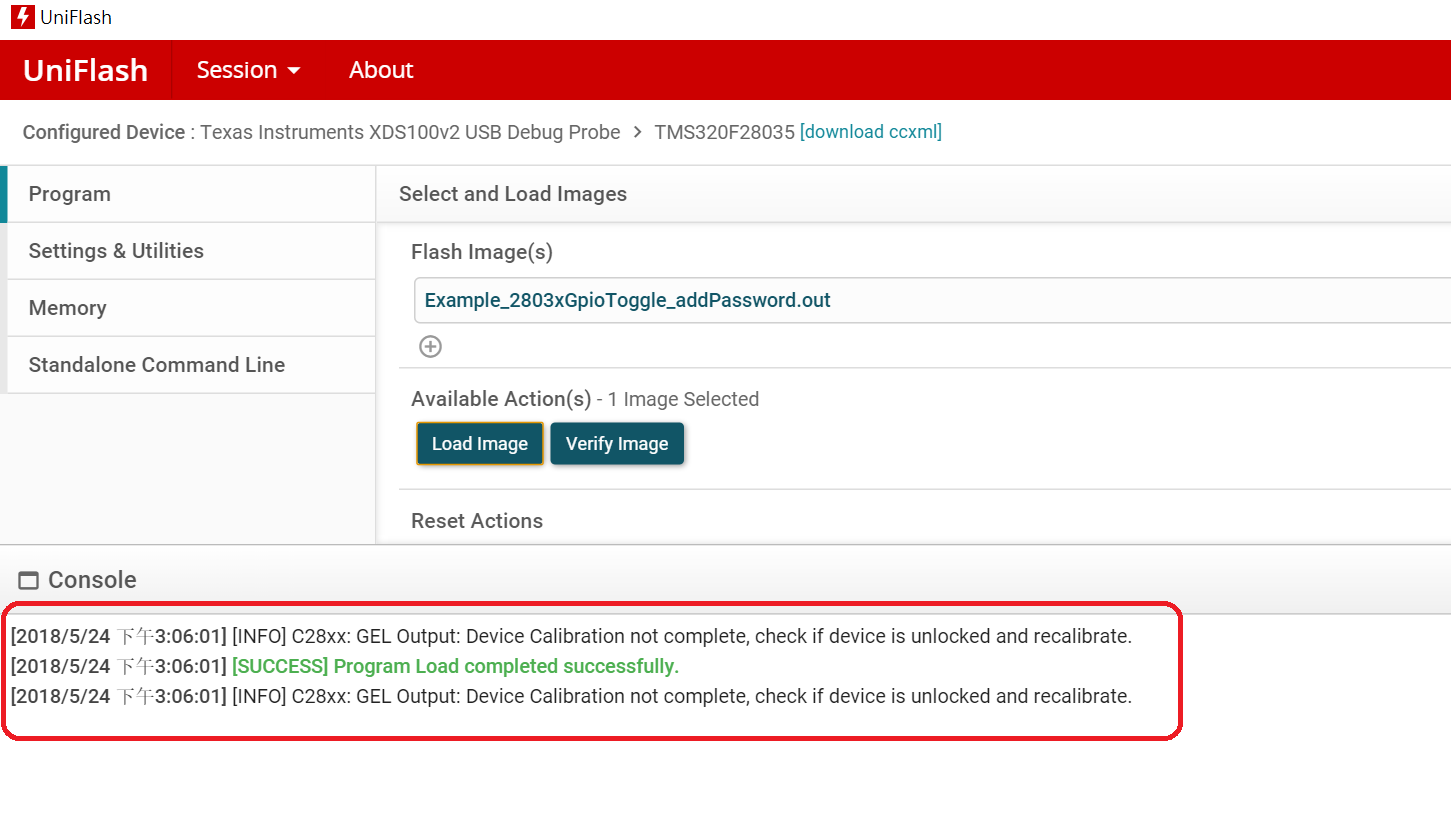
1. Use Uniflash program the code (Load button) : Uniflash -> Program -> Select Flash image -> Load image (Button). ---OK

2. Set EVM boot mode to "wait mode" 

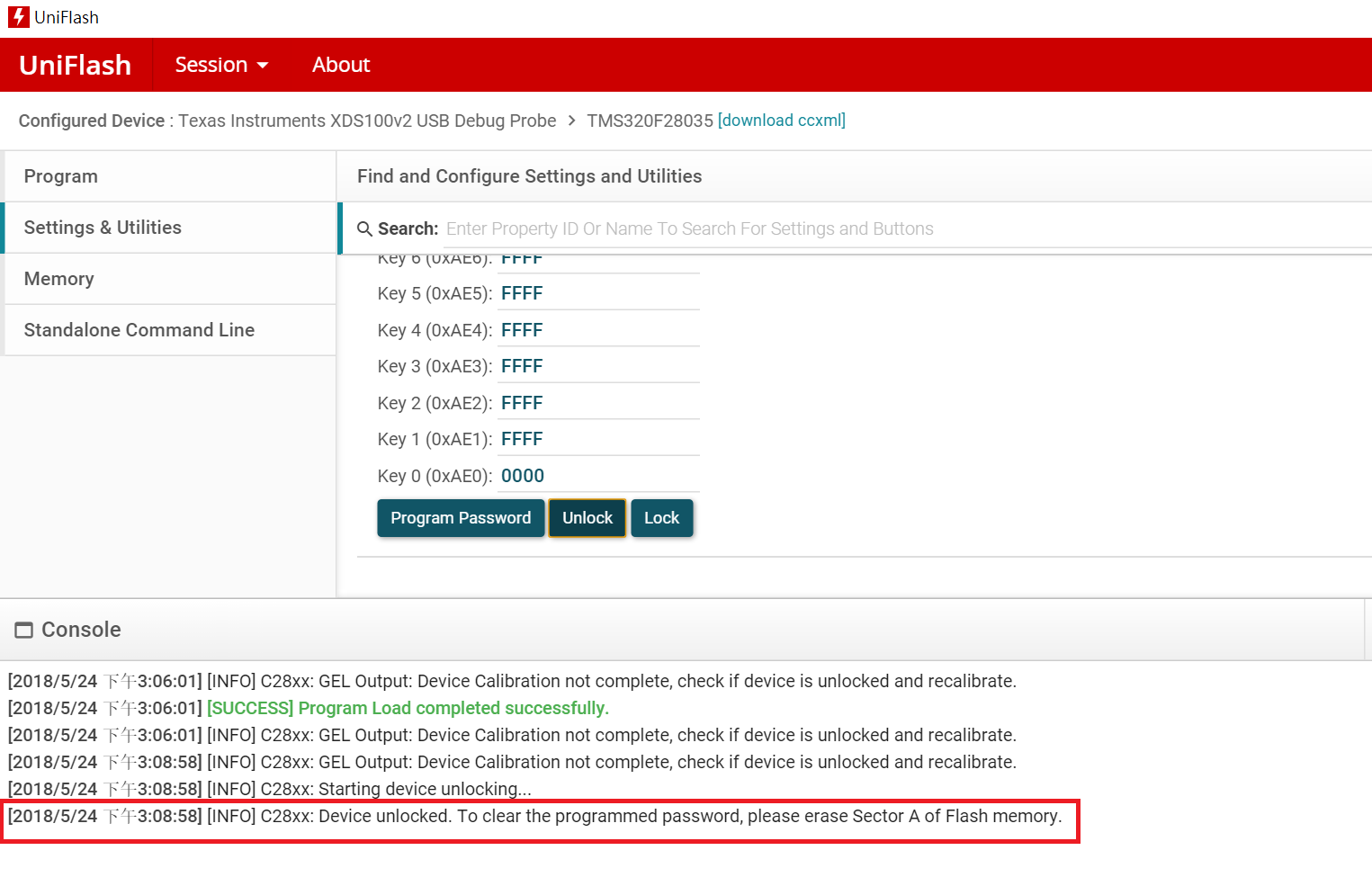
3. Unlock chip : Setting & Utilities -> Code Security Password -> Unlock Button). ---OK
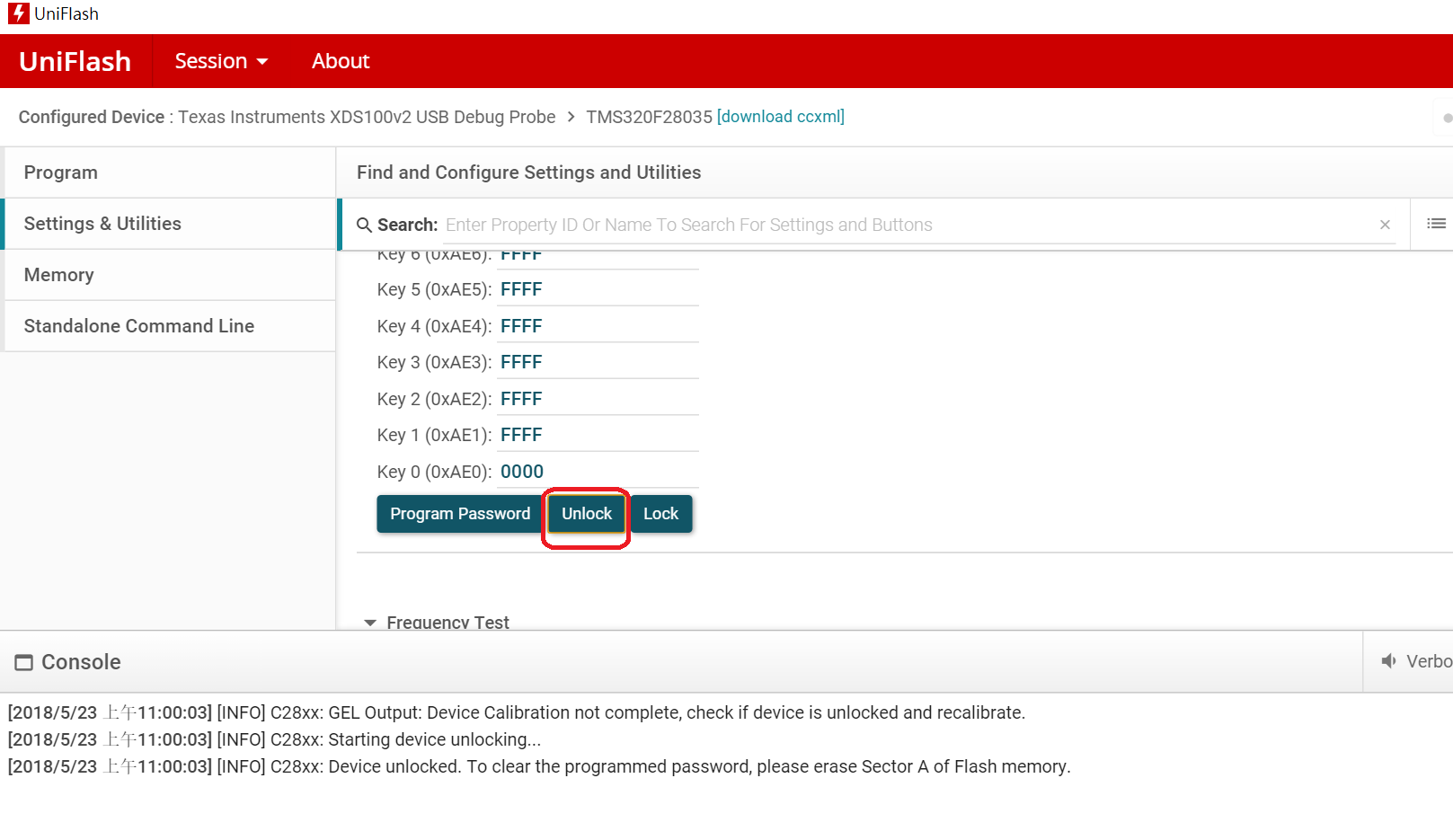
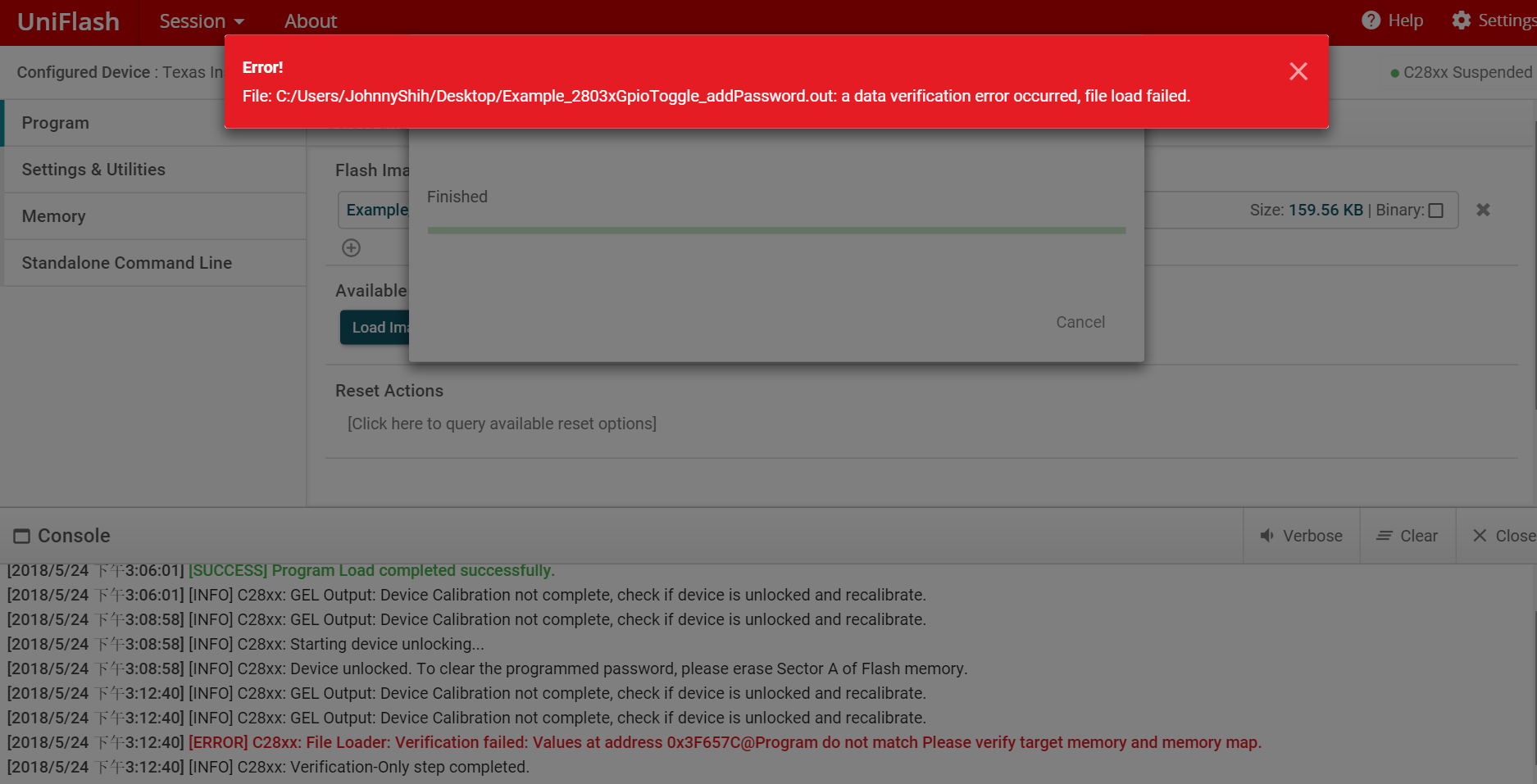
4. Veirfy : Program -> Verify Image (Button) --- Get fail massage
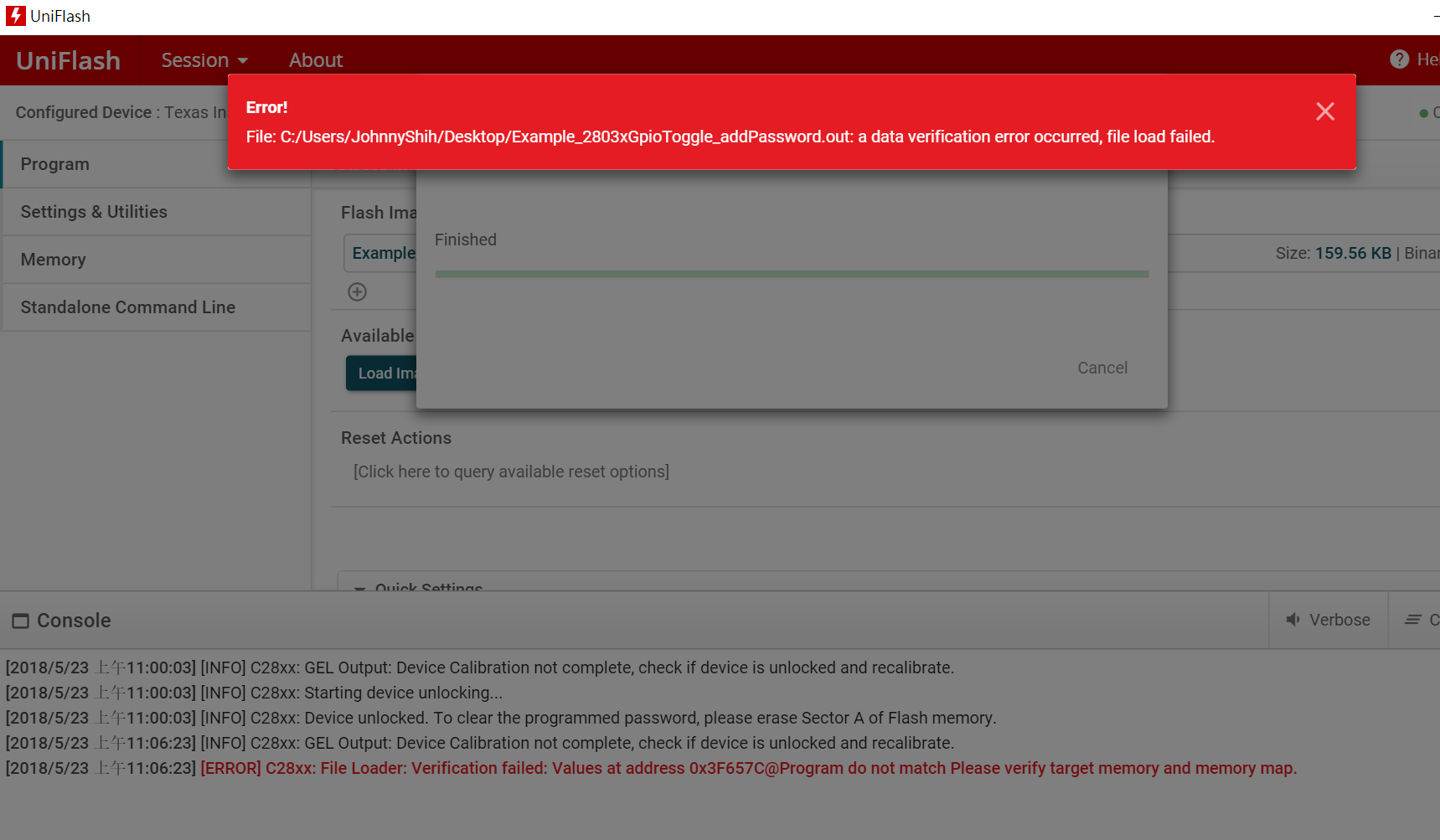
I can't use UniFlash verify Flash when it have password.

Please help me check it.

  • Hi,

    After unlock, can you open the flash locations in memory watch window and see if you are able to read the correct value?

    Regards,
    Vivek Singh
  • Johnny,

    The standalone verify operation (ie; clicking the "Verify Image" button) does not actually invoke a "unlock" step. This is a known bug and is currently tracked internally in our system.

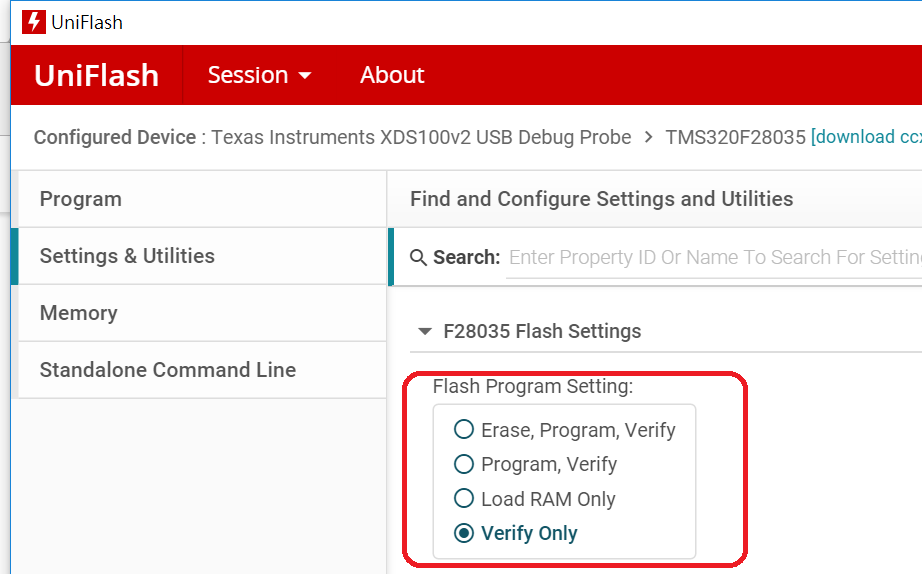
    In the mean time, you should be able to work around this by instead going to the "Settings & Utilities" tab, change the "Flash Program Setting" to "Verify Only", go back to the "Program" tab, and clicking the "Load Image" button (instead of the "Verify Image" button). This should invoke the unlock sequence before going to the "Load Image" step (but will perform "Verify Only" because of the setting).

    Can you try this and let me know if this works for you?

    Thanks,
    Ricky
  • Dear Ricky,

    As your suggest, I had test it in my site,

    but I got the same fail message, as below step:

    1. Program .out file (with password) -> OK

    2. Set EVM boot mode to "wait mode" 

    3. Unlock chip : Setting & Utilities -> Code Security Password -> Unlock Button). ---OK

    4. Setting & Utilities -> F28035 Flash settings -> select "verify only"

    5. Program -> Load image (button) 

         -------> Got error message.


  • Dear Vivek Singh,
    The solution will provide to our customers to use for mass production line.
    We can't read and compare each one (one by one) in mass production line.
  • Dear Ricky,
    Could you have any suggest?
  • Johnny,

    I just tried this out on my F28335, and it seems that the "Verify Only" option does not actually invoke an unlock. I'm sorry for the confusion.

    Here's an alternate solution:

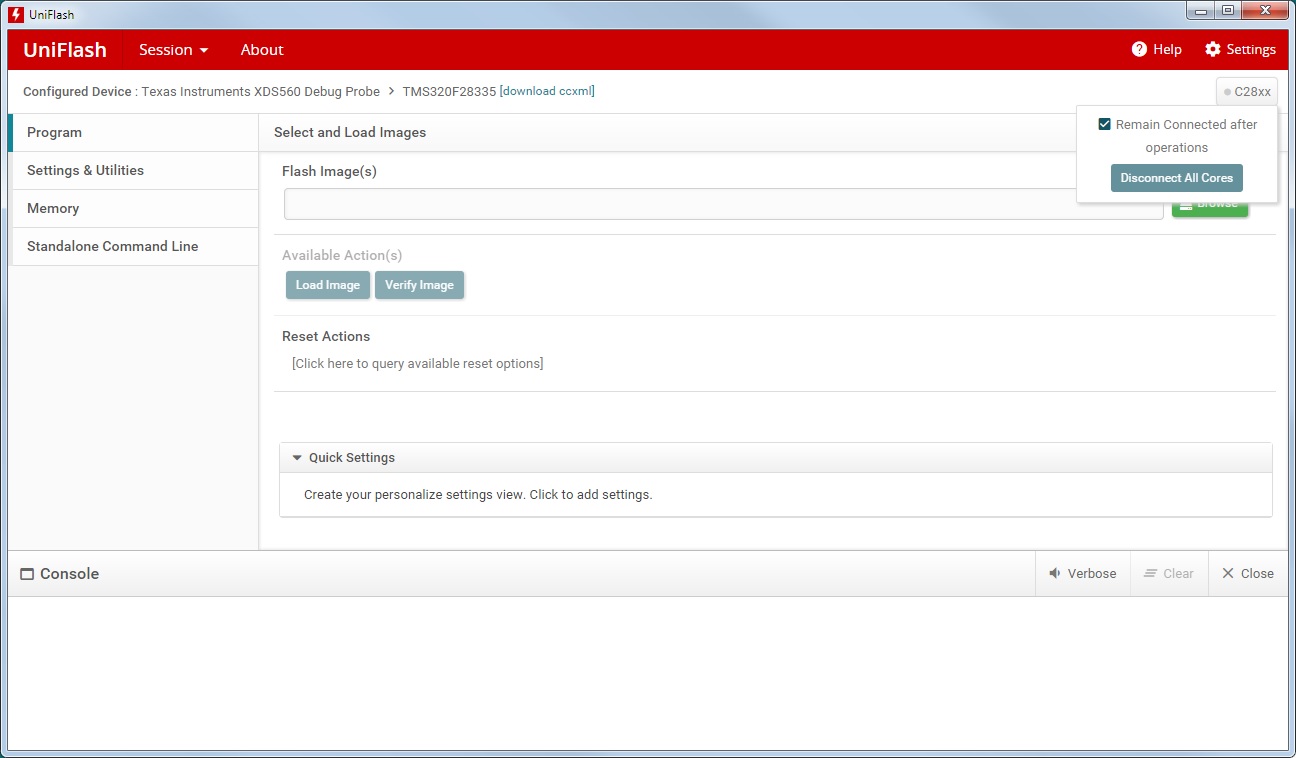
    1. Turn on "Remain Connected after operations" option. See screenshot on location of the option in the GUI.

    2. Enter your password, and hit the unlock button.

    3. Select your image and hit "Verify Image".

    The target will remain connected after the unlock, and therefore it should still be unlock during the verification.

    Please let me know if this works for you.

    Thanks,

    Ricky

  • Dear Ricky,

    Does the EVM need set to "wait mode" for this solution?

    I had test it should be set to wait mode.

  • Johnny,

    I'm not sure if wait mode needs to be set. I did not change the wait mode on my board when I tested it. Maybe Vivek can provide more information on this.

    Thanks,
    Ricky
  • Dear Ricky,
    OK, Thanks a lot your help.