


Part Number: C2000WARE-MOTORCONTROL-SDK
Other Parts Discussed in Thread: C2000WARE, MOTORWARE
The Ti example projects and labs that come with C2000Ware use linked resources for their source code. If you modify that code then you are modifying the only copy of that code on your computer. If you wish to build multiple projects off of the SDK then then you need to create separate instances of C2000Ware. This will take up a lot of space, but with modern hard drives this might not be a big deal. However, if you wish to share that project with someone else, you will find yourself transferring a directory structure that is over 1GB.
So, several years ago I converted a handful of InstaSPIN labs from MotorWare to be compact, standalone projects. They contained all the source code in a single directory and used no linked resources, so I could easily transfer them to another computer (or sometimes to another person). You can find that thread here:
https://e2e.ti.com/support/microcontrollers/c2000/f/171/t/529701
In that post, I detailed how to take the Ti InstaSPIN projects and labs in MotorWare and convert them to a standalone project. Now that the C2000Ware Motor Control SDK is more popular, I've been getting some questions about how to do this with the new project structure. This post is an updated version of the old thread, specific to the new C2000Ware structure.
I did find that CCS allows you to open a project containing linked resources and then export that project to a .zip file. That .zip file includes copies of all the linked resources. I was really excited to find this because I thought it solved the problem. However, that doesn't work for the Ti labs because the compiler finds the header files through the include path, and the resources are not explicitly linked in the CCS project.
For the record, I'm still using the 28069, 28335, and 28027. While they do "work" with the new C2000Ware, there are no new SDK projects written for these processors. Therefore, it is important to say that I CANNOT test this on a real board. I can compile everything OK and I assume this is a sound process; I just can't test it on hardware. I’m using the introductory lab, is01_intro_hal, because someone else specifically asked me for that conversion. I’m using the C2000Ware Motor Controk SDK version 3_00_00_00.
The goal here is to make copies of all the required source code (and ONLY the required source code) and then remove the linked resources from the CCS project. We will also update and reduce the include list, so that we are certain CCS isn’t using the original files.
For clarity, here’s a quick glossary:
Project Explorer: This is the Project Explorer found inside CCS.
Ti filesystem: This is the directory structure created when you installed C2000Ware.
Workspace: This is your CCS Workspace that you create, preferably outside the Ti filesystem.
Project directory: This is the directory that is created when you import the example project into your Workspace. You access it using your favorite file explorer.
After each of these numerical steps (1, 2, 3...), you should be able to compile successfully. If not, you made a mistake. Or, I made a mistake. I split some steps in to a,b,c for clarity, but they are not stopping points for a successful build.
OK, let's go.
1. Open up CCS and create a new Workspace. For this project, I created a Workspace called testLab and just dumped it on my Desktop. Once this is finished, you should be able to move the project directory to anywhere you like (the same is NOT true for the Workspace), but it’s probably best if you do this in its intended location from the beginning. Import the project that you wish to convert. I’m using project is01_intro_hal, located at C2000Ware_MotorControl_SDK_3_00_00_00\solutions\boostxl_drv8320rs\f28004x\ccs\sensorless_foc.
Your Project Explorer should look like this: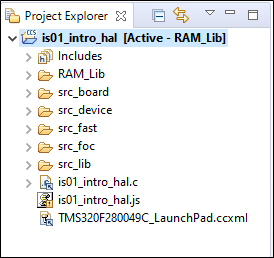
…your Workspace should look like this: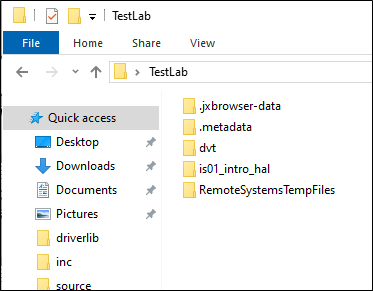
…and your project directory should look like this: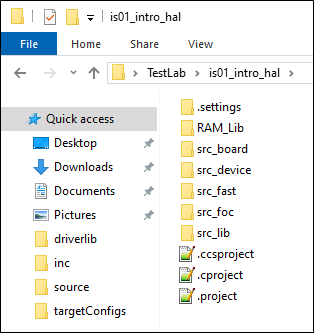
2. We’re going to start with the three files in the project root in Project Explorer. You can tell from its icon that is01_intro_hal.js is an unresolved link. I can’t find this anywhere in the C2000Ware installation, so I just deleted it in Project Explorer. You’ll notice that the other two files are linked resources. In Project Explorer, highlight and copy them. Now go to your project folder (remember…this is the one you access using Windows Explorer or whatever directory navigator you like to use) and paste them. Your project folder should now look like this: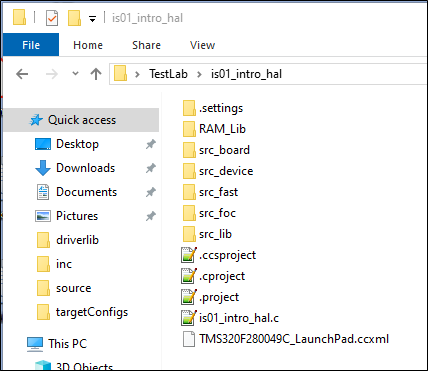
3. Back in Project Explorer, delete the two remaining files. They will reappear shortly. If not, try refreshing the list in CCS. Your Project Explorer should now look like this. Notice that the two resources are no longer linked.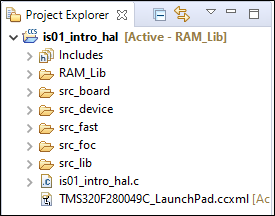
4. Repeat the above steps to copy the files and delete the links in src_board, src_fast, and src_foc to the corresponding locations in your project directory.
5. src_device is more complicated because some of the files here are for a RAM build, and some are for a FLASH build. You can tell because some of them are grayed out, meaning they are excluded from the active build.
a. Copy the files into src_device in your project directory.
b. Set your build to be a RAM build and make note of which resources are greyed out. CAUTION: These resources might re-order themselves when we switch to a FLASH build. I hit print-screen and copied it into MS-Paint. Now, set your build to FLASH and make note of which files are excluded. You can change the active build by clicking the arrow next to the hammer icon on the toolbar.
c. Now delete the files in Project Explorer. When the repopulate, they will all be active.
d. For the active build, select the files to exclude, right-click them, and select “Exclude From Build”. Do the same for the other build.
6. Likewise, src_lib is more complicated. This time, there seems to be a dependency between library files that are not otherwise included in Project Explorer. This is the step that gives me the most concern. After the simple file copy, the linker threw an error because driverlib.lib requires driverlib_coff.lib. So, I went and got driverlib_coff.lib, and found another file driverlib_eabi.lib in that same directory. But, when I copy driverlib_eabi.lib to src_lib, the linker throws an error that the eabi and coff libraries are not compatible. If I don’t copy the eabi library (or if I exclude it from the build) then everything is fine. Presumably there is a different use for the eabi file, but I don’t know what it is. If Ti can clarify this then I’ll revise this step. For now, I assume that your project requires the coff library but not the eabi library.
a. Open up src_lib in Project Explorer. Open up the properties for driverlib.lib and make note of its location in the Ti filesystem. Copy the two files and delete the linked resources as before.
b. Go to the directory in the Ti filesystem where driverlib.lib was located, and copy driverlib_coff.lib into src_lib in your project directory.
Now we’re moving on to the header files. In the MotorWare version, all the .c files were in the root directory so it was natural to just create a \headers directory and dump them all there. For organizational reasons, I prefer to have the header files located with their .c source. However, the resources here are not independent, so for each group of header files you create, you’ll need to add that location to the path so that the compiler can find them. In addition, we have header files that are not associated with a .c file, so you’ll need to decide where those should go. For this write-up, to keep things simple I just created one repository for all the headers and put it in the root project directory.
You can do these following steps in several ways. The way I describe was just what came to mind as the most methodical way for me to get this done without missing anything, but also without including anything unnecessary. Like before, I rely heavily on the compiler and linker to tell me when something is missing. Still, it’s infinitely faster than it was with MotorWare because the calls to the header files don’t include much, if any, directory information. Thus, when we add the header directory to the include path, things will fall into place much more quickly.
7. Create a directory (or directories) for your header files in the project folder.
8. The whole point here is to eliminate all references to the Ti filesystem. If you open the includes folder in the Project Explorer, you’ll see a TON of paths in the Ti filesysem, and a few others: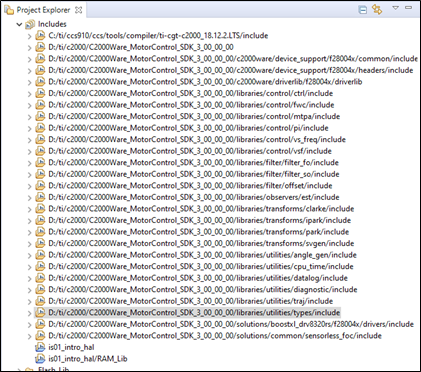
We’re keeping the CCS path because that’s not part of C2000Ware (and we need it for the standard libraries), and we’re keeping the two paths to our project directories. We need to add the header directories. In the main menu, go to Project->Properties. Under Build->C2000 Compiler->Include Options, add the header directory (or directories).
9. Pick a Ti filesystem path to delete. I’m going to start with an easy one, like the pi-controller path (..\libraries\control\pi\include).
a. Make a note of its location, and go to that location in your file explorer. Then delete the path from the list of include options and select “Apply and Close”.
b. Try to build the project. It won’t build now because it can’t find pi.h, so copy pi.h to the appropriate headers directory. Now the project should build.
This one was easy because it was only one header file. Also, you could have just seen the one header file and copied it to the headers directory. By the time you reach the end of all the includes, this alternate approach will be WAY faster. However, sometimes there are header files that are in the include path but not needed. Remember that we’re trying to produce a MINIMAL set of files, so we don’t want to include anything that’s unnecessary. One example is that I didn’t need to include dlob_4_ch_f.h to get a complete build. There were others.
10. We need to carefully address what happens when you delete the C2000Ware root path. There are two math.h files in use by the project, and we need to keep them separate. When you delete the C2000Ware root path you’ll get an error that CCS can’t resolve
#include “libraries/math/include/math.h”
If you copy that math.h file into the headers directory and then modify the #include directive then you’ll have two math.h files that are directly accessible in the include path, and CCS will have problems.
These steps are my easiest solution. It also saves some time because just about every file references that math.h, so I didn’t need to modify any of the #include directives because the project root is already in the include path. There is a better way for structure and organization, but it is more tedious. This way seems to work.
a. Delete the C2000Ware MC SDK root path.
b. Create this folder in your project directory: “..libraries\math\include”
c. Copy math.h from {C200Ware_MCSDK}\libraries\math\include into the new directory you just created
11. Repeat step 9 for the rest of the C2000Ware directories in the include path. Some files are referenced to a specific directory. For example:
#include “inc/hw_memmap.h”
For these I just made a subfolder titled “inc” under the headers folder and put those files there. Again, I would prefer a different structure personally, everyone has their own preferences anyway and this at least gets it working.
When it’s all done, your include path should look like this: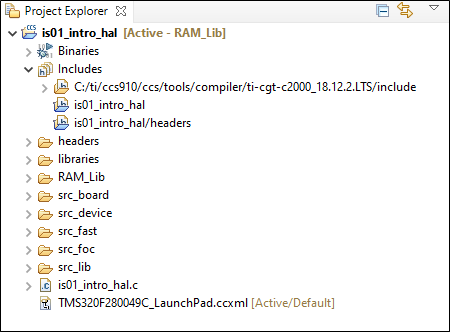
That’s the end of it. If it doesn’t work, start over. I failed a few times. All in all, it took me about an hour to do this, not counting the write-up. I’ll try to respond to any questions.
Thanks to user Kuan, who motivated me to write this up, and is probably still testing it. If it works for him, or if someone else can confirm that this works on hardware, then I'll post a .pdf copy.
Matt