This thread has been locked.

If you have a related question, please click the "Ask a related question" button in the top right corner. The newly created question will be automatically linked to this question.

TPS53688: How to do batch programming for TPS53688 devices

Part Number: TPS53688


Hi TI experts,

I have 3pcs TPS53688 devices used in my design and on the same PMbus with different address.

I can program them individually by project file (xml format) but takes much time for programming.

How to batch program them? Looks batch programming with "system file" is not working.

Please suggest.

Thanks

Neo.

  • Hi Neo,

    You can generate an NVM config script in Fusion GUI by going to File->Export in the device config menu, then selecting "NVM config script". This will allow you to generate a .csv file with the PMBus commands to directly program the NVM of the device.

    For multiple devices, you should be able to go to File->Export to MFR Script in the system view. This allows generation of an xml for bulk programming of whole boards.

    Thanks,

    Travis

  • Hi Travis,

    I have 3 TPS53688 devices in my design.

    1. With Fusion GUI 7.9.3, these devices can be scanned, but even i don't modify anything, when i close Fusion GUI, it requires me to confirm the changes to devices. Is this a Fusion GUI issue?

    2. To generate MFR xml file for batch programming, is below options are selected correctly?

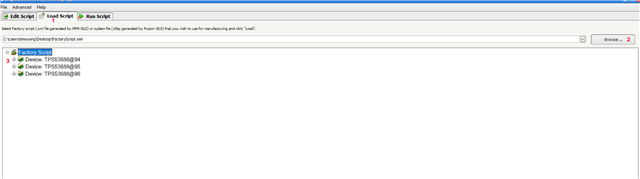
    3. When open "Manufacturing APP", will it scan the on-line TPS53688 devices? if so, where to check if these devices are scanned correctly?

    4. After Loading from "Manufacturing APP", all the configuration are STORED into NVM and no further action is needed, right?

    Thanks

    Neo

  • Hi, Neo,

    1. Fusion GUI warns about the potential of changes in hardware might not be in NVM yet because "STORE to NVM" command is not detected since GUI launched. If you have not made any changes in hardware, just ignore the message.

    2. Exporting to MFR GUI script file: "Store Default before exporting" is recommended to make sure configuration in hardware and NVM are IN sync. "Add Store Default step after import" is not necessary since we import the USER_NVM to device's NVM. 

    3. After loading the MFR script to MFR GUI, when click on "Start" button, GUI will scan for devices. If devices' address match addresses defined in the script, will start importing configuration. If addresses do not match,  then report a failure (device not found).

    4. After importing, if success, the configuration will be in NVM.

    Regards

    Anne Ngo

    Texas Instruments

  • Hi Anne,

    1. Actually, under device config page, even STORE TO NVM after any modification, then when closing the Fusion GUI, it still warns. Hope this warning can also be ignored.

    Thanks

    Neo

  • Hi, Neo,

    Please ignore the warnings if you already do so. We will fix the warnings in the GUI.

    Thanks and regards

    Anne Ngo

    Texas Instruments