This thread has been locked.

If you have a related question, please click the "Ask a related question" button in the top right corner. The newly created question will be automatically linked to this question.

Why CCSv4 debugger not launching in 64-bit Windows 7?

Other Parts Discussed in Thread: CCSTUDIO

Hi,

My laptop got migrated from Win XP to 64-bit Windows 7, so I had to re-install CCSv4 4.2.4. It gets installed successfully, but the problem is with launchinh of debugger for TCI6616 Function Simulator as target.

I have used CCS simulator before in Win XP environment earlier with no issues.

To ensure that there are no installation rights issues, I have set UAC to lowest level (no notifications) and user rights as administrator and so no issues reported in installation.

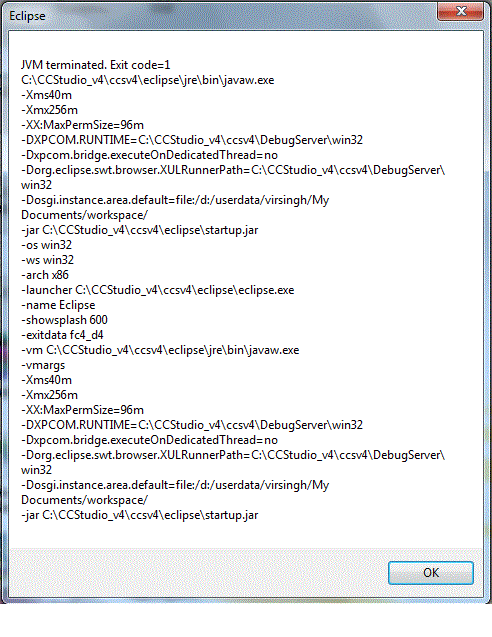
However when I launch debugger, I get following error and Code composer studio program exits.

JVM terminated. Exit code=1

C:\CCStudio_v4\ccsv4\eclipse\jre\bin\javaw.exe

-Xms40m

-Xmx256m

-XX:MaxPermSize=96m

-DXPCOM.RUNITIME:C:\CCStudio_v4\ccsv4\DebugServer\win32

-Dxpcom.bridge.executeOnDedicatedThread=no

... and son on

I went through other threads in the form, but could not find its resolution. The other issues are related to emulator drivers etc, but I am facing problem with debugger launching for simulator as target.

Many thanks for help.

Virendra


I installed CCSv4 version 4.2.4 on 64-bit

  • It sounds like the debugger is crashing as it tries to start. It would be useful to get the crash dump file if one has been created.  If you open the Help -> CCS Support Activities menu, select the Debug Server Dump files item, and click view, it will take to  you the appropriate folder. Please post any dump files found here.

    You might also consider using a more recent version of CCS if possible. The current version is v5.3.0.

  • Hi Andy,

    Thanks for getting back on this. There were no logs for Debug Server Dump files, but the Eclipse log file was found for Help -> CCS Support Activities -> Eclipse Log. Please find the contents below:

    !SESSION 2012-12-29 20:01:35.259 -----------------------------------------------
    eclipse.buildId=4.2.4.00033
    java.version=1.5.0_14
    java.vendor=Sun Microsystems Inc.
    BootLoader constants: OS=win32, ARCH=x86, WS=win32, NL=en
    Command-line arguments:  -data D:\userdata\virsingh\My Documents\workspace -os win32 -ws win32 -arch x86

    !ENTRY com.ti.ccstudio.debug.core 4 0 2012-12-29 20:04:11.579
    !MESSAGE Error: Failed to create TPI_DISASM
    !SESSION 2012-12-31 09:01:30.472 -----------------------------------------------
    eclipse.buildId=4.2.4.00033
    java.version=1.5.0_14
    java.vendor=Sun Microsystems Inc.
    BootLoader constants: OS=win32, ARCH=x86, WS=win32, NL=en
    Command-line arguments:  -os win32 -ws win32 -arch x86

    !ENTRY com.ti.ccstudio.debug.core 4 0 2012-12-31 09:04:01.156
    !MESSAGE Error: Failed to create TPI_DISASM

     Please also find the debugger crash report as enclosed in file <CCSv4_Debugger_crash_dump.gif>


  • Virendra,

    Thanks for tracking that down.

    The error seems to point to a problem related to the disassembler, but that in itself doesn't add enough information. 

    One other file that could be helpful is the JVM error log. It is normally named "hs_err_pid<pid>.log" where <pid> is the process ID of the Java process. In CCSv4, this file is created by the JVM in the current working directory so  you may have to search a bit for it. The CWD is usually the ccsv4\eclipse folder.

    Some other questions about your installation:

    Is the disassembly view open when you start the debug session? If it is, could you close the disassembly view, restart CCS, and try starting the debug session again (without the disassembly view being open)?

    Have you applied any CCS updates after completing the 4.2.4 install?

    Failing to load this disassembly component might mean the Microsoft runtime libraries required for the component could not be found. To eliminate this possibility, you could follow this procedure:  reboot your PC (this is to ensure there are no pending updates as these can interfere with the runtime library installation); browse to the folder you extracted the CCS installation into (if you didn't use the off line installation package, you will need to download and extract it. Unfortunately, it is large in size); browse so "install_images\msvc" in this folder; run the two executables you find here and let them install.  Try to launch your debug session again.