This thread has been locked.

If you have a related question, please click the "Ask a related question" button in the top right corner. The newly created question will be automatically linked to this question.

CCS Run configuration

Hello,


I have been able to install CCS 6.1 and started with examples, and so far it is quite nice. My problem is that I am able to debug my programs, but there is no `flash` button like in CCS cloud. Debugging works perfectly, and I am able to debug variables, etc. In the cloud CCS, there is a flash button that just compiles the code and flashes the launchpad.

I understand there are build configurations for debug and release builds, and by setting a release build, then pushing to debug button, starting the debug, then disconnecting the debugger. But I want to do it with one button like in CCS cloud.

Best regards,

C.

  • In the desktop CCS, the Debug (green bug) button performs several actions as described here: 
    http://processors.wiki.ti.com/index.php/Debug_Handbook_for_CCS#Automatic_launch

    In addition, if you wish to run the code freely without halting at main (as per the default setting), then you can can customize that as mentioned here:
    http://processors.wiki.ti.com/index.php/Debug_Handbook_for_CCS#Auto_Run_and_Launch_Options

  • Hello

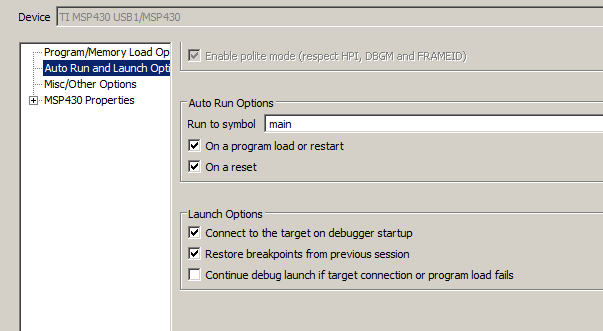
    Based on the input you provided I have done some experiments. When we have `run to symbol = main` with two check boxes checked, it will run in normal debug mode.

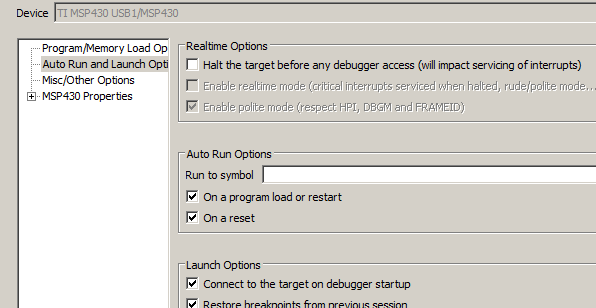
    But however, if the the `run to symbol` is empty, (with both check boxes still, on, or one of them on) - it will freely run, when debug button is pressed, which is what I want.


    However we can not assign those configuration for debug and release build separately. The settings at debug section are global, affecting both builds.

    I need something like: set the build (the hammer) to release: it will run freely, and if i set the hammer to debug, it will debug as normal.


    Also, in the documentation it states for free run: erase the main symbol, and uncheck both boxes. When I did that it did not free run, but debug.

    Best regards,

    Can

  • can altineller said:
    I need something like: set the build (the hammer) to release: it will run freely, and if i set the hammer to debug, it will debug as normal.

    What you can do is create two debug configurations, set one to "Run to main"and the other to Free Run.

    If you go to menu Run->Debug Configurations, you should see your current debug configuration there. You can select it and make two copies of it using the "Duplicate the currently selected launch configuration" icon.
    - Change the names of the two new configs to something appropriate - one for the Debug version and the other for Release version.
    - In the Program tab for each one, set the Program field to load the appropriate .out file for that build configuration
    - In the Target tab for each one, set the desired "Run to main" settings (for the Debug version, set it to run to main, and for the Release version, set it to Free Run)

    After you apply the settings, you can click on Debug to launch the debugger with those settings.

    After a debug session has been launched once, you should be able to invoke the desired debug configuration subsequently by clicking the down arrow near the Debug (green bug) icon.

    can altineller said:
    Also, in the documentation it states for free run: erase the main symbol, and uncheck both boxes.

    Can you point out exactly where it says that? This is what I see in the wiki page I pointed to:

    • If leaving the symbol field empty but leaving at least one of the checkboxes enabled, the debugger will run freely immediately after the code is loaded.