This thread has been locked.

If you have a related question, please click the "Ask a related question" button in the top right corner. The newly created question will be automatically linked to this question.

Trouble Loading MSP-EXP432P401R Example Code into CCS

Other Parts Discussed in Thread: MSP430FR6989, MSP-EXP430FR6989

I have installed CCS Version 6.1.2.00015 and MSPWare.

The computer CCS in installed on has the following configuration:

Processor: AMD A4-5000

RAM: 4 GB

OS: Windows 10 Home 64-Bit Version 1511

I am using the MSP432P401R LaunchPad. The "Out of Box Experience GUI" works properly with a reported COM port of COM 3 at 9600 Baud.

I am not able to import any sample code into CCS. I can create new projects.

When I use the TI Resource Explorer and navigate to the MSPWare-Devices-MSP432P4xx-Code Examples-MSP432P401R, a list of "One Click Projects" appears. After selecting any of the projects, a window appears with a blue "Create" button. Clicking on the button results in the button text changing to read "Loading Project..." after which the window disappears and the display shows the following windows: "Debug," "Project Explorer," "TI Resource Explorer," and "Getting Started." The project explorer is empty.

Opening MSPWare in "TI Resource Explorer"  and navigating to the examples at: MSPWare-Development Tools-MSP-EXP432P401R-Examples two examples are shown: "Out of Box Experience" and "Blink LED." Clicking once on either of the examples results in a list of four steps appearing on the right side of the window. Clicking on "Import the example project into CCS (Step 1.) causes a pop-up window to appear for a small fraction of a second with text : "Progress Information." Next clicking on "Build the imported project (Step 2.)" produces a pop-up window titled "Operation Summary." Clicking on the "Details" button expands the box to include a text box containing an error message: " Error: Project 'OutOfBox_MSP432P401R' could not be loaded!"

Double clicking on either example directly results in "Waiting for File" appearing briefing in the lower right corner of the "TI Resource Explorer" window as the file appears to load as evidenced by a progress bar moving quickly to the right before disappearing. When this is complete, the "Project Explorer" window is again, still empty.

What am I missing?

All help is appreciated.

  • Hi Scot

    Scot Barth48 said:
    Clicking on the button results in the button text changing to read "Loading Project..." after which the window disappears and the display shows the following windows: "Debug," "Project Explorer," "TI Resource Explorer," and "Getting Started." The project explorer is empty.

    Can you take a screenshot of the whole CCS GUI at this stage and post it to this thread?

    Thanks

    ki

  • Hi Ki,

    Attached are two screen shots. The first shows the screen just before clickinbg the button and the second shows the screen just after clicking it.

    I plan to install CCS on a Windows 7 machine to see if I can get up and running on it though I will ultimately need it to run on this Windows 10 box.

    Thank you,

    Scot.

  • Hmm.... i tried that same example with CCSv6.1.2 and MSPWare 2.40 on Windows 10-64bit and it worked...

    Can you try manually importing the project specs below?
    .\MSPWare_2_40_00_37\examples\boards\MSP-EXP432P401R\MSP-EXP432P401R_Software_Examples\Firmware\Source\BlinkLED_MSP432P401R\CCS\BlinkLED_MSP432P401R.projectspec

    .\MSPWare_2_40_00_37\examples\boards\MSP-EXP432P401R\MSP-EXP432P401R_Software_Examples\Firmware\Source\OutOfBox_MSP432P401R\CCS\OutOfBox_MSP432P401R.projectspec

    You can import them by going to 'Project -> Import CCS Project' and then browsing to the *.projectspec file

    Thanks
    ki
  • Hello,

    I have the same issue here.

    CCS  Version: 6.1.1.00022, Win 10.

    Here what I found:

    1. Manual import:

    2. None of the projects for MSP-EXP432P401R can be imported into workspace using TI Resource Explorer MSPWare.

    3. Here what I've done to workaround the issue:

    In the example folder open *.projectspec file(e.g. BlinkLED_MSP432P401R.projectspec) and replace device="Cortex M.MSP432P401R"

    with

    device="MSP432P401R"

  • Exactly the same problem here.

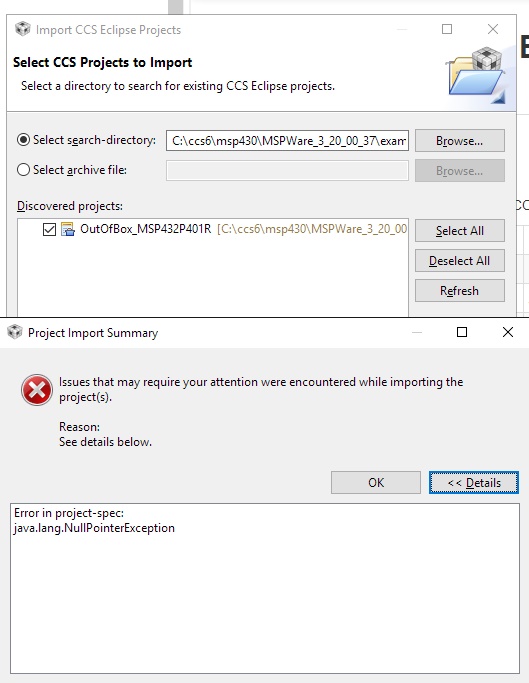
    I am running CCS version 6.1.2.00015 on Windows 8.1. I installed MSPWare version 3_30_00_18, but cannot import the example projects from resource explorer or "import ccs project". I get the same Java null pointer exception.

    I have MSP-EXP430FR6989 launchpad, so I don't how to try the workaround. The *.projectspec-file shows the device as device="MSP430FR6989".
  • Some additional information to the above post: Java version is 1.8.0_31.