This thread has been locked.

If you have a related question, please click the "Ask a related question" button in the top right corner. The newly created question will be automatically linked to this question.

CCS: creating projects based on examples without the resource explorer

Other Parts Discussed in Thread: CC2640, CC1350

Tool/software: Code Composer Studio

So I found this wonderful little workshop series about the TI-RTOS (link) and it helped me a lot in understanding how the system works. Though there is a problem: it's a little dated at this point.

In part 4 of the series at around 4:30 it shows how to open an example project and how you can configure it and so on and so forth. When I open my version of ccs (7.1) I cannot configure or even open a new project in the way that is described there. The only thing I get is the following selection of project I can theoretically chose from.

I don't want to open the Resource explorer every time I want to start a new project and even if I wanted to, it doesn't give me the same functionality like it's shown in the workshop. I simply want to start a new project as shown in the series. Can anyone tell me how to do so?

PS: if anyone has a link to a newer version of such a workshop, I would be really glad if you share that with me.

Thanks for your help!

  • Julien,

    Things have changed a bit since that workshop was created.  What device are you working with?  If you want to start with an example project but don't want to use Resource Explorer you can use the Project -> Import CCS Projects menu item.  You can then point to where the example projects are and import them.

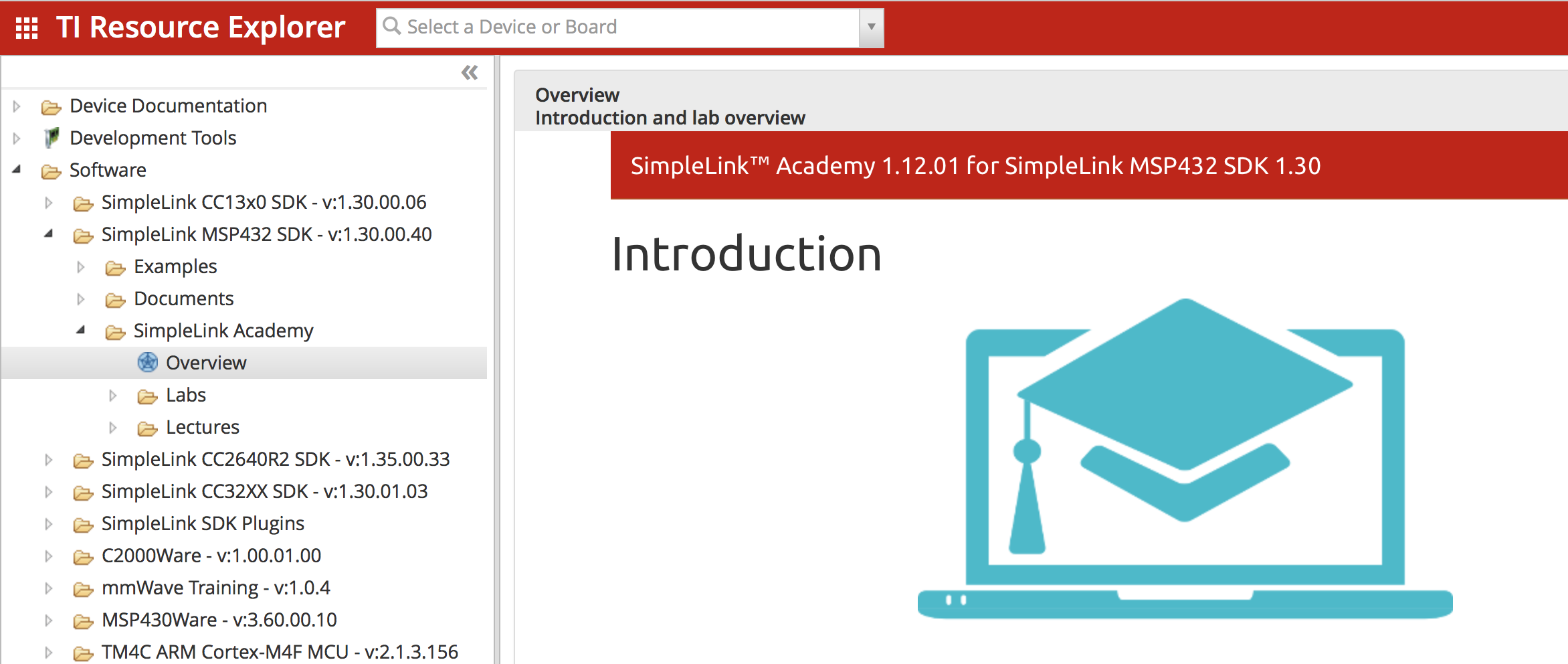
    Based on the screen capture I am guessing that you are using a SimpleLink device, maybe MSP432 or CC2640...  for these devices there is something called SimpleLink Academy.  You can access it from Resource Explorer, either inside CCS or via dev.ti.com

    SimpleLink Academy provides training on the software packages for these devices.

    Regards,

    John

  • Well I use the cc1350 Launchpad and I do know both of those things. The way described in the workshop seems really usefull though, since you seem to be able to add tools and other things to your project. With importing I haven't seen anything similar, maybe I have been blind. Can you tell if I have just overlooked it or if there even is something similar?
  • For CC1350 you really want to use the Resource Explorer method and import an example from the SDK.  This will ensure that the project that includes the kernel is added to your workspace and referenced by your project.

    You mentioned adding tools.  What tools are you looking to add?  Are you looking to change the compiler version?

    You can adjust the compiler version and other settings from the project options here:

  • The reason why I don't like using the Resource Explorer is that I can't easily rename my projects inside my workplace. For some reason I have to create a copy of the imported project and then I can rename it. This just seems like too much work. I think I will work with importing projects from the sdk examples packages without using the Resource Explorer from now on, thanks for that hint.

    One of the tools I was talking about was the script based way to create tasks inside a project. That was shown in the mentioned workshop. I can live with it when it is gone by now, but it would be nice to know for sure.

    Thank you for the help!

  • Was the script based way of adding tasks something to do with editing the .cfg file?  That is still possible.  Depending on the example the .cfg file is located in the main project or the kernel project.

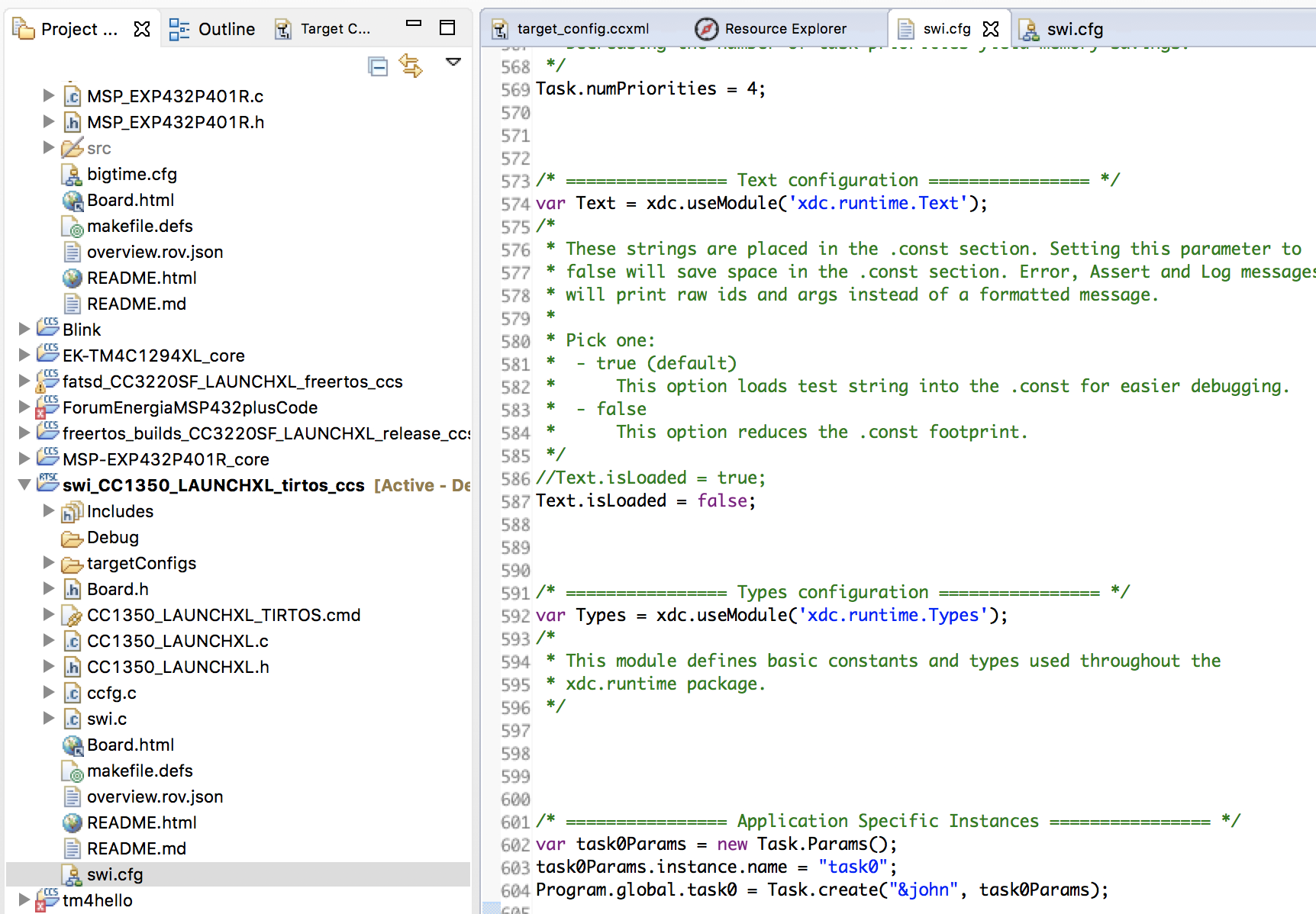
    Here I have imported an example from the CC1350SDK and then in the .cfg file you can add a task manually.  In my case I cheated and used the GUI tool to add the task as I haven't done that in a while and wanted to get the syntax correct, but you can see where it puts it in the file.  

  • Ah yes, that looks really similar to what I was imagining. Also this includes examples for other things I had questions about. So thank you very kindly for that.

    The thing I was specifically looking for is described in the workshop on day 4 (TI-RTOS Configuration) at 17:21. It shows "available products", but nowhere I look I can find something similar. Is that view obsolete now?
    And the last thing is at 19:38; he shows a way to add functions to idle (and I guess swis on a similar way) by simply clicking on Idle in the outline.
    But when I look at the outline while I have the .cfg-file open, it is completely blank. And is a shame, since that seems like a really useful tool for structuring the program.

    If you can point me to how it is done nowadays, it would be really helpful. If not, I can work with what you provided so far and I will close the thread. Thanks for the help!
  • The "Available Products" view is still available as well.  It opens by default when you open a cfg file in the graphical editor.  In CCSv7 the text editor is the default but you can right click on a .cfg file (or control click on Mac) and select Open With -> XGCONF.  

    That will open the graphical editor, including the Available Products View.

    The Outline View will also work if you are using graphical config.

    Regards,

    John

  • Thank you so much! That is exactly what I was looking for!