This thread has been locked.

If you have a related question, please click the "Ask a related question" button in the top right corner. The newly created question will be automatically linked to this question.

CCS: Open file tabs organization in CCS


Tool/software: Code Composer Studio

Does CCS have any capability to organize open tabs/source files within the context of its code editor?

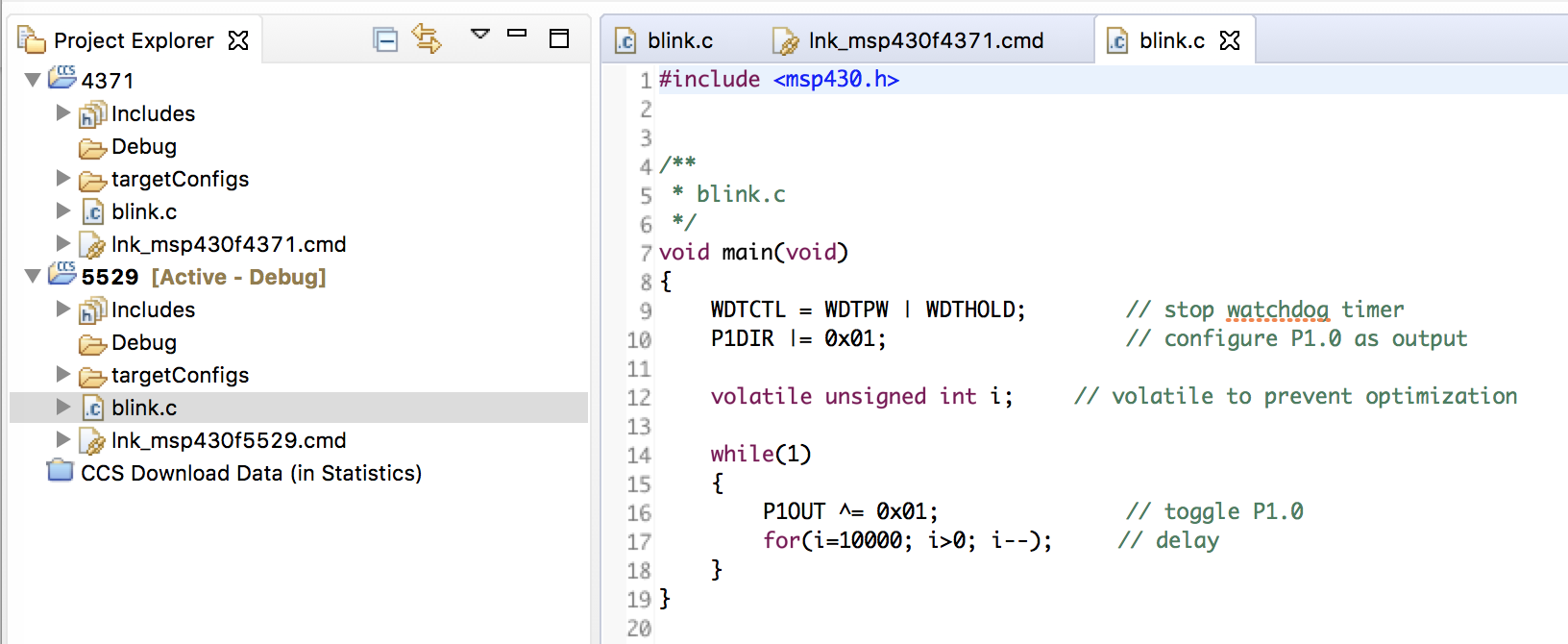
For example, working on several different projects all with their own "main.c", I am presented with the following:

Every file "main.c" along with all other open files appears in the same horizontal abuting tabs area, with no visiual indication that the different .c files belong to separate projects, or that files from the same project are somehow grouped.    

I've gone through the Edit-->Preferences dialogue in CCS and have gone down every tree I could think of, but there appears not to be any open for organizing open file/tabs for example with different colors for the tabs, or with same project files being on different lines.   Does anybody know if a method exists to provide better visual organization of open files in CCS?

  • Adam,

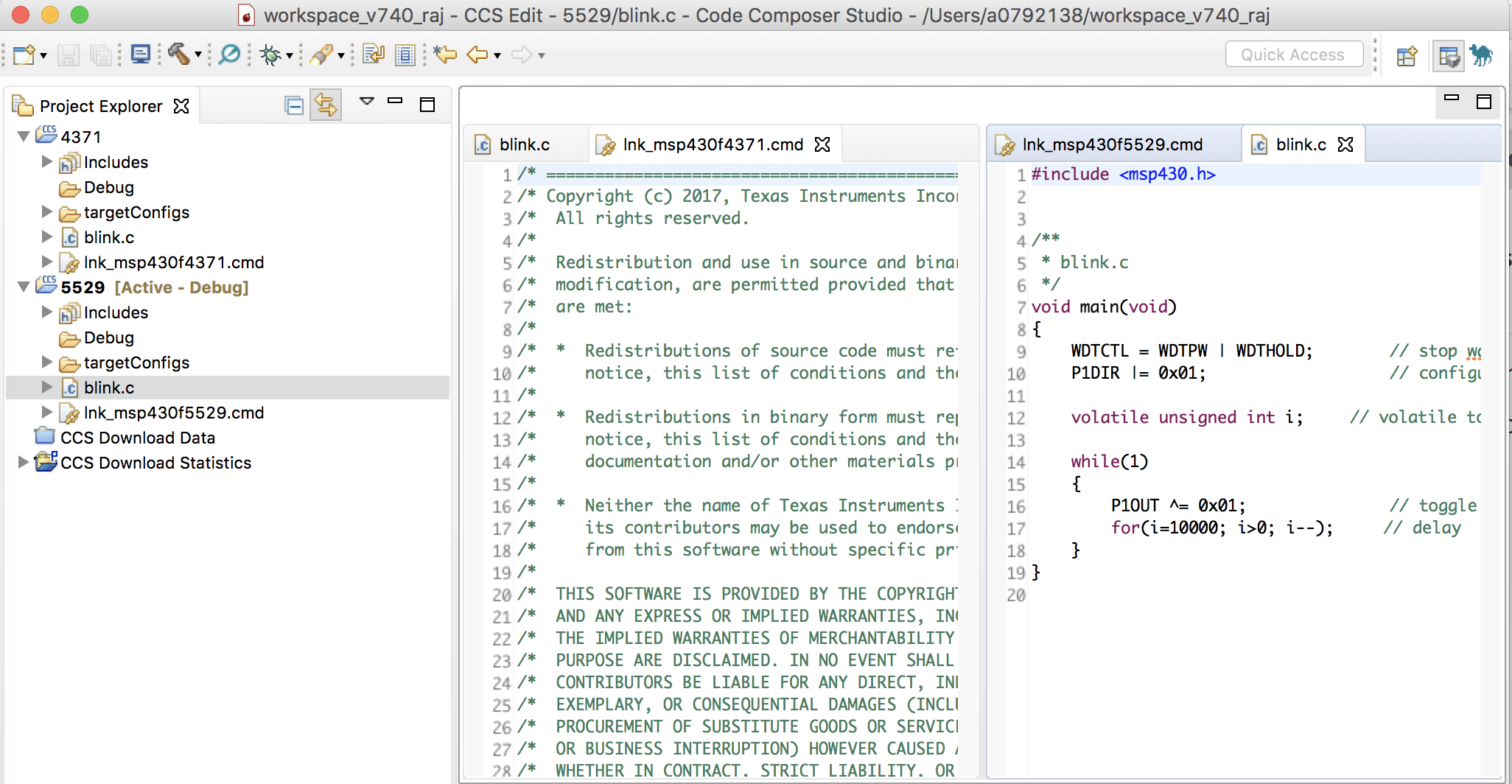
    One possibility is to use tab groups.  In this capture I have created 2 tab groups for the editor and then I have placed the files for different projects in different groups.

    There are some limitations with this:

    1. You have to manually organize the file tabs into the appropriate group.
    2. It is not overly scalable as if you had more than 2 or 3 groups you will use up all of your screen.

    Another option is to close projects.  You can open and close projects from the Project Explorer.  When you close a project it will close the windows for the associated source files.

    A more extreme option would be to open multiple top level windows in CCS.  You can do this from the Window menu by selecting "New Window".  

    Another thing to note is that there is some linkage between the editor and the Project Explorer.

    Here I have clicked on the one blinky.c file in the editor and the associated project is marked as active.

    Then I select the tab for the other one and you can see that the other project is now active.

    I realize that none of these were exactly what you were looking for but hopefully they are of some use.

    Regards,

    John

  • Excellent!
    Some options are better than no options.
    Thank you John, much obliged.