This thread has been locked.

If you have a related question, please click the "Ask a related question" button in the top right corner. The newly created question will be automatically linked to this question.

CCS/TMS320F28377S: Xds200 probe not working.

Part Number: TMS320F28377S

Tool/software: Code Composer Studio

Hello,

We worked on the ControlCard for F28377 with integrated Xds100 probe.

Than after some time, we bought the XDS560v2 probe which work also properly.

We developed our custom board based on the F28377s.  On this board, the Xds560v2 probe work properly.

Now, two develop with two people in the same time, we buy the Xds200 probe.

Then in the CCS (v7.4) project, we add the target configuration for this probe and try to debug with this configuration.

The probe is plugged on USB to the computer and on the JTAG on the target side. The Left Green led is light On, the right is light off

Then the configuration start correct

The Left AND Right are light on few time and the both are Light Off.

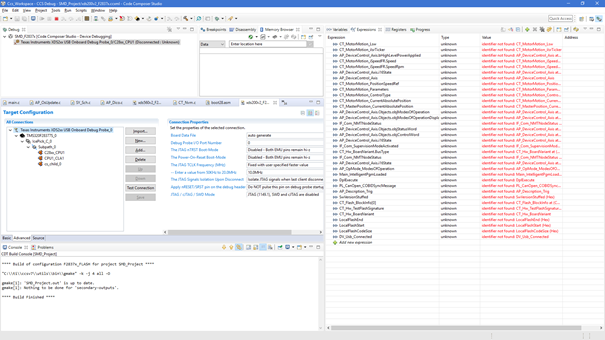
Then the CCS display following (The connection is not Ok, debug is not possible):
Is somebody can inform me about something to check?

Thank

  • Hi,

    The image is pretty blurry, but I see at least one issue:  the Connection should be Texas Instruments XDS2xx USB Debug Probe (and not "onboard")

    After changing this, terminate and re-launch the debugger, not forgetting to connect to the core after that. 

    Hope this helps,

    Rafael

  • Hello

    I also try with the USB Debug probe.

    This not work:

    I plug the JTAG on the CpuBord, the Xds200 Usb to the computer : Left green led is light On/

    I made "Debug Configuration -> Debug"

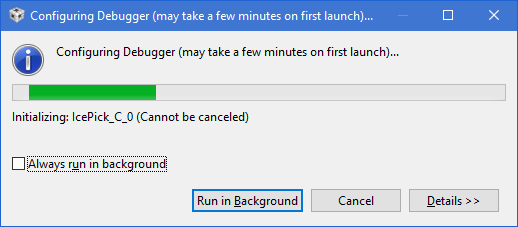
    Then a windows appears "Configuring":

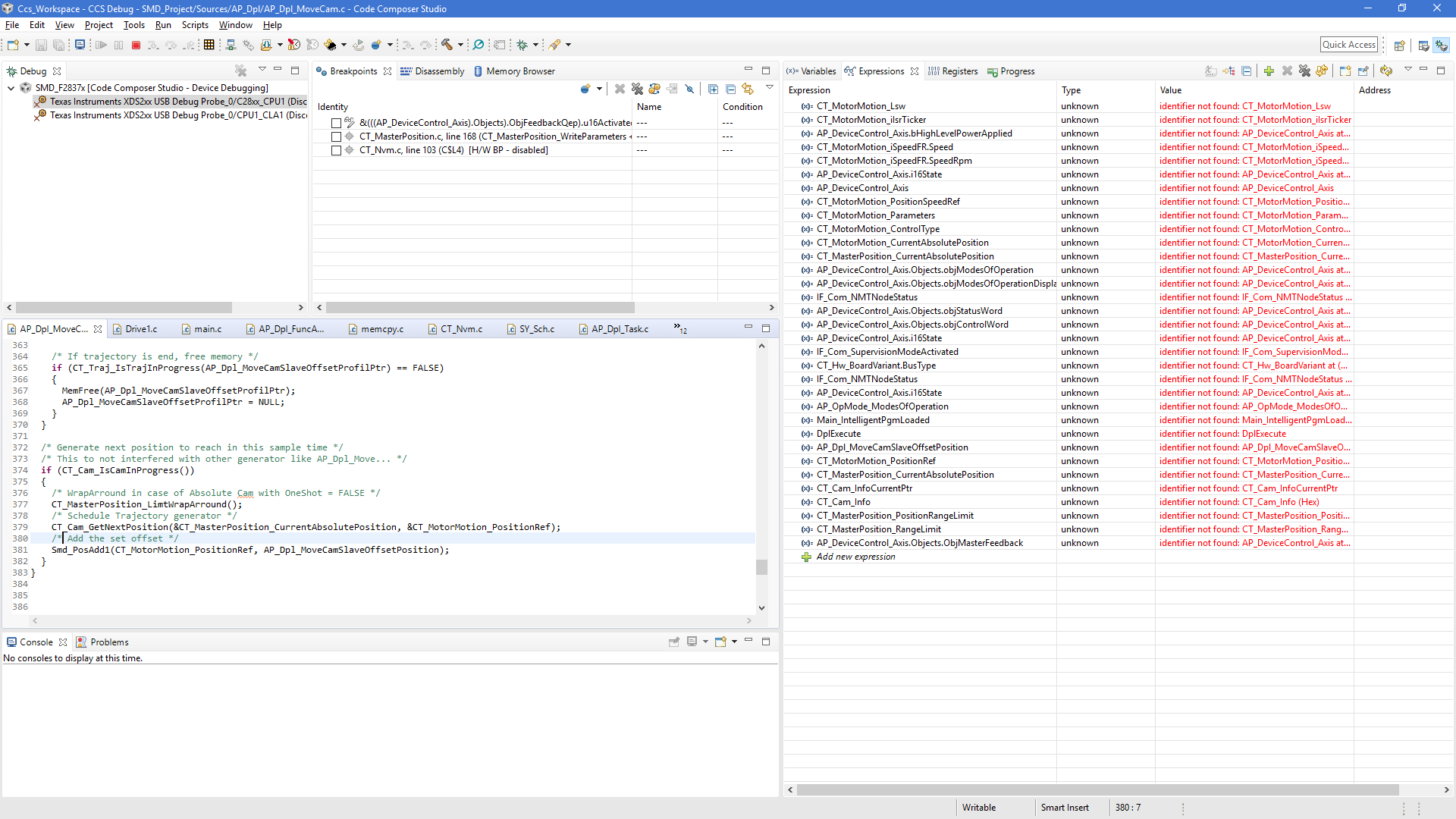
    Then after that, the debug view comes like bellow and the two led on Xds200 are light Off...:

    When I use the Xds560, after the "Configuring" window, I have "Erase" and then "Program" step. Here, I haven't these two step.

    Then in the debug view, nothing work..

  • Hi,

    Thanks for sending a better quality screenshot; I can see that you don't have any core connected (Ctrl+Alt+C or menu Run --> Connect Target), therefore you can't perform any activities on the debugger.

    After you connect to a core, you can load your executable to it (menu Run --> Load --> Load Program) which will probably allow all the Expressions to be properly evaluated.

    This process is described at:
    software-dl.ti.com/.../sdto_ccs_debug-handbook.html

    Hope this helps,
    Rafael
  • Hello,

    Ok, after make "Connect" and then "Load" program, debug run correctly.

    But I used both Xds100 (on ControlCARD) and Xds560, after configuring debbuger, the connect, Erase and program start automatically without need to do it manually.

    How configure these step automaticaly on the Xds200? The project is exactly the same like the debug configuration. I just in my project add a "Target Configuration" and then in the Debug Configuration, change:

    Sheet "Main", -> "Target configuration" switch from Xds560 to Xds 200.

    Why after that, when we click on "Debug" only the Xds100 and 560 start a Connect/Erase/Load automatically and not the Xds200?

  • Hi,

    A GIR said:

    How configure these step automaticaly on the Xds200? The project is exactly the same like the debug configuration. I just in my project add a "Target Configuration" and then in the Debug Configuration, change:

    Sheet "Main", -> "Target configuration" switch from Xds560 to Xds 200.

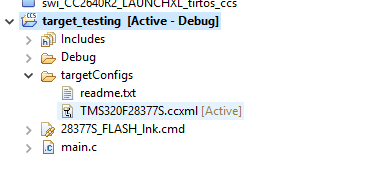
    An Active target configuration is automatically launched by the green bug button, which performs all the steps you mentioned. Under the hood, however, these steps are configured in a file named "Debug Configurations" - if this file is modified, the simplest way to restore its default settings is to delete it. Check step 3 of the reference below to learn how to do this. 

    http://processors.wiki.ti.com/index.php/Troubleshooting_CCSv7#Debugger  

    To identify the Active target configuration check if you have a similar entry in your project as shown below: 

    These steps should allow you to properly restore the automated procedure as you experience with other debug probes. 

    Hope this helps,

    Rafael

  • Ok

    It work properly now.

    Thank you