This thread has been locked.

If you have a related question, please click the "Ask a related question" button in the top right corner. The newly created question will be automatically linked to this question.

CCS/LAUNCHXL-CC1352R1: Combining Two Simplelink Examples using TI-RTOS

Part Number: LAUNCHXL-CC1352R1
Other Parts Discussed in Thread: CC1312R, BOOSTXL-SHARP128, SYSCONFIG

Tool/software: Code Composer Studio

Hello,

I am currently trying to combine the sharpsimpledisplay and uartecho examples on a LAUNCHXL_CC1312R. I saved a copy of the uartecho project and copied the sharpsimpledisplay.c file into the copied project. I made edits to the main_tirtos.c file in the project to ensure that I accounted for the *displayThread and any other #includes that were needed for the LVGL.

I am getting an error on #include <lv_port_disp.h> in the copied sharpsimpledisplay.c file.

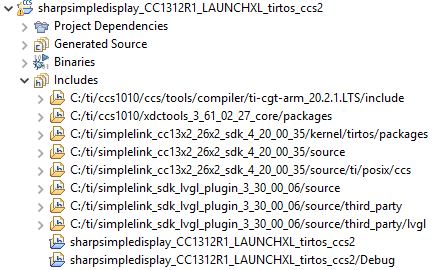
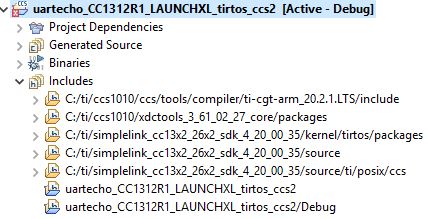
I looked into the include folders of each respective project and noticed that I am missing three simplelink_sdk_lvgl_plugin folders in the include portion of the copied uartecho project. 

My question is how do add the missing include folders to my uartecho copied project? 

P.S. I am trying to combine these two as a learning exercise on how to combine multiple examples from SimpleLink.

Best Regards,

Daniel Rios

  • Hi Daniel, 

    Assigning an expert to comment. 

    Thanks, 
    Elin

  • Hi Daniel,

    Seems like the pictures you attached was broken, maybe you can try to upload them again? Typically you should only need to press the "+" icon in the include list to add additional paths. Do this and add in the path to the three folders you are missing (as a first step).

  • See Images above. I could not pin point the '+' icon in the include list. Please advise.

    Best Regards,

    Daniel Rios

  • Hello M-W,

    I was able to add the include files by:

    1. Project Explorer --> right click Project --> Properties --> General on left pane --> Products on right pane --> Add "Desired Product"

    (In this case it was the SimpleLink SDK LVGL Plugin)

    2. Project Explorer --> right click Project --> Properties --> Compiler --> Include Options --> Green "+" sign to add include folders

    (in this case "${COM_TI_SIMPLELINK_SDK_LVGL_PLUGIN_INSTALL_DIR}/source, ${COM_TI_SIMPLELINK_SDK_LVGL_PLUGIN_INSTALL_DIR}/source/third_party, ${COM_TI_SIMPLELINK_SDK_LVGL_PLUGIN_INSTALL_DIR}/source/third_party/lvgl") 

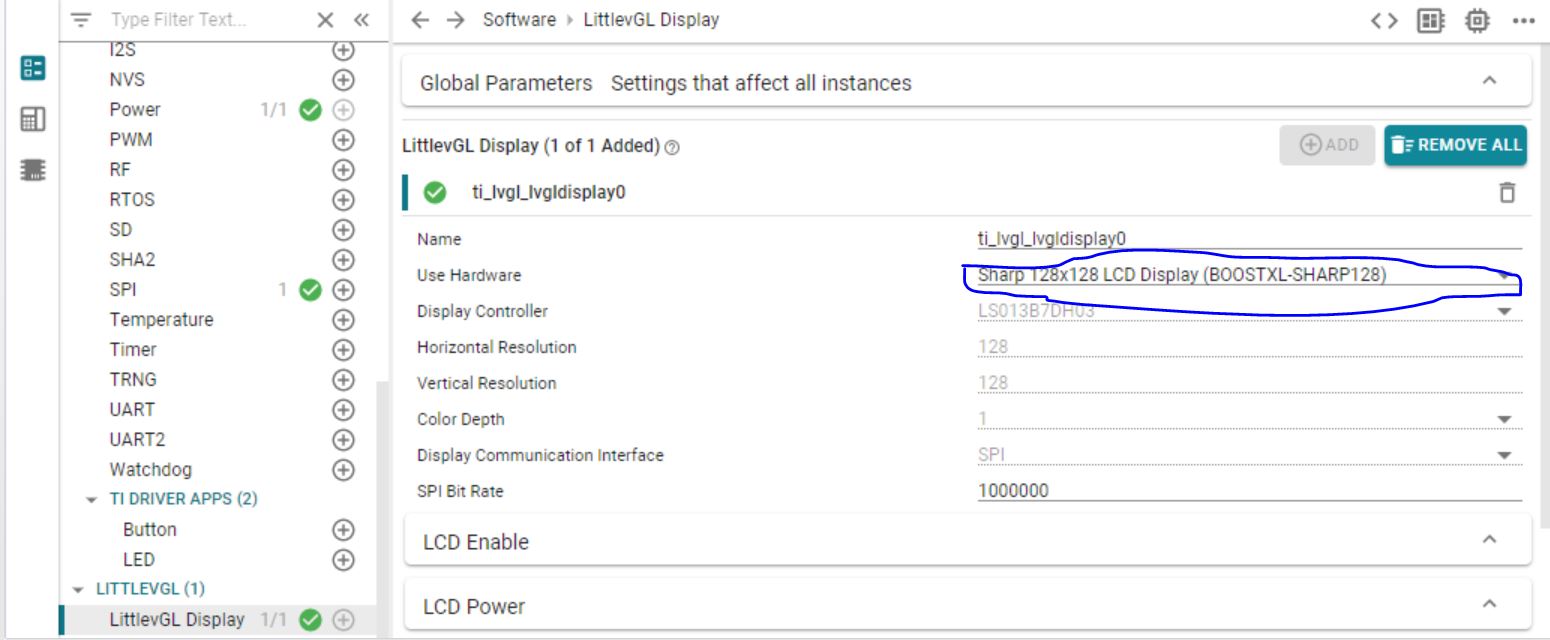
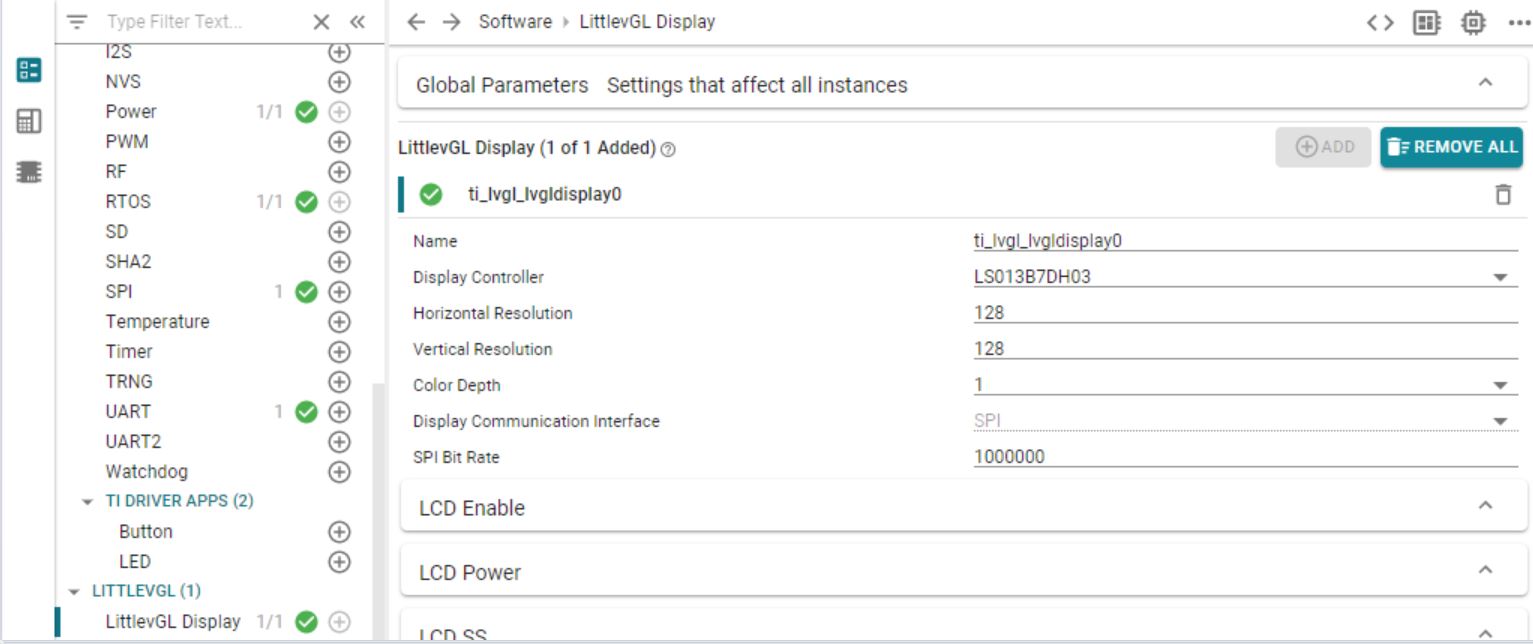
    I have another issue, regarding the .syscfg file. The new .syscfg file for my project includes the LittlevGL Display option in the left pane. However, on the right pane, next to the Use Hardware section, the drop down menu does not allow me to select Sharp 128X128 LCD Display (BOOSTXL-SHARP128).

    See images below:

    sharpsimpledisplay project gives me use hardware option:

    new uartecho project does not give me the use hardware option:

    Please advise. Thank you!

    Best Regards,

    Daniel Rios

  • Hi Daniel,

    This depend a bit on the SysConfig setup but it is ultimately not important to have this field. "Use Hardware" is a way to allow quick assignment of settings if there is a pre-defined hardware available in the project setup. If not, you simply enter the settings in yourself:.

    * Make sure horizontal and vertical lines match.

    * Make sure color depth and communication interface match

    * Make sure the LCD Enable/Power/SS etc are assigned to the correct pins. If you want to, you could simply copy the settings that are defined in the old project.

    To summarize, "Use Hardware" simply blocks you from configuring a known hardware setup in an unsupported way, like the case with the booster pack, it has to be used with a certain set of pins. If the hardware is not available as an option, simply assign the pins yourself.

  • Thanks that helps.

    However, I am getting the following error:

    "C:\ti\simplelink_sdk_lvgl_plugin_3_30_00_06\source\third_party\lvgl\src/lv_misc/lv_log.h", line 19: fatal error #1965: cannot open source file "../../../lv_conf.h"

    I took a look at another E2E post related to this but the answer was incomplete.

    Any suggestions?

    Best,

    Daniel Rios

  • Hi Daniel, 

    It is likely due to a missing path in your "Project Explorer --> right click Project --> Properties --> Compiler --> Include Options" section. Have you made sure your current setup fully match the lvgl example?