This thread has been locked.

If you have a related question, please click the "Ask a related question" button in the top right corner. The newly created question will be automatically linked to this question.

BOOSTXL-TLV8544PIR: Connecting to SmartRF Flash Programmer 2

Part Number: BOOSTXL-TLV8544PIR
Other Parts Discussed in Thread: LAUNCHXL-CC2650, , TLV8544, CC2650, FLASH-PROGRAMMER

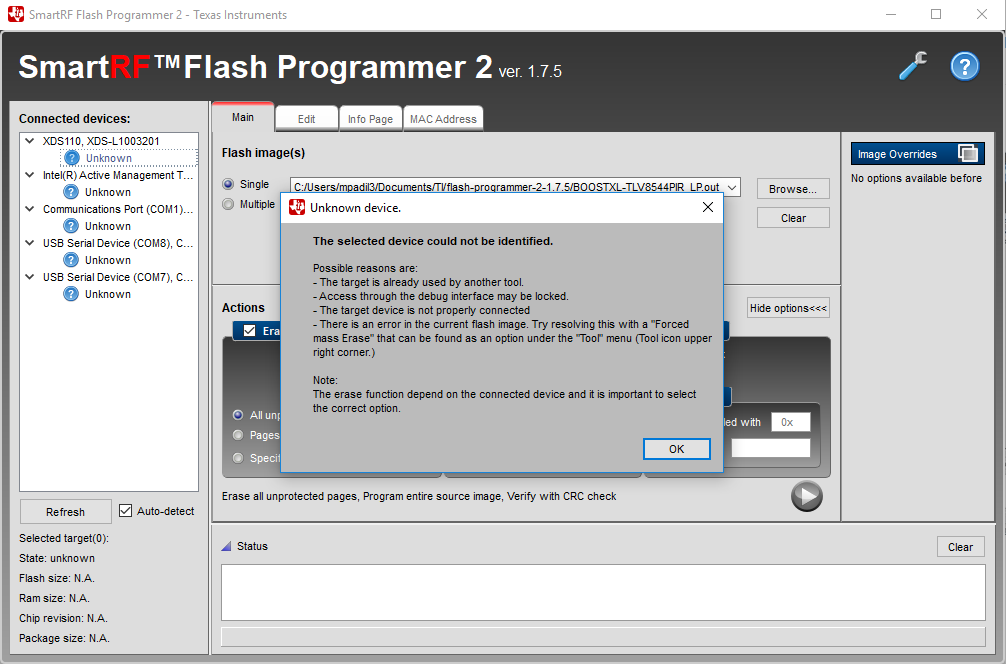
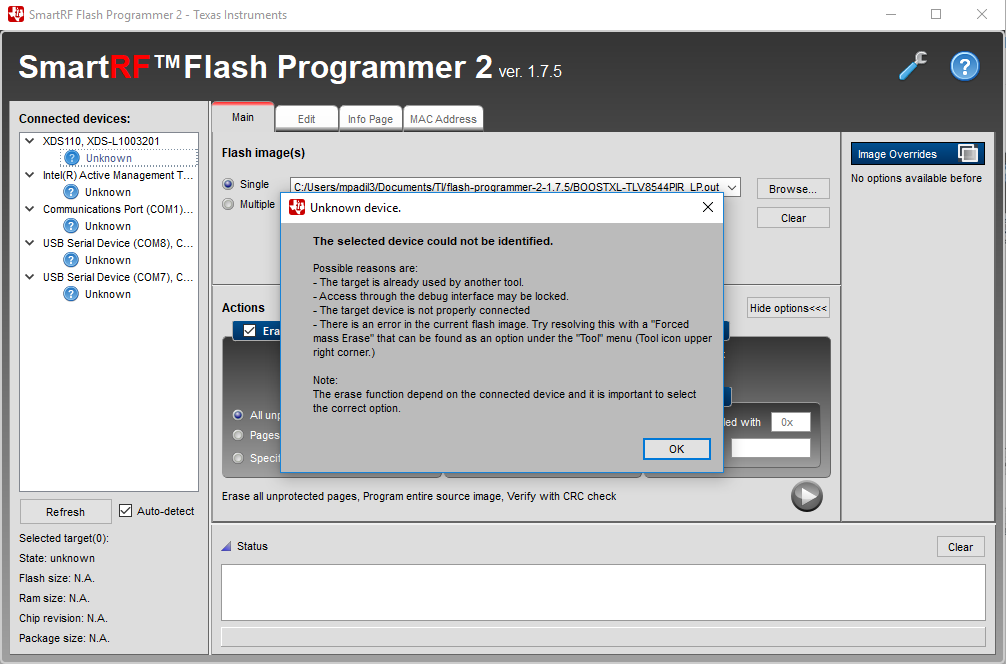
I am trying to connect to my BOOSTXL-TLV8544PIR using a LAUNCHXL-CC2650. When I connect the 2650 the device is unknown. The User's Guide says if it is unknown to click on it and it will allow me to update the firmware. Instead I get a message that "The selected device could not be identified." as shown below:
  • Hello Matthew,

    Since this is a Launch-XL setup issue, and not an issue with the TLV8544 PIR board itself, I will move this thread to the LAUNCHXL support forum.

    If you need help with the GUI or PIR firmware, please repost to the Amplifiers forum.
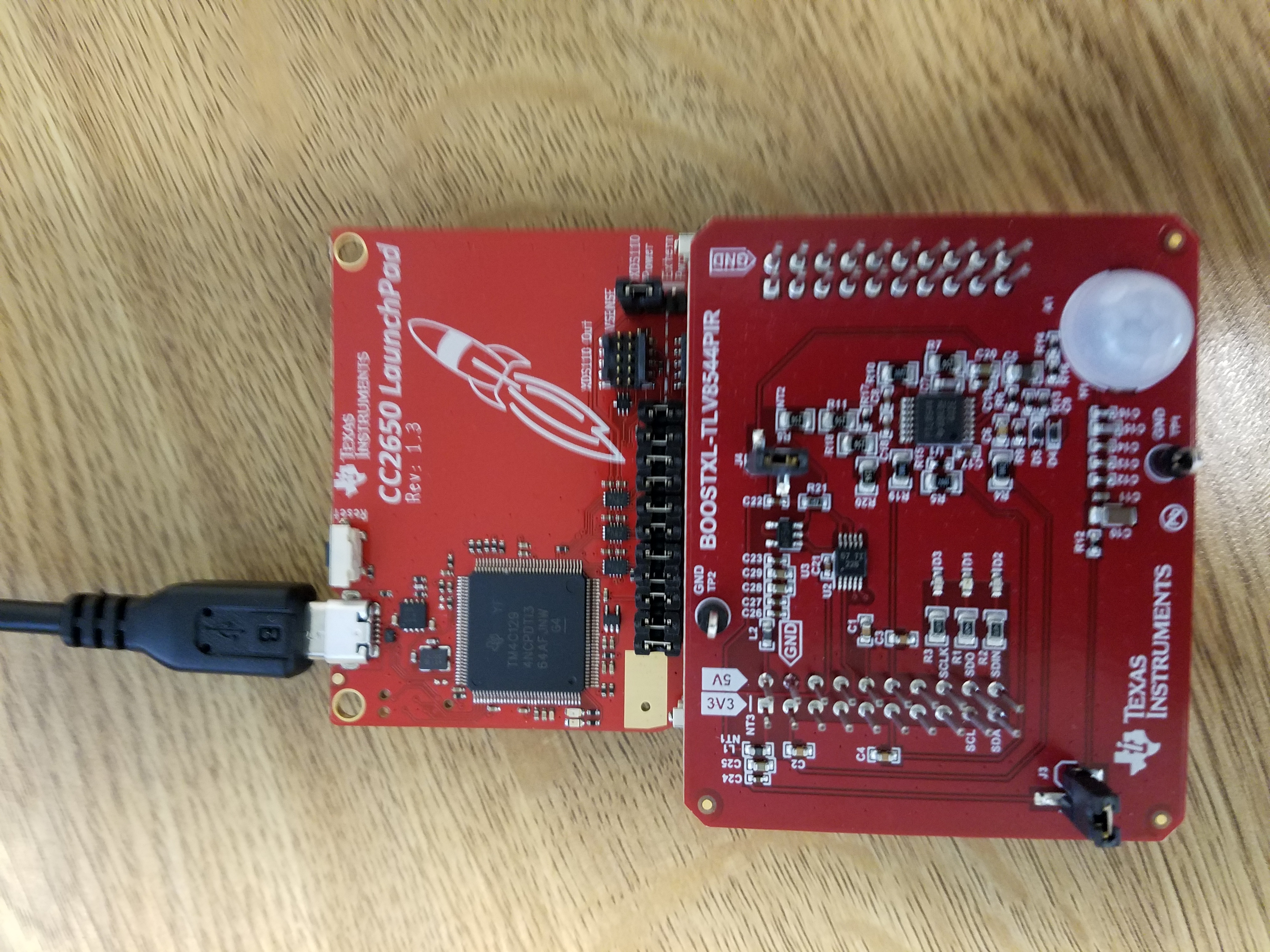
  • Flash Programmer 2 is for download binary to CC2650 (LAUNCHXL-CC2650 in your case) not BOOSTXL-TLV8544PIR. Can you take a picture to show me how you connect everything?
  • Hi YK,

    I just connected the BOOSTXL-TLV8544PIR to the CC2650 Launchpad board and connected the Launchpad board to the computer with a USB. Here is a picture.

    Thanks,

    Matt

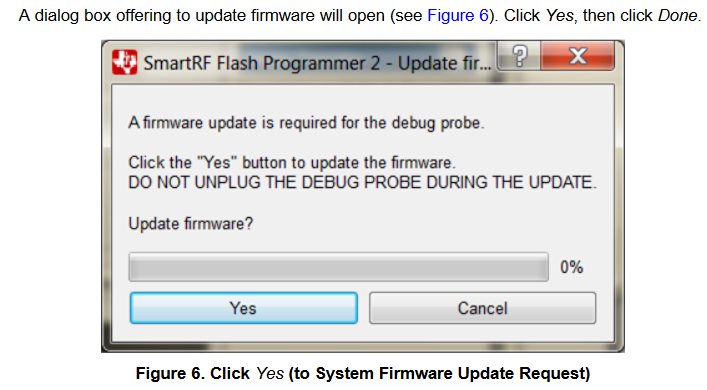
  • Yes, I followed those steps. In the User's Guide it shows the following dialog box when clicking on Unknown for the CC2650:

    When I actually click on Unknown I get the following dialog box:

  • After FW update, try to disconnect and reconnect LAUNCHXL-CC2650 to see if Flash Programmer 2 recognizes CC2650 instead of unknown.
  • Are you saying to reinstall the Flash Programmer 2 software?

    -Matt
  • Hi Matthew,

    No. Just unplug, wait a few seconds, and re-plug-in the CC2650 USB so that the new programmer firmware takes effect and it reports back the new firmware version.

    Also try removing the BOOSTXL-TLV8544 board in case the CC2650 has a previous program that may have some pin conflicts.

    Just to be clear - there are two uploads here. The programmer firmware (FLASH-PROGRAMMER) for the on-board programmer interface, which allows programming the processor by USB (and usually only needs to be done once). And the actual processor code (the BOOSTXL-TLV8544PIR FIRMWARE) to run the PIR board and communicate with the GUI application.

    When you plug-in the CC2650, you should see two serial ports appear in the Windows Device Manager. One serial port is the programming interface, and the other is the back-channel UART. If you are not seeing these ports appear, then the Windows drivers may not be installed correctly. These serial ports generally have higher port numbers and can change. It looks like there are two ports in your window (COM7 and 8). Are you selecting these?

  • Hi Paul,

    I tried unplugging and reconnecting the CC2650 USB and also removing the BOOSTXL-TLC8544 board and connecting without that. I got the same message I showed in previous messages.

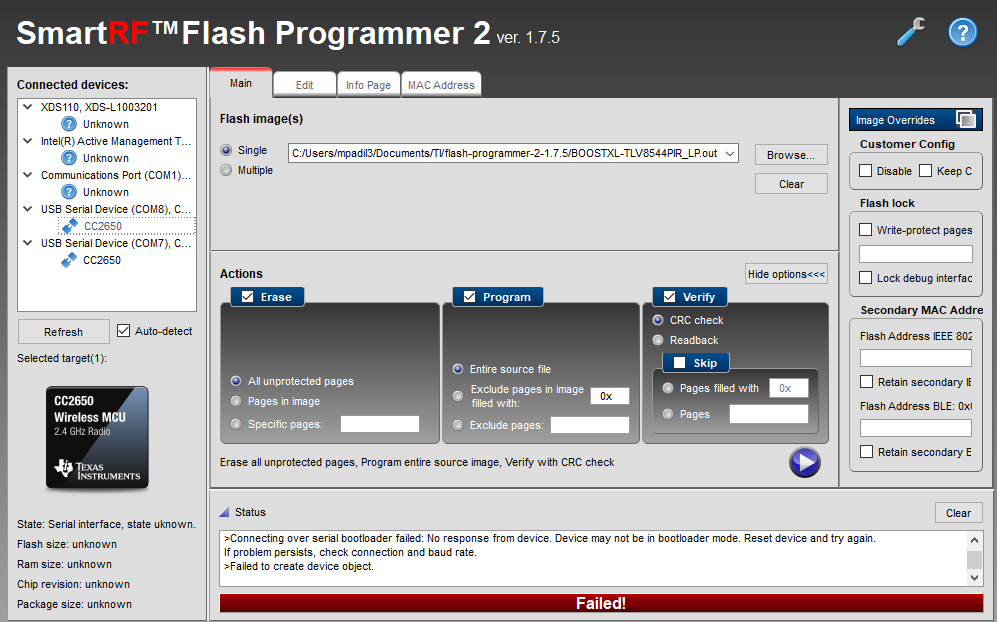
    From the User's Guide and your explanation, what I think I am trying to do is get the programmer firmware for the CC2650 board. I have tried doing this by clicking on the Unknown button beneath XDS110 (and I received the error shown in previous messages). I tried putting COM7 and COM8 to CC2650 and hitting the run button (with the settings shown in the User's Guide). The status in that case said failed and I see what is shown below:

    Is setting COM7 and COM8 to CC2650 what you meant by "selecting these" or is there something else I should be doing also?

    Thanks,

    Matt

  • Hello Mathew,

    I managed to dig up a board and play with it a bit.

    The "XDS100" in the top row is the Launchpad board. Highlight the CC2650 line. If you highlight the "XDS110, XDSL1000..." line, the image of the red board should appear in the space there the "CC2650 Wireless MCU" appears below the list.

    Here is what mine looks like:

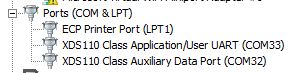
    Make sure the Windows Device Manager shows the following under Ports (Control Panel -> Device Manager) :

    As the user manual says, if it looks like the below with yellow exclamation marks, then the USB drivers are not installed.

    If it looks like above, try reinstalling the Smart Flash Programmer 2 software, but this time make sure to right-click on the installer icon and select "Install as Administrator" - otherwise Windows may block installing the USB drivers.

    Have you tried the Mass Erase as the error message recommended?

    Select the top CC2650 line, then click the blue wrench in the upper right, then select "CC26xx/CC3x...Forced Mass Erase". This should reset it back to factory default.

    Then click the blue "Go" button to program the 8544 code.

    On mine, all the LED's on the BOOSTXL turned off (bus power turned off) after the mass erase. Then they then re-illuminated when the TLV8544 code was flashed with the blue button.

    If you open your favorite serial terminal program and open the higher of the two COM ports, at 115200 baud, you should see the data continuously scrolling in four comma separated columns.

  • This time, with images!

    Hello Mathew,

    I managed to dig up a board and play with it a bit.

    The "XDS100" in the top row is the Launchpad board. Highlight the CC2650 line. If you highlight the "XDS110, XDSL1000..." line, the image of the red board should appear in the space there the "CC2650 Wireless MCU" appears below the list.

    Here is what mine looks like:

    Make sure the Windows Device Manager shows the following under Ports (Control Panel -> Device Manager) :

    As the user manual says, if it looks like the below with yellow exclamation marks, then the USB drivers are not installed.

    If it looks like above, try reinstalling the Smart Flash Programmer 2 software, but this time make sure to right-click on the installer icon and select "Install as Administrator" - otherwise Windows may block installing the USB drivers.

    Have you tried the Mass Erase as the original error message recommended?

    Select the top unknown line, then click the blue wrench in the upper right, then select "CC26xx/CC3x...Forced Mass Erase". This should reset it back to factory default.

    Then click the blue "Go" button to program the 8544 code.

    On mine, all the LED's on the BOOSTXL turned off (bus power turned off) after the mass erase. Then they then re-illuminated when the TLV8544 code was flashed with the blue button.

    If you open your favorite serial terminal program and open the higher of the two COM ports, at 115200 baud, you should see the data continuously scrolling in four comma separated columns.

  • Paul,

    Thanks for the help. The problem was that the USB Drivers were not installed. I followed the instructions in Section 4 of the User's Guide to download the drivers from the TI website. I was confused and thought that the USB Drivers would be installed with the firmware and did not realize that they would keep the firmware from installing. After installing the USB Drivers I got the firmware update dialog box that is shown in the User's Guide (Section 3) and now everything is up and running. Thanks for the help.

    Best,
    Matt