This thread has been locked.

If you have a related question, please click the "Ask a related question" button in the top right corner. The newly created question will be automatically linked to this question.

AM2634: Mcal Library build with code composer studio

Part Number: AM2634


Hello,

We have got MCAL Library from TI for the AM263. But unfortunately, I couldn't let build the library and the example code to run in our Evaluation board. Could someone provide us a CCS Example project (Workspace) with MCAL Drivers? 

Thanks in advance 

  • Hi

    The MCAL build happens in a different way. It is done using the makefile and Rules.make files that will be given along with the package. You need to edit the CCS compiler path and other path dependencies. Then you need to do run the command "gmake -s all" command if you're on windows system.

    The build cannot be directly run from the CCS studio. Please let us know in case of any queries.

    Thanks

  • Hi Kowshik Gudimetla,

    Thank you for your fast reply. Is it possible to get code composer project setup by you to run directly on target?

    I need actually the ccs workspace setup for the Mcal. When I run the gmake -s all, could I possible open the project in CCS?

    Thanks in advance

  • Hi

    Currently we don't have any linkage for compiling the MCAL with the CCS. However, you can use CCS to debug the MCAL libraries by loading the binaries generated under the " Binary/" folder in mcal directory

  • Hi Kowshik, 

    I build the all examples and i have the all binaries;but how can I flash the Software on the microcontroller? Must I create a new empty project and import the files with CCS?

  • Hi

    Please follow the below mentioned steps to run the binaries generated.

    Steps:

    1. You need to create a new " Target Configuration with GEL files" in order to initialize the SoC and get it ready to load the example.

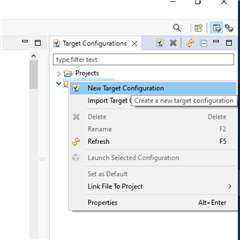
    2. Go to View -> Target Configurations in CCS, target config pane opens in the right hand side. Right click on "User Defined" and select "New Target Configuration" 


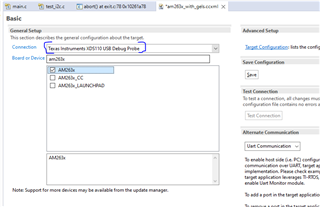
    3. Select the Debugger Name as "XDS110 Debug Probe" and SoC as "AM263x" (I have made this suggestion with the assumption that you're using our Evaluation board, if not please change the debugger accordingly)

    4. Click on "Save" and to make sure the  board is being detected and the debugger is properly selected, click on "Test Connection" and check the results.

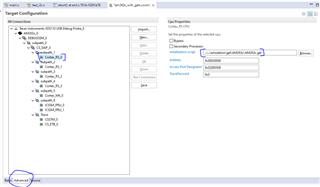
    5. Click on "Advanced" tab in the bottom of the target config tab. This gives more advanced view on which cores to be initialized during the launching time, which core should run the Initialization Scripts (GEL files) etc., There, click on the "Cortex_R5_0" core and ensure the GEL script as shown below is present.

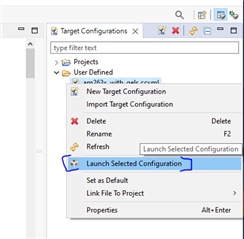
    6. Now, you're all set to launch the target configuration. Save and close everything, go to target config tab and you should see your new config created there. Right Click on it and select "Launch Target Configuration

    7. Before launching your target configuration, make sure the evaluation board is present in the CCS boot mode or NO BOOT MODE, as shown in the below link 

    AM263x MCU+ SDK: EVM Setup (ti.com)

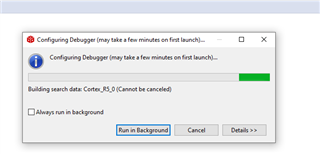
    8. Launching the target configuration changes to Debug view with pop-ups like shown below should come up saying the SoC is being initialized, this takes more time when being launched first time. 

    9. If the above step fails, it means your EVM is set to a wrong boot mode or disconnected etc., please re-verify and proceed to further steps.

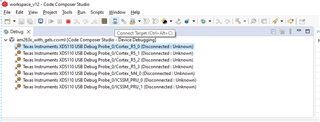
    10. Now, Select the "Corex_R5_0" core in the core view and click "Connect To Target" as shown below

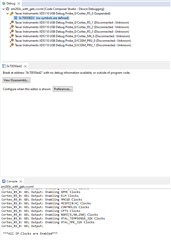
    11. If the connect is successful, you should see console logs something as shown below

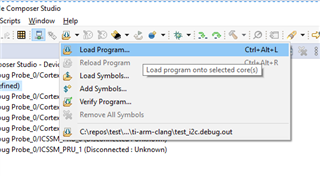
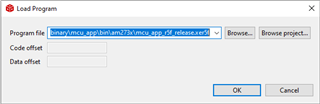
    12. You're ready to load the example, click on the " Load -> Load Program", Browse to the binary of the MCAL as shown below and click open. (Here for demonstration I have compiled the Mcu_app and loaded that binary here)

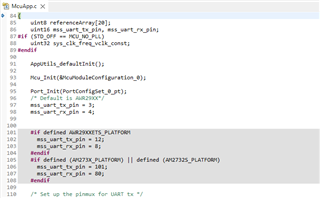
    13. Once the load is successful, you should be able to see the source code if the binary is compiled on the same machine (so that the symbols can back-trace the source)

    14. Click on "Run, Resume and breakpoints" features can be explored from here, please check here to learn more on debugging features of CCS Sitara MCU+ Academy for AM263x (ti.com)

    15. You can use the "Terminal" feature under the CCS -> View to connect to the COM port in order to see the UART logs etc., in case you don't have serial terminals like teraterm/putty ready.

    Hope this is very clear, please let me know if you need any help.

    Thanks

  • Hi Kowshik,

    Thank you for your help; It works ;)

    Best regards