This thread has been locked.

If you have a related question, please click the "Ask a related question" button in the top right corner. The newly created question will be automatically linked to this question.

MSP432E411Y: Cannot communicate over Ethernet using tcpecho

Guru 12815 points

Part Number: MSP432E411Y

Hi,

On a custom board equipped with MSP432E411Y, the following sample code has been changed for MSP432E411Y and operation has been confirmed.

C:\ti\simplelink_msp432e4_sdk_4_20_00_12\examples\rtos\MSP_EXP432E401Y\ns\tcpecho\tirtos\ccs
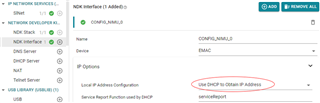
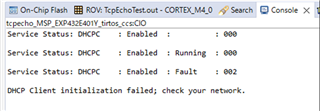
Open tcpecho.syscfg and the default is DHCP setting as shown above. Therefore, I changed only the MAC address setting, connected the PC running the openDHCP server to our custom board via a network switch, and ran the program. As a result, the console output is as follows, and the IP address that should be automatically obtained by DHCP was not output, and after a while it failed.
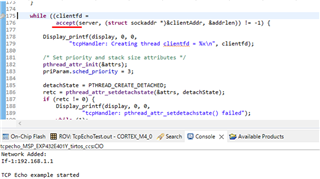
Also, since we want to perform Ethernet communication with a static IP address on the custom board, we set the static IP address on tcpecho.syscfg. When I ran the program, I got the following console output: I confirmed that NDK_accept() of the tcpHandler function continues to wait for a connection request from the outside. Therefore, I issued a connection request from the PC to the static IP address with Port 1000, but I could not get out of accept() and the connection request was not accepted.
Can you give me some advice to solve it?

Thanks,

Eevee

  • Hi Eevee,

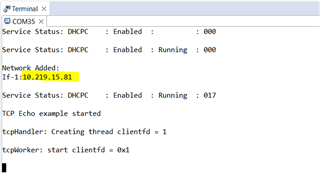
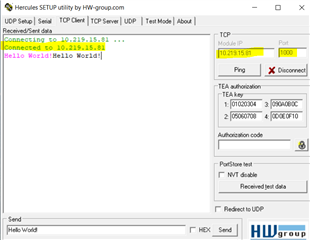
      Can you try the stock example on a LaunchPad? I tried the tcpecho_MSP_EXP432E401Y_tirtos_ccs example on the MSP-EXP432E401Y LaunchPad and below are the results. I'm able to acquire IP address from the DHCP server. I also open a client application on the PC side and I'm able to send data to the server and get the message echoed back. Please do the following:

    - First try the example on the LaunchPad on your network. Because it works for me,  therefore, we know the example should work. If it does not work then it means there is something wrong with your network. Perhaps there is firewall or your DHCP server is not responding to the request.

     - Use wireshark to find out if MCU is sending out DHCP request and if the DHCP server is acknowledging the request. 

     - check your network or try another network if the stock example running on the LaunchPad is not working. 

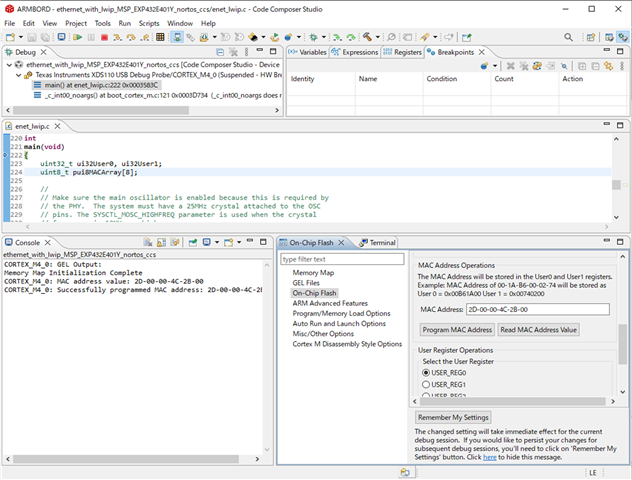
     - If you can get the LaunchPad to work successfully on your network then you can move on to your custom board. This way it is easier to isolate the problem. Check your MAC. Do you have a proper MAC. You can read the MAC address out from CCS under Tools-> On-Chip Flash. 

      - You might need to compare your custom board schematic against the LaunchPad. Can you spot any obvious discrepancy?

  • Hi, Charles

    I connected the PC (set to IP:192.168.0.1) on which the openDHCP server was built and LaunchPad to the LAN via the network switch, and executed the sample code.

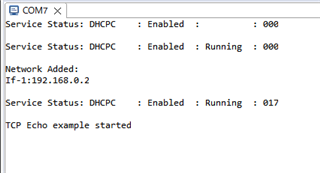
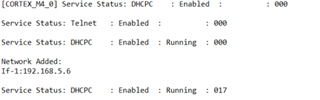
    As a result, I got the following Terminal output, LaunchPad was able to automatically obtain IP:192.168.0.2 from DHCP, and the ping command passed.

    However, after that, even though the PC sent a connection request to LaunchPad (IP: 192.168.0.2) with Port 1000, it seems that the connection state continues and it is not accepted at the socket accept stage. I have attached the WireShark log of this execution.

    In line No.16 of the log, a request is issued from the PC side (IP:192.168.0.1) to LaunchPad (IP:192.168.0.2) via Port 1000. Is there anything you notice when you look at this log?

    LaunchPad_TcpEcho_DHCP.zip

    Thanks,

    Eevee

  • Hi,

      I don't see any Telnet application in your wireshark. Are you sending any data to server. The client should send data to the server so that the server will echo back the same data. 

      - What client application do you use to send data to the server (the LP)? 

      - Can you try a different network, like your home network?

      - Can you try a client utility like Hercules. You can find the download at https://www.hw-group.com/software/hercules-setup-utility?multilink=switch

  • Hi, Charles

    Thank you for your reply.

      - What client application do you use to send data to the server (the LP)? 

    The application I am currently using is Tera Term.

      - Can you try a different network, like your home network?

    I have tested with different networks and the situation is the same.

      - Can you try a client utility like Hercules.

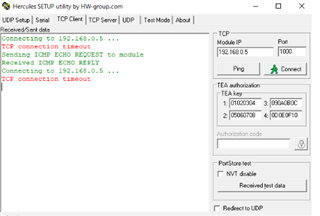
    I downloaded Hercules and verified it, but I got a timeout error like the screen below.

    I will send you the sample code that I built. Could you please confirm just in case?

    tcpecho_MSP_EXP432E401Y_tirtos_ccs.zip

    Thanks,

    Eevee

  • Hi,

      Have you try the original example without modifcation that comes with the SDK?

  • Hi,

      Why don't you try the project I run? I just run the attached project and it is working for me. First, load the .out file directory to the flash and run it. Can you see any difference? After that, compare every file with what you have. Please make sure you have the correct SDK version. The SDK version I use is simplelink_msp432e4_sdk_4_20_00_12.

    5381.tcpecho_MSP_EXP432E401Y_tirtos_ccs.zip

  • Hi, Charles

    Using "5381.tcpecho_MSP_EXP432E401Y_tirtos_ccs", when I loaded the .out file to the flash and tried to run it, the connection timed out with the same phenomenon as before.Please let me know if there is anything I should check next or if you have any advice.

    Thanks,

    Eevee

  • Hi Eevee,

      I'm running out of ideas. I run the same .out on my LaunchPad and I have no issue. Do you have another board to check? Do you have another PC to check? Can you change the Ethernet cable? I really don't know why it won't work for you when it just works for me right out of the box. 

      Also to give you a heads-up. I'm on vacation until next Wednesday and my response will be delayed. 

  • Hi, Charles

    Are there any jumpers or switches on the LaunchPad that need to be changed? I only have one LaunchPad at hand. I will change the PC and ethernet cable and test it.

    Thanks,

    Eevee

  • Hi, Charles

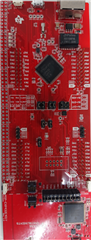
    Just to be sure, I took a picture of the EVM from above in order to check the settings of the jumpers on the EVM.

    Also, I changed both the PC and the Ethernet cable, but the problem is not solved.

    Thanks,

    Eevee

  • Hi,

     Sorry, I was out of office the last few days and just got back. 

     What SDK version do you have? See below what I use. 

      Can you download and install the SDK version again?

  • I changed both the PC and the Ethernet cable, but the problem is not solved.

    I don't see a problem with the jumper. 

  • Hi,

    I used the tcpecho demo as a starting point, a few years ago. Just a few thoughts:

    Since your DHCP is working, that suggests that your network and ethernet cables are basically good.

    The example configures the display (as used used by Display_printf) to use the debugger back channel UART (UART number 1 connected via  the debugger to a virtual COM port on your PC). The README.html in the sample project describes how to connect Putty to see the debug output from the virtual com port on your PC, so I am surprised to see that you have it coming out on the console.

    The README also describes how to run a Python script to send a TCP packet of the correct format, which should then be echoed by the demo app.

    As far as I remember, the tcpecho demo worked out of the box - no jumper changes required.

    Perhaps the sample project has been updated since I used it, but that worked for me!

    Hope that helps.

    Jim

  • Hi, Jim, Chaeles

    I want to organize the steps to take.
    1. Install DHCP Server and build a DHCP server.
    (You didn't indicate this step, but is 1. necessary?)
    2. Import the project.
    3. Change the MAC address from GMAC from sysconfig in the project.
    (For MAC address, should I enter the read value in CCS under Tools->On-Chip Flash?)
    4. Press the debug button to start the program.
    5. Using Hercules, set the Module IP and Port from the TCP Client field. (What should I put in the Module IP and Port?)

    As a result of performing these procedures, "TCP connection timeout" is displayed on Hercules and communication cannot be performed successfully.

    Could you please answer the question in () in the above procedure?
    Also, please let me know if there are any omissions in the procedure.

    Thanks,

    Eevee

  • Regarding MAC addresses - the Launchpad demo boards have a MAC address in the user config registers of the MSP432, so leave the MAC field in the sysconfig GUI as default (all F I think), and the driver will use the value from the chip.

    For custom boards, the MSP432 does not come with a MAC address, so set one via the debugger.

    If the MAC address is not right, the network stack doesn't start correctly, but doesn't really let on what the problem is Slight smile I suspect DHCP wouldn't work unless your MAC is good.

    I don't know about Hercules. As I mentioned, I used the Python script included with the demo - this sends a TCP message and checks for the echo.

  • Hi, Jim

    I got it. I will try to run it in python tomorrow.

    Regarding MAC addresses - the Launchpad demo boards have a MAC address in the user config registers of the MSP432, so leave the MAC field in the sysconfig GUI as default (all F I think), and the driver will use the value from the chip.

    Am I correct in saying that the GMAC does not need to be changed from the default when running with EVM?

    1. Install DHCP Server and build a DHCP server.
    (You didn't indicate this step, but is 1. necessary?)

    What about the above? If I run this sample code, do I need to build a DHCP server before running it?

      - You might need to compare your custom board schematic against the LaunchPad. Can you spot any obvious discrepancy?

    In Clales' answer he typed in a specific IP address and port. How were these determined?
    I'm confused about which value to put when actually verifying the operation.

    Thanks,

    Eevee

  • I believe you are right - the Launchpad has a MAC address and the samples should just work unchanged.

    For the DHCP server, I am using an old Netgear router I had lying around. When someone borrowed it, I tried to enable the DHCP server option in the sysconfig gui, and build myself a DHCP server on a standalone Launchpad, but I never got it to work. ( see e2e.ti.com/.../msp432e401y-dhcp-server-example )

    I believe there are DHCP server projects available for Linux and Windows - any should work.

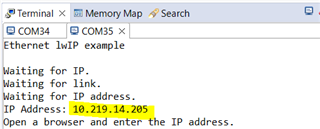
    The IP address you need is the one that the DHCP server assigns to your Launchpad. The Launchpad will print its assigned address in the console window as highlighted in Charles' screen dump.

    The TCP port number - as far as I remember, is hard coded into the sample project.

  • In Clales' answer he typed in a specific IP address and port. How were these determined?
    I'm confused about which value to put when actually verifying the operation.

    Hi Eevee,

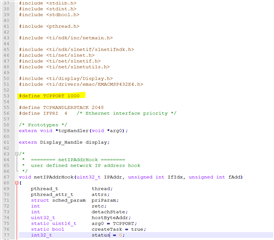
      The example assumes that you already have a DHCP server on the network. After the example starts, it tries to acquire the IP address that is leased out by the DHCP server. The IP address will be displayed in the terminal window. If you look at the image that I sent,  the terminal window showed 10.219.158.81. This is the IP address the example acquires from the DHCP server. If you don't have a DHCP server then the example will not work. In the next image from the Hercules client application, I just type the same IP address in the TCP client tab. The TCP port number is defined in the source file C:\ti\simplelink_msp432e4_sdk_4_20_00_12\examples\rtos\MSP_EXP432E401Y\ns\tcpecho\tcpEchoHooks.c. Please see below snippet.

  • Hi, Charles

    Since Tcpeho communication has not yet been established, I would like to clarify the following.

    (1) Is it correct to think that Ethernet connects EVM and PC?

    (2) The method of constructing the DHCP server may be wrong. Would it be possible for you to send me the procedure when you verified the operation?

    Thanks,

    Eevee

  • Hi,

      I'm on vacation. I will reply you on Wednesday.

  • Hi,

    To make this demo work, you need the following:

    • The Launchpad board with the tcpecho demo loaded.
    • A PC with an Ethernet port set to receive its IP address by DHCP. Also with the Python script available and Python installed.
    • An Ethernet switch, connected to the Launchpad and PC.
    • A DHCP server connected to the switch - this may be part of the switch if using something like an internet router.

    I do not believe you will have any luck trying to use a Launchpad as your DHCP server. I have spent several hours on this and not yet made it run!

    Once connected and running, the DHCP server will issue an IP address to the Launchpad and to the PC - perhaps something like 192.168.0.2 and 192.168.0.3.

    You should see the Launchpad mention, in its console debug window, it has been given an IP address. This is usually a few seconds after it boots. The DHCP server will usually have some form of management interface (perhaps a web page) where it will report connected devices. This should also show the IP address it has assigned to the Launchpad and PC.

    At this point, you should be able to open a command prompt window on the PC and ping the Launchpad at the address assigned to it (e.g. ping 192.168.0.2). If this doesn't work, something is wrong and you won't get any further.

    You should now be able to run the Python script on the PC. It should send a TCP packet over IP, to your Launchpad, which should echo it back.

    Hope this helps

    Jim

  • Hi, Jim

    A PC with an Ethernet port set to receive its IP address by DHCP. Also with the Python script available and Python installed.

    Can you share how you configured the DHCP server on your PC?

    Thanks,

  • I just used an old Netgear router for my switch, as it has a DHCP server built in. I switched off the wifi bit. It has 4 Ethernet ports to connect the PC and to some Launchpads.
    The DHCP part of it was left with default configuration, so it assigns IP addresses in the range 192.168.1.2  to 192.168.1.99.
    It reserves 192.168.1.1 for itself. i.e. the management interface where you go in to configure it.
    For more advanced configuration, set some fixed addresses so it always issues the same IP address to the PC.

    I believe there are free DHCP servers available for Linux and Windows, such as https://sourceforge.net/projects/dhcpserver/ but I am not using one.
    Regards
    Jim

  • Hi Jim,

      Thank you very much for helping out and sharing your experience and knowledge in Ethernet. Your involvement greatly benefits the community. With that said, I still don't understand why the poster cannot get the stock example to work. 

    Hi Eevee,

      I wonder how you build your project. Can you try to run the attached .out file? I build the example without any modification. I have no problem running it on the LaunchPad. Please load this .out and run it. If you still have the same problem, at least it proves it is not something with your build or the SDK version you are using. 

    https://e2e.ti.com/cfs-file/__key/communityserver-discussions-components-files/908/tcpecho_5F00_MSP_5F00_EXP432E401Y_5F00_tirtos_5F00_ccs.out

  • Hi, Charles Jim

    Thank you foy your support.

    Again, our goal is to have Ethernet communication with a static IP. I will share the result of the operation check in the Python script. As a result, the IP cannot be assigned and the Python script cannot be executed.

    ■ Confirmation conditions
    ・Tcpecho_MSP_EXP422E401Y_tirtos.ccs is used as it is, and DHCP is enabled and checked according to the README.

    ・As for the network configuration, DHCP (LAN side port of home router), confirmation PC, and Launchpad are connected to one network hub.

    ・On-Chip Flash MAC address setting (2D-00-00-4C-2B-00)

    ■Confirmation result
    ・An IP was assigned to the confirmation PC connected to the same network.
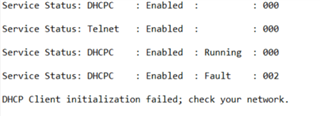
    ・As far as the Display Driver message is concerned, the Launchpad has failed to assign an IP.

    [Message output to terminal]
    Service Status: DHCPC : Enabled : : 00000
    Service Status: DHCPC: Enabled: Running: 000
    Service Status: DHCPC: Enabled: Fault: 002
    DHCP Client initialization failed; check your network.

    Is it possible to get some advice?

    Thanks,

    Eevee

  • When my Launchpad is connected to my Ethernet switch (router/dhcp server), I get:

    If I disconnect the Ethernet cable, I get:

    Could your cable be faulty or not plugged in fully? The Ethernet switch should have a light for each port to show if it thinks something is plugged in.

  • Hi,

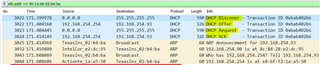
      Can you show your Wireshark capture? The DHCP client and the DHCP server will normally go through a 4-phases handshake. The 4 phases involves Discover, Offer, Request and ACK. You can do some Google search on how DHCP protocol works. Your wireshark capture may show some clues as to what happened. You might need to configure port mirroring on your switch so you can see all 4 phases shown up. One more thing to check is if your client and PC are on the same subnet.

  • Hi Eevee,

      One more thing I will suggest you try is to run a non-RTOS example using lwIP stack. You can find the webserver example at below folder. This example will also handshake with the DHCP sever to acquire an DHCP address. This example should provide more clues if the problem is board related or not. I

    C:\ti\simplelink_msp432e4_sdk_4_20_00_12\examples\nortos\MSP_EXP432E401Y\lwip\ethernet_with_lwip

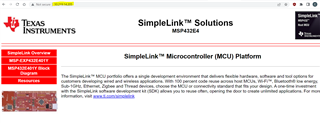
    If you can run this example successfully, you can go to your web browser and enter the server IP address at the URL. You will see the webpage provided by the board. See below example. If you can't go beyond the DHCP then I tend to think you either have a board problem or a network problem. 

  • Hi, Charles

    The DHCP server does not return an Offer for DHCP Discover on Launchpad. In response to DHCP Discover of the confirmation PC, the DHCP server returns Offer and assigns an IP. Also, the subnets of the confirmation PC and the DHCP server were the same.

    As a difference between the two, there seems to be a divergence of about 2 times in the packet size of Discover. It seems to be the difference in padding size after Option.

    Details are summarized in the attachment.

    1856.Result.xlsx
    In addition, we will check the operation from now on.
    "Non-RTOS example using lwIP stack"

    Thanks,

    Eevee

  • Hi Eevee,

      I have gone through your wireshark log and it is weird that the DHCP sever is not replying 'DHCP Offer' packet to the MCU client. The MCU is sending out the DHCP Discover which means the MCU is doing its job as far as the stack is concerned. Something is wrong on your network, I think. It seems your DHCP server is able to lease an IP address to your PC but not LaunchPad. I think it is some type of network issue that I don't know how to resolve. You might need to check with your IT department for assistance. I'm not an expert in the DHCP protocol in details. You may need to examine the DHCP Discover packet in details and see if anything is weird with the packet format. 

      Please run the Non-RTOS example using lwIP stack. I want to see if you have the same issue like the RTOS-based tcpecho example. 

      Do you have another LaunchPad? Can you produce the same issue?

      Do you have another Ethernet switch that you experiment with? Can you produce the same issue?

      I have suggested various things in the past like running the example on a different network, check your cable. I kind of running out of ideas. The example is supposed to run out of box on the LaunchPad board. 

  • It is possible that your Ethernet switch is only routing to DHCP offer to the port with the Launchpad connected, and not to the PC where Wireshark is listening, or there could be something odd about about your DHCP server - no idea what. Can you see the management page for the server? List of attached devices?
    What is you full setup now?

  • Hi, Jim, Charles

    Thank you for your comments.
    First, I ran a Non-RTOS example using the lwIP stack, so I'll share the content.

    The phenomenon that the DHCP server did not respond with Offer to DHCP Discover from Launchpad was the same. Launchpad then declared 169.254.1.43 to ARP and assigned this IP to itself. Windows was unable to ping 169.254.*.*, so I couldn't even check the connection with a browser.

    I will send you the operation result and the WireShark log including DHCP and ARP in the attachment.

    Ethernet_with_lwip confirmation result by DHCP.xlsx

    ethernet_with_lwp.zip

    ■Other confirmation results
    In order to confirm that there is a problem with the network, we replaced the Launchpad with another embedded board capable of TCP/IP connection that we had developed in the past.
    As a result, both static IP and DHCP were working correctly in the same network.
    I checked Discover, Offer, Request, and Ack of DHCP with WireShark. A TCP connection from the confirmation PC (client) was also possible. EVM has been confirmed with multiple units.

    Please let me know if you have any advice or things to check in the next step.

    Thanks,

    Eevee

  • The diagram in your .xlsx file attached looks perfect!

    Using a switch with a mirror port is good. It should allow your monitor PC to see all network traffic - assuming  the mirror port is correctly set to mirror all of the other ports.

    I don't know how your Launchpad has picked up the IP address 169.254.1.43 - I don't think that the Full stack TI RTOS examples have a default IP address - it just times out after a few minutes. Perhaps this is a feature of the LWIP stack - I don't know, I have never tried it.

    Your DHCP server is setting IP addresses in the range 192.168.2.x where x is 100 -> 200. It also sets a subnet mask of 255.255.255.0 so ping will only work if the first 3 bytes of the IP address match.

    Your 2 PCs will have addresses such as 192.168.2.100 and 192.168.2.101, so they should be able to ping each other. If the Launchpad has an IP of 169.254.1.43, it is not in the same subnet, so ping will not work! Can you modify the default address to be in the same subnet? (e.g. 192.168.2.201)

    Does the DHCP server have a page to show attached devices? Presumably, it shows the 2 PCs as attached, but not the Launchpad.

    What brand is the DHCP server? I am using an old Netgear home router. Perhaps your server has some unusual feature that does not work with the Launchpad - no idea, just guessing!

    You may have to try using a static address but normally it would be a good idea to get the unmodified sample to work before changing anything! I described how to set a fixed IP in the is thread https://e2e.ti.com/support/microcontrollers/arm-based-microcontrollers-group/arm-based-microcontrollers/f/arm-based-microcontrollers-forum/1125791/msp-exp432e401y-setting-static-ip-address-at-runtime

  • Hi Eevee,

      I think it is the biggest mystery I have yet to overcome. You are running the lwIP example on a LaunchPad still fails during DHCP handshake. lwIP stack has the AUTOIP feature that it will assign itself an IP address if it can't get one from the DHCP server. At this moment I really run out of ideas. 

      Did you ever try on a different network? Can you try on your home network, not company network or vice versa?  Perhaps simply plug the board to the back of your home router or as suggested by Jim, try out a different switch. These examples are proven and I have never seen customers fail to acquire DHCP IP address. 

  • Hi, Jim, Charles

    Thank you for your comments.

    Your 2 PCs will have addresses such as 192.168.2.100 and 192.168.2.101, so they should be able to ping each other. If the Launchpad has an IP of 169.254.1.43, it is not in the same subnet, so ping will not work! Can you modify the default address to be in the same subnet? (e.g. 192.168.2.201)

    I changed the PC side that sends the Ping to a fixed IP such as 169.254.1.44 (255.255.255.0) and confirmed it, but there was no change in the phenomenon that the Ping did not pass. Could you tell me how to change the default address of Launchpad?

    Does the DHCP server have a page to show attached devices? Presumably, it shows the 2 PCs as attached, but not the Launchpad.

    What brand is the DHCP server? I am using an old Netgear home router. Perhaps your server has some unusual feature that does not work with the Launchpad - no idea, just guessing!

    I am using a Logitec router. The model is "LAN-W301NR". The router has a page that shows the DHCP clients that have connected.
    Also, the page that displays the DHCP client has the following contents.

    ・The IP and MAC of the confirmation PC are displayed.
    ・Lauchpad's IP and MAC are not displayed

    Did you ever try on a different network? Can you try on your home network, not company network or vice versa? 

    I tried it with a router made by BUFFALO. The model is "WCR-1166DS".

    The confirmation result was the same as the Logitec router.

    ・For DHCP Discover from Launchpad, use IP 169.254.1.43 in DHRP probe and Announcement.
    ・IP is correctly assigned to the confirmation PC by DHCP.
    ・The page that displays the DHCP client has the following contents.
    → The IP and MAC of the confirmation PC will be displayed.
    → Launchpad's IP and MAC are not displayed

    Thanks,

    Eevee

  • Hi Eevee,

      Have you run the  lwIP example on a LaunchPad yet?

      How many LaunchPads do you have? Can you repeat the same problem on all the boards?

  • Hi, Charles

    I will check and contact you later. How about the following?

    Could you tell me how to change the default address of Launchpad?

    Thanks,

    Eevee

  • Hi,

      If you are asking about the Auto IP where you get the IP address of 169.254.xxx.xxx, this is by protocol. Please see the wiki page for Auto-IP. 

    https://en.wikipedia.org/wiki/Link-local_address

  • Hi,  Charles, Jim

    Problem solved successfully. Thank you for all your support!

    Since the DHCP server responds to DHCP Discover of other devices, we thought that there was a problem with another communication hierarchy, so we turned our attention to MAC addresses that had not been confirmed before. The cause was the MAC address "2D-00-00-4C-2B-00" that had been used so far.
    As a result of separating the MAC address by structure, we were able to identify the cause as "I/G bit = 1".

    In tcpecho.syscfg of tcpecho_MSP_EXP432E401Y_tirtos_ccs
    Setting the MAC address to "I/G bit = 0" solved the problem in both DHCP and static IP environments.

    Thanks,

    Eevee

  • Hi Eevee,

     Glad that your issue is resolved. I'm curious as to why you change the MAC address. How did you acquire the MAC address with 2D-00-00? From IEEE? The LaunchPad is preprogrammed with a unique MAC address. The I/G bit which is the bit0 of the first byte (left most byte) in the MAC address is 0. This is why I suggested to use the stock LaunchPad to verify the example. I didn't realize you change to an entirely different MAC address. Setting I/G bit to 1 means it is for multicasting to all the nodes in the same group. I guess this is why DHCP sever rejected the request. Anyway, glad the issue is understood and I also learn something new. 

  • Hi, Charles

    2D-00-00-4C-2B-00 is the value written in LaunchPad in advance. Confirmed by reading CCS.

    Thanks,

    Eevee

  • Hi Eevee,

      I find it hard to believe that the LaunchPad is preprogrammed with 2D-00-00-4C-2B-00 by TI. There is supposed to be a sticker on the back of the board that shows the MAC address. Is it another value? 

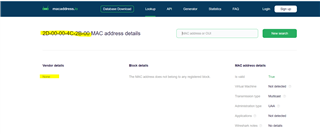
      I go to an online MAC address lookup, The vendor for 2D-00-00 is not Texas Instruments. See below. Normally, you will see Texas Instruments if the OUI is pertaining to TI. 

  • Perhaps someone fiddled with your Launchpad Disappointed
    Off the shelf, they all have MAC addresses starting 70:FF:76, which is owned by TI.
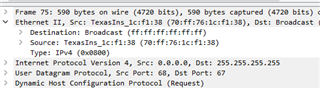
    Wireshark even recognises them (so, if we were paying attention, we could have spotted that your board had an unusual address - I didn't realise it was a problem, so I've learnt something too!)