


Part Number: AM2612
Other Parts Discussed in Thread: UNIFLASH
Step-by-Step Guide to running profinet example on LP-AM261x.
Requirements:
1. IND COMMS SDK
2. CCS
3. Compiler
4. Syscfg
5. Uniflash GUI
7. LP-AM261x
Make sure you have installed above requirements. Follow the links/steps below for setting up tools:
Install all requirements mentioned in requirements.txt (Location - ind_comms_sdk/mcu_plus_sdk/requirements.txt)
/*Navigate to mcu_plus_sdk folder and then run the following command*/
pip install -r requirements.txt
Steps to run the Profinet example:
Overview- The Profinet demo on AM261x-LP supports execution from external flash i.e XIP. So to properly run the example we need to program the sbl_ospi_mcelf and application image(.mcelf) into flash using Uniflash tool, then set boot mode to OSPI, and then we can see successful run logs. Follow the below steps:
1. Open CCS and import the Profinet example in project explorer
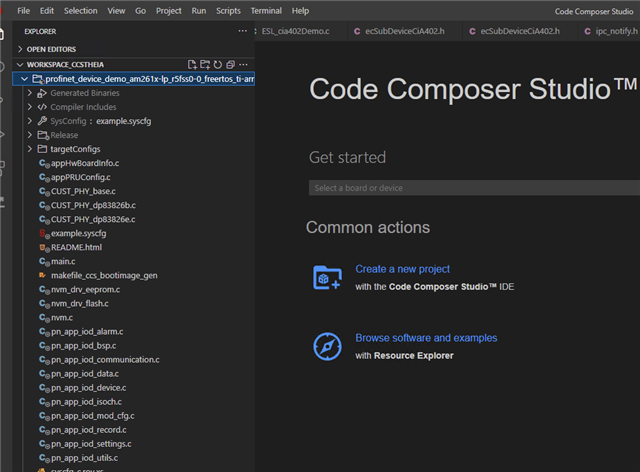
2. Build the project and make sure profinet_device_demo_am261x-lp_r5fss0-0_freertos_ti-arm-clang.mcelf and mcelf_xip image is generated correctly, see the success log below. If there are any error see this post.[172] Boot multi-core ELF image: am261x:r5fss0-0:freertos:ti-arm-clang C:/Users/a0492123/workspace_ccstheia/profinet_device_demo_am261x-lp_r5fss0-0_freertos_ti-arm-clang/Release/profinet_device_demo_am261x-lp_r5fss0-0_freertos_ti-arm-clang.mcelf ...
[173]python C:/ti/ind_comms_sdk_am261x_10_02_00_15/mcu_plus_sdk/tools/boot/multicore-elf/genimage.py --core-img=0:Release/profinet_device_demo_am261x-lp_r5fss0-0_freertos_ti-arm-clang.out --output=C:/Users/a0492123/workspace_ccstheia/profinet_device_demo_am261x-lp_r5fss0-0_freertos_ti-arm-clang/Release/profinet_device_demo_am261x-lp_r5fss0-0_freertos_ti-arm-clang.mcelf --merge-segments=true --tolerance-limit=0 --ignore-context=false --xip=0x60000000:0x68000000 --xlat=none --max-segment-size=8192
[174] Boot multi-core ELF image: C:/Users/a0492123/workspace_ccstheia/profinet_device_demo_am261x-lp_r5fss0-0_freertos_ti-arm-clang/Release/profinet_device_demo_am261x-lp_r5fss0-0_freertos_ti-arm-clang.mcelf Done !!!
[175] .
[176] Boot image: am261x:r5fss0-0:freertos:ti-arm-clang C:/Users/a0492123/workspace_ccstheia/profinet_device_demo_am261x-lp_r5fss0-0_freertos_ti-arm-clang/Release/profinet_device_demo_am261x-lp_r5fss0-0_freertos_ti-arm-clang.appimage Done !!!
[177] .

3. Take LP-AM261x, put it in dev boot mode. Then, open the Uniflash GUI tool and select
SBL - sbl_ospi_multicore_elf.release.tiimage (location - ind_comms_sdk/mcu_plus_sdk/tools/boot/sbl_prebuilt/am261x-lp)
Application profinet_device_demo_am261x-lp_r5fss0-0_freertos_ti-arm-clang.mcelf (location - CCS workspace)
XIP Image - profinet_device_demo_am261x-lp_r5fss0-0_freertos_ti-arm-clang.mcelf_xip ((location - CCS workspace)

Click on load image.
4. After loading is successful. Disconnect the power cable and Change the boot mode pins to OSPI Boot mode
5. Next power on the device and open the UART COM port to see success log of Profinet example:
