This thread has been locked.

If you have a related question, please click the "Ask a related question" button in the top right corner. The newly created question will be automatically linked to this question.

MSPM0C1104: Unable to Flash HEX with UniFlash

Part Number: MSPM0C1104
Other Parts Discussed in Thread: UNIFLASH

Hi,

I am using MSPM0C1104 on my board and am able to progam it by Debugging in CCS. However, when I try to program the generated .HEX file (inside the Debug folder) using UniFlash, the MCU doesn't work after successfull program. Please help with the issue.

UniFlash throws an "Error in image size" error, but programs the MCU anyway.


image.png

Once the program is loaded, the MCU doesn't work, and it cannot be programmed again, even if I try to debug through CCS. I get the below error when I try to program again:
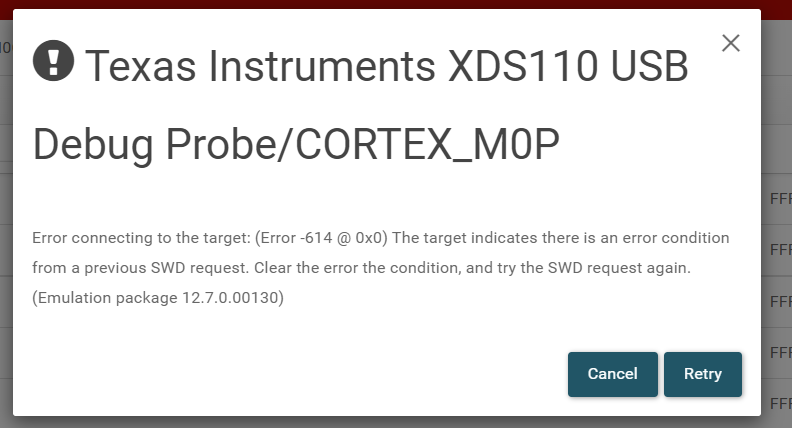
 

image.png


Below is a screeshot of my device_linker.cmd file:
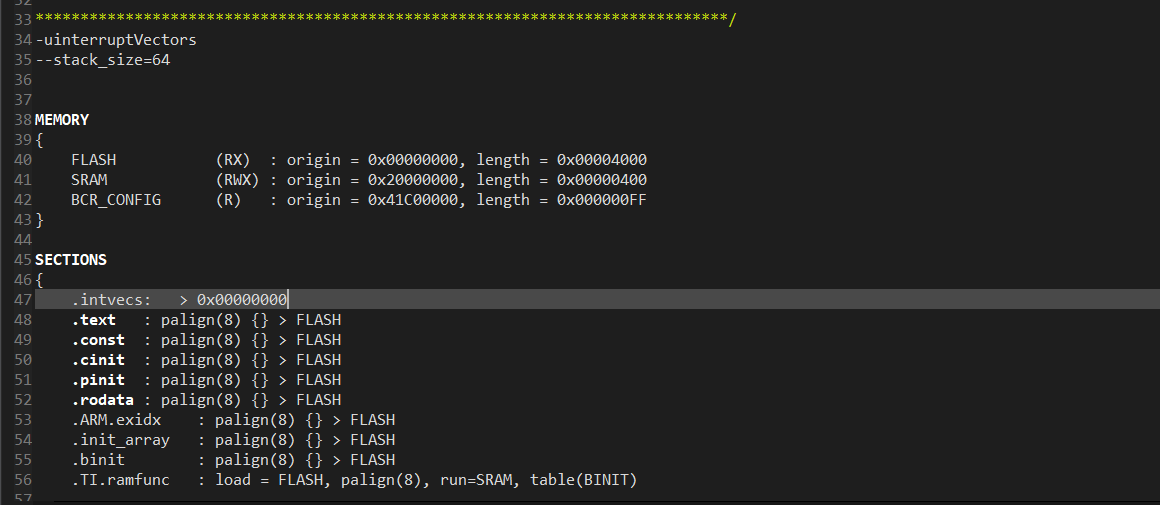
image.png


I have disabled the RST pin in my program, and am using it for I2C.

UniFlash version: 8.7.0.4818 

CCS version: 12.8.1.00005 

  • Hi Mrinal,

    Can you try the steps outlines in section 7.1 of the MSPM0 MCUs Development Guide to recover the device? You will need to hold NRST low before powering the device and continuing to do so until you issue a factory reset DSSM command. Furthermore, the Bootloader option does not apply for this device.

    Regarding the error messages you received in Uniflash, there are some instances where the console will say that the image is not formatted properly, but if it successfully loads, then it is a glitch with Uniflash. What Hex file format did you use? Can you try the TI-TXT hex file type?

    Best,

    Owen

  • Thank you for the support.

    Changing from HEX to TI-TXT solved the issue.

    I tried to recover the devices after going through the document for RESET disabled device. I was not able to recover them so far.

    The main issue is resolved, and that is good-to-go for now.

  • Hi Mrinal,

    Try these steps:

    1. Disconnect the board from power
    2. Open a Uniflash session for the device
    3. Press and hold the NRST button (S3)
    4. Connect the board to power while continuing to hold the NRST button
    5. Click on the Settings & Utilities tab and issue a manual Factory Reset DSSM command
    6. Release the NRST button when the console prompts you to press the NRST button

    Note: if your board doesn't have an NRST button, you can "hold the NRST button" by pulling the NRST pin to ground.

    If you are unable to recover the device, it is likely bricked. 

    Best,

    Owen