This thread has been locked.

If you have a related question, please click the "Ask a related question" button in the top right corner. The newly created question will be automatically linked to this question.

TMDSEMU200-U: XDS200 Not Connecting to TMDS64EVM

Part Number: TMDSEMU200-U
Other Parts Discussed in Thread: TMDS64EVM, CCSTUDIO, UNIFLASH, TMDSEMU110-U

Hi Team,

I am using TMDS64EVM with external debugger TMDSEMU200-U connected to J25.

Previously the same setup was working, but now CCS cannot communicate with the XDS200.

CCS error:

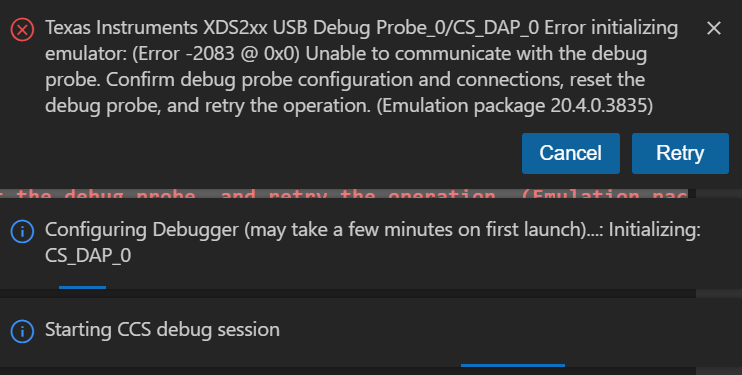
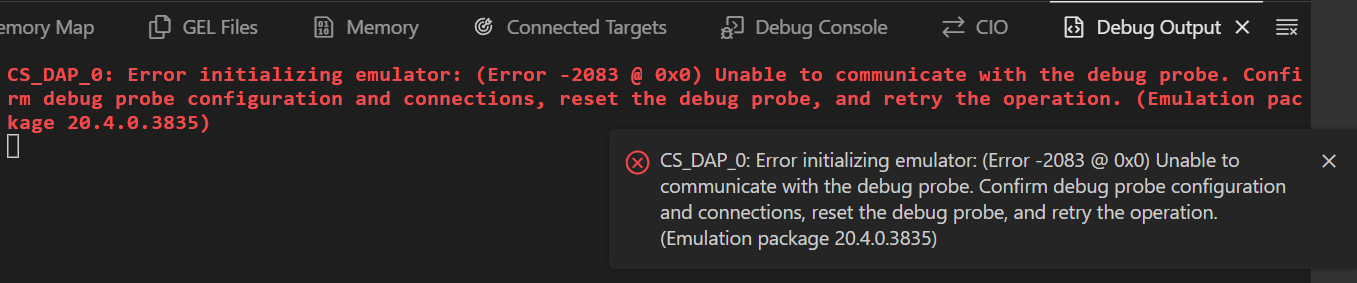
Texas Instruments XDS2xx USB Debug Probe_0/CS_DAP_0 Error initializing emulator:
(Error -2083 @ 0x0) Unable to communicate with the debug probe.
Confirm debug probe configuration and connections, reset the debug probe,
and retry the operation. (Emulation package 20.4.0.3835)

Test Connection from .ccxml advance settings gives:

-----[Print the board config pathname(s)]------------------------------------

C:\Users\SOURAV~1.SIN\AppData\Local\TEXASI~1\
CCS\ccs2040\0\0\BrdDat\testBoard.dat

-----[Print the reset-command software log-file]-----------------------------

This utility has selected a 560/2xx-class product.
This utility will load the program 'xds2xxu.out'.

E_RPCENV_IO_ERROR(-6) No connection: DTC_IO_Open::dtc_io
Failed to open i/o connection (xds2xxu:0)

An error occurred while soft opening the controller.

-----[An error has occurred and this utility has aborted]--------------------

This error is generated by TI's USCIF driver or utilities.

The value is '-250' (0xffffff06).
The title is 'SC_ERR_ECOM_EMUNAME'.

The explanation is:
An attempt to access the debug probe via USCIF ECOM has failed.

I also tried XDS200 firmware recovery/update using:

C:\ti\ccs2040\ccs\ccs_base\common\uscif\xds2xx>update_xds2xx.bat xds200

Output:

Updating Firmware ...
Rebooting, please wait ...
Updating CPLD ...
Reading Configuration ...

boardRev=2
ipAddress=0.0.0.0
ipConfig=dhcp
ipGateway=255.255.255.255
ipNetmask=255.255.255.255
productClass=XDS2XX
productName=XDS200
serialNum=S200-000FD2068290
swRev=1.0.0.9
hostCPU=AM1802
emuCtrlType=Bit bang
extMemType=SDRAM
portUSB=true
portENET=false
portWIFI=false
portRS232=false
EnableUSBSerial=true
CurrentMeasure=false

So firmware update succeeds and PC detects the XDS200, but CCS still cannot connect.

How can I fix this issue?

Thanks.
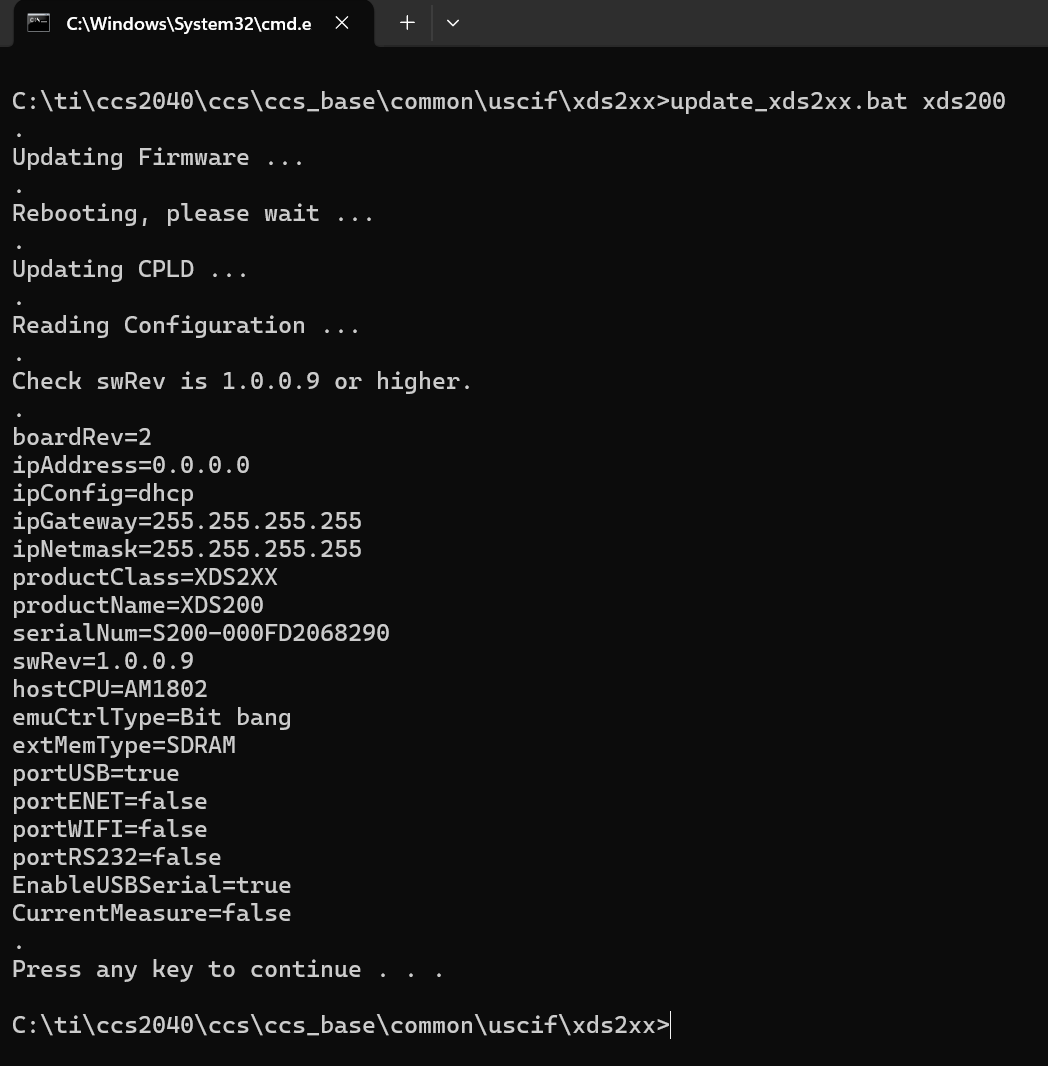
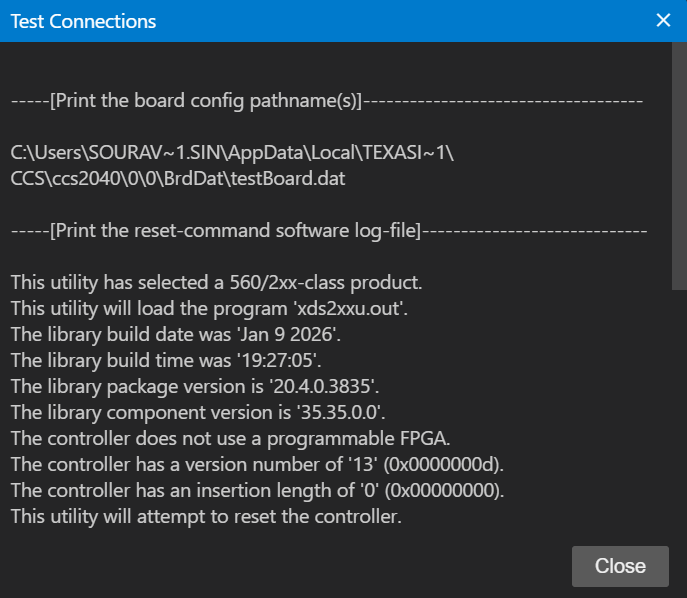
image.png

image.png
image.png

image.png

image.png

  • Hello,

    Thank you for providing the detailed error logs. Based on Error -2083 and the SC_ERR_ECOM_EMUNAME failure, this indicates a communication breakdown between CCS and the XDS200 debug probe. The good news is that your firmware update succeeded and as you've shown, Windows is recognizing the device, so this is likely a driver or configuration issue rather than hardware failure.

    Please try the following troubleshooting steps in order:

    1. USB Connection Reset

    • Unplug the XDS200 from USB
    • Wait 10 seconds
    • Connect to a different USB port, preferably a USB 2.0 port directly on your PC (not a hub)
    • Wait for Windows to fully recognize the device

    2. Verify Device Manager

    • Open Device Manager (Windows + X, then select Device Manager)
    • Look under "Universal Serial Bus controllers" or "Debug Probes"
    • Verify the XDS200 appears without any yellow warning icons
    • If you see warnings, right-click the device, select "Uninstall device", check "Delete driver software", then unplug and replug the XDS200 to let Windows reinstall the drivers

    3. Reinstall XDS200 Drivers

    Run the following as Administrator:

    cd C:\ti\ccs20xx\ccs\ccs_base\common\uscif\xds2xx
    install_drivers.bat

    4. Recreate Target Configuration

    • In CCS, go to View → Target Configurations
    • Delete your existing .ccxml file
    • Create a new target configuration:
      • Right-click → New Target Configuration
      • Connection: Texas Instruments XDS2xx USB Debug Probe
      • Board or Device: Select your TMDS64EVM target device
      • Save and test connection

    5. Verify Hardware Connections

    • Ensure the 14-pin JTAG cable is firmly seated at J25 on the TMDS64EVM
    • Verify the TMDS64EVM is powered ON before attempting connection
    • The XDS200 requires the target board to be powered to establish communication

    Proper Power Sequence:

    1. Power on the TMDS64EVM first
    2. Connect the XDS200 to USB
    3. Wait for device enumeration
    4. Launch CCS and attempt connection

    6. Close Conflicting Processes

    Ensure no other instances of CCS or debug software are running:

    taskkill /F /IM ccstudio.exe

    Then restart CCS.

    7. Update Emulation Package

    Your current emulation package is version 20.4.0.3835. Try updating to the latest version:

    • In CCS: Help → Check for Updates
    • Select Emulation Package if an update is available
    • Install and restart CCS

    Most Common Root Causes:

    • USB driver corruption (Steps 2-3)
    • Target board not powered when attempting connection (Step 5)
    • Stale CCS configuration (Step 4)
    • USB port power issues (Step 1)

    If the issue persists after trying these steps:

    • Test the XDS200 with a different target board to isolate whether the issue is with the probe or the TMDS64EVM
    • Check if the JTAG scan path on the TMDS64EVM is functioning correctly
    • Consider testing with a different debug probe such as an XDS110

    Please let me know the results after trying these steps, particularly:

    • Does Device Manager show the XDS200 without errors?
    • Does recreating the target configuration help?

    I am happy to provide additional guidance based on your results.

    Best Regards,

    Zackary Fleenor

  • Hello Zackary,

    Thank you for the detailed response.

    We checked the XDS200 in Device Manager and there are no warning icons. The COM port is also detected properly without any issues. We already updated CCS IDE and the emulation package as well.

    We tested the external XDS200 on two different TMDS64EVM boards and observed the same result on both. The onboard XDS110 on both EVMs works fine, but the external XDS200 fails to connect.

    The LEDs on the XDS200 are ON, and during “Test Connection” the second LED also blinks, but eventually the log reports failure.

    We also tested on multiple PCs and different USB ports, including direct USB connections, and the behavior is the same everywhere.

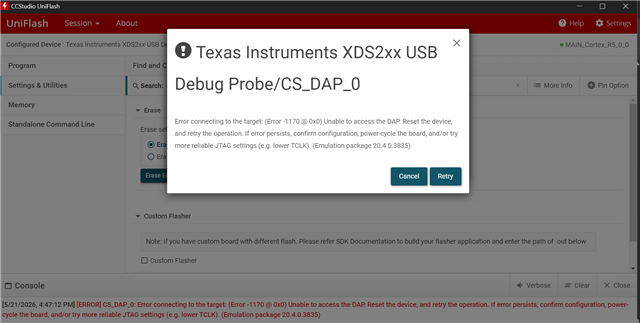
    We also checked with UniFlash GUI, and the XDS200 does not connect there as well.

    Additionally, the following command/path mentioned is not available in our CCS installation:

    cd C:\ti\ccs20xx\ccs\ccs_base\common\uscif\xds2xx
    install_drivers.bat

    This folder/file does not exist in our SDK/CCS path.

    Below are the logs from the test connection:

    -----[Print the board config pathname(s)]------------------------------------

    C:\Users\SARITA~1.JAN\AppData\Local\TEXASI~1\CCS\ccs2040\0\0\BrdDat\testBoard.dat

    -----[Print the reset-command software log-file]-----------------------------

    This utility has selected a 560/2xx-class product.

    This utility will load the program 'xds2xxu.out'.

    E_RPCENV_IO_ERROR(-6)
    No connection:
    DTC_IO_Open::dtc_io Failed to open i/o connection (xds2xxu:0)

    An error occurred while soft opening the controller.

    -----[An error has occurred and this utility has aborted]--------------------

    This error is generated by TI's USCIF driver or utilities.

    The value is '-250' (0xffffff06).

    The title is 'SC_ERR_ECOM_EMUNAME'.

    The explanation is:

    "An attempt to access the debug probe via USCIF ECOM has failed."

    Could you please provide the exact solution or recovery procedure for this issue?

    Best Regards,
    Sourav


  • Hello Sourav,

    Thank you for the detailed follow-up and the additional diagnostic information. Based on the symptoms you've described, I believe we're dealing with a hardware failure in the XDS200 debug probe itself rather than a software or driver configuration issue.


    The specific error SC_ERR_ECOM_EMUNAME with E_RPCENV_IO_ERROR(-6) indicates that CCS cannot establish low-level I/O communication with the XDS200's internal controller. This failure occurs before any JTAG communication is attempted, which is significant.

    The fact that you've observed identical behavior across:

    • Two different TMDS64EVM boards
    • Multiple PCs
    • Different USB ports
    • Both CCS and UniFlash

    While the onboard XDS110 works perfectly on both EVMs, this pattern strongly suggests an internal hardware failure in the XDS200 unit rather than any environmental or configuration issue.


    Additional Diagnostic Steps

    Before concluding this is a hardware failure, please try these final troubleshooting steps:

    1. Force Complete USB Re-enumeration

    Run as Administrator in Command Prompt:

    pnputil /enum-devices /class USB /connected

    Locate the XDS200 device instance ID, then:

    pnputil /remove-device "USB\VID_0451&PID_BEFE\<SERIAL_NUMBER>"

    Unplug the XDS200, wait 30 seconds, then reconnect.

    2. Run XDS Emulation Diagnostic Tool

    Navigate to your CCS installation:

    cd C:\ti\ccs2040\ccs\ccs_base\common\uscif
    xds2xx_conf.exe

    This utility performs deeper hardware diagnostics. Check for any errors related to CPLD communication, firmware handshake, or JTAG state machine initialization.

    3. Test with External Powered USB Hub

    The XDS200 requires stable USB power. Connect it through a powered USB hub with an external power supply to rule out USB power delivery issues.

    4. Verbose Firmware Update Log

    Run the firmware update with verbose logging:

    cd C:\ti\ccs2040\ccs\ccs_base\common\uscif\xds2xx
    update_xds2xx.bat xds200 -v > xds200_update_log.txt 2>&1

    Review the log file for any errors during USB enumeration, bootloader handshake, or CPLD programming.


    Regarding Missing install_drivers.bat

    The install_drivers.bat file location varies by CCS version. For CCS 20.4.0, the driver installation is typically handled automatically during CCS installation. Since Device Manager shows the XDS200 without errors and the COM ports are properly detected, the drivers are correctly installed.

    Root Cause Assessment

    The error "Failed to open i/o connection (xds2xxu:0)" occurs at a very low level in the communication stack. The fact that:

    • Firmware updates report success (can write to flash)
    • Configuration reads back correctly (can read from flash)
    • But runtime I/O connection fails (cannot establish communication)

    This pattern indicates a failure in the runtime communication path between the USB controller and the JTAG state machine, likely due to:

    • Failed component on the communication bus
    • Corrupted CPLD configuration despite successful programming
    • Failed voltage regulator affecting the JTAG controller
    • Physical damage to internal traces

    Recommended Path Forward

    Immediate Workaround:

    Continue your development using the onboard XDS110 debugger on the TMDS64EVM. This is fully functional and sufficient for debugging, development, and production programming tasks.

    Long-term Solution:

    Given your serial number S200-000FD2068290, I recommend contacting TI Product Support to initiate a warranty claim or RMA process:

    1. Visit: https://support.ti.com/
    2. Create a support ticket referencing this E2E thread
    3. Include your serial number and the error code SC_ERR_ECOM_EMUNAME (-250)
    4. Request evaluation for warranty replacement

    If you require an external debugger for your specific workflow and need an immediate replacement, consider the XDS110 (TMDSEMU110-U) as an alternative. It offers:

    • Better support in current CCS versions
    • Lower cost than XDS200
    • Sufficient performance for most C6000 DSP debugging tasks
    • More reliable USB implementation

    For high-performance trace requirements, the XDS560v2 would be the appropriate choice.

    Next Steps

    1. Try the additional diagnostic steps above (particularly xds2xx_conf.exe)
    2. If all diagnostics fail, use the onboard XDS110 for immediate development needs
    3. Contact TI Product Support for warranty evaluation of your XDS200 unit

    Please share the results from the xds2xx_conf.exe diagnostic tool if you're able to run it. If that utility also fails to communicate with the probe, it will confirm the hardware failure diagnosis.

    Best Regards,

    Zackary Fleenor