This thread has been locked.

If you have a related question, please click the "Ask a related question" button in the top right corner. The newly created question will be automatically linked to this question.

Stellaris Virtual Serial Port not appearing in Device Manager

Hi,

I'm attempting to use PuTTY to open a serial connection to a Tiva C Series TM4C123G LaunchPad Evaluation Kit.

I have been using Keil uVision in order to create projects, build them, and flash them to the microcontroller. Everything regarding this process in working properly.

However, when using the Windows 10 Device Manager to check my connected devices, I see the following.

As you can see, the connected LaunchPad appears as USB Serial Device (COM3). However, what I am expecting to see listed is Stellaris Virtual Serial Port (COM(insert number here)). I have attempted to use PuTTY to connect to COM3 using the settings desribed in the Properties of this device, but nothing happens when I click OK. I have installed the necessary drivers in spmc016a.zip before, and have (to my knowledge) made no changes in setup.

If anyone could shed some light on what I need to change to get this working properly, I would greatly appreciate it. Thanks!

  • Hello Jared,

    Can you remove the drivers for the USB Serial Device and then install the drivers from the Stellaris Package?
  • Thank you, Amit.

    The following solution worked, but only after I restarted Windows 10 using advanced startup and selected to disable driver signature enforcement.

    Upon restart, I opened the Device Manger and selected USB Serial Device (COM3) -> Properties -> Driver -> Uninstall which uninstalled the driver and removed the device from the list. I then disconnected and reconnected the LaunchPad so that I could reattempt to install the correct drivers.

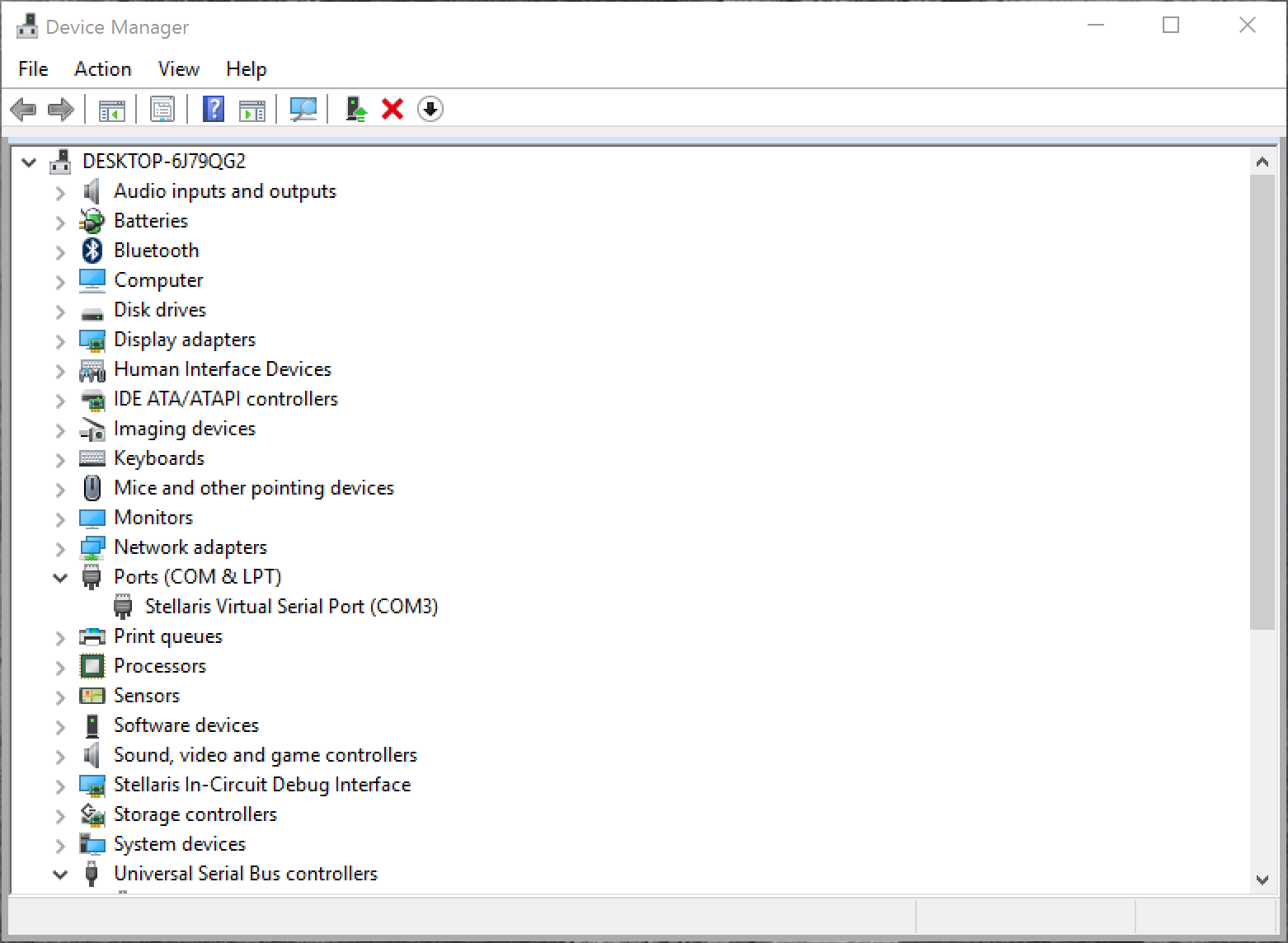
    Once USB Serial Device (COM3) had reappeared, I attempted to install the correct drivers with USB Serial Device (COM3) -> Properties -> Driver -> Update Driver... I selected "Browse my computer for driver software" and selected the location as "C:\Users\Jared Payne\Downloads\stellaris_icdi_drivers" which is the folder extracted from "spmc016a.zip". After agreeing to trust the driver in the pop-up window, the driver appears to have installed successfully.

    The device now appears like this in the manager:

  • Hello jared,

    The new drivers are correctly signed for Windows10. There is no need to disable Win10 Disable Driver Enforcement.