This thread has been locked.

If you have a related question, please click the "Ask a related question" button in the top right corner. The newly created question will be automatically linked to this question.

RTOS/EK-TM4C129EXL: Settings for the Ethernet/TCP/IP stack?

Part Number: EK-TM4C129EXL


Tool/software: TI-RTOS

Perhaps the definitive noob question: Where are the parameters/settings in the Out-of-Box demo for the above-referenced board? 

Simply: Given issues we're seeing with this card using a DHCP-mediated connection, I'd like to hard-wire the IP interface for testing.

Yes, I know; I should scour the source code back to front...

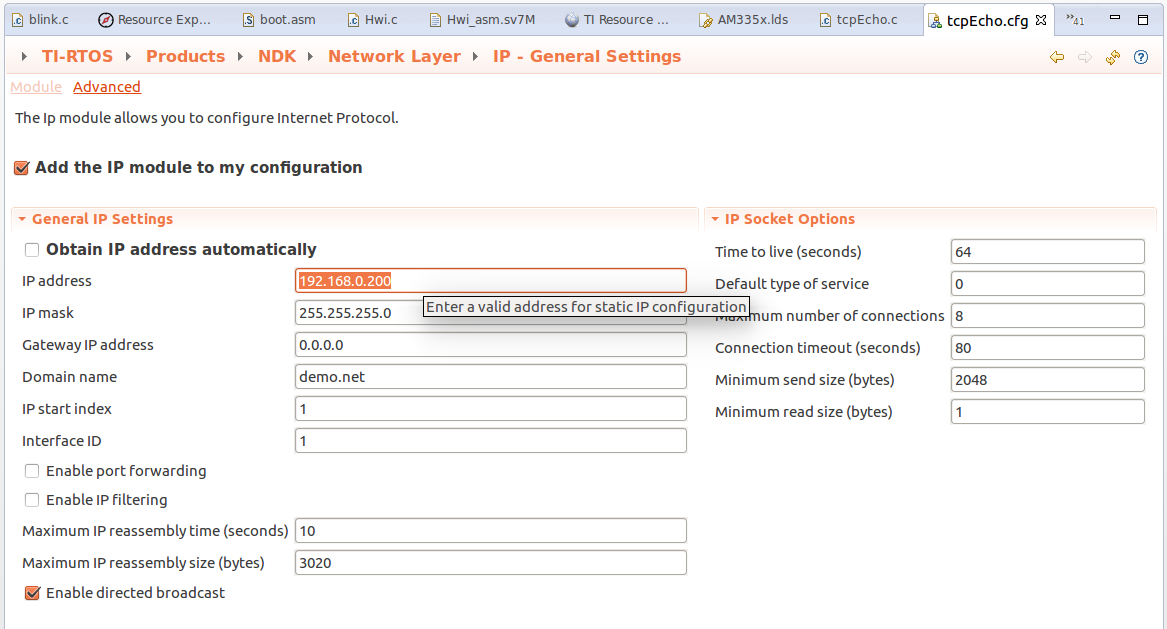
  • In the TI-RTOS XGCONF editor the IP address settings are under the IP - General Settings page:

    The default is that "Obtain IP address automatically" is ticked, which uses DHCP to obtain an IP address.

    If you un-tick the "Obtain IP address automatically" you can then enter a static IP address.

    Note that under CCS 7 if you double-click on a TI-RTOS .cfg configuration file, the file will be opened in the text editor by default. To open in the graphical editor right-click on the .cfg file in the CCS Project Explorer and select "Open with XGCONF" (you only have to do that the first time, the selection is remembered).

  • Thanks, Chester, for your response.
    But, ( apologies, new to this entire ecosystem ) - what and where is this beast XGCONF of which you speak? ( a module I must - and am yet to - build? )
    My project - for the moment the Out-of-Box 'experience' for the EK-TM4C129EXL - has no such TI-RTOS.cfg file.
    ( Yes, have begin reading the TI-RTOS 2.16 User's Guide ... )
  • LouEEEE! said:
    My project - for the moment the Out-of-Box 'experience' for the EK-TM4C129EXL - has no such TI-RTOS.cfg file.

    My mention of the "TI-RTOS.cfg" was a bit vague; I meant the .cfg file in the project.

    The secure_iot project from the Out-of-Box 'experience' for the EK-TM4C129EXL has a secure_iot.cfg file. If you right-click on the secure_iot.cfg file in the CCS Project Explorer and select Open With -> XGCONF :

    That should ensure the secure_iot.cfg is opened by the XGCONF editor where as per my previous screen shot you can change the IP address configuration of the project to set a static IP address.

  • Chester! Fantastic!

    Don't know if you guys permit obscenity on the forum, but I am tempted toward an enthusiastic expletive ! It just feels right...!

    Your simple explanation of 'Open With' has opened a floodgate of realization. I was fully onto the .cfg file - but in my simple-minded world, 'open' means: 'double-click'. As you can imagine, one never gets to XGCONF this way...

    I know, this stuff is obvious to users of CCS? Eclipse? I've used neither before in earnest. Have used loads of 'Build Systems' with 30-line config steps, but not Eclipse...

    Now, I get it: I should have known/guessed/surmised ... But this simple stuff really presents a barrier to entry.

    TI Sharpies/Higher-Ups? Take note: You have here a motivated system developer, already appreciative of the TI feature set and advantages, hoping to address a fairly large market - who has had a lot of trouble getting off the proverbial dime.

    Where are the self-paced, in-depth, well-written tutorials on this stuff. IE, a tutorial on interfacing an SPI device with the EK-TM4C129EXL?

    Chester, thanks for your feedback.

  • LouEEEE! said:
    Your simple explanation of 'Open With' has opened a floodgate of realization. I was fully onto the .cfg file - but in my simple-minded world, 'open' means: 'double-click'. As you can imagine, one never gets to XGCONF this way...

    The issue is that CCS has several editors associated with a .cfg file extension. In going from CCS 6 to 7 for some reason the default editor for the .cfg file extension was changed from "XGCONF" to "XDCscript Editor".

    In CCS under Window -> Preferences you can select XGCONF to be the default editor for a .cfg file:

    The default editor is used for a file, unless a specific editor has been previously selected for the file by right-clicking and selecting "Open With".