


Part Number: MSPM33C321A
Other Parts Discussed in Thread: SYSCONFIG
The MSPM33 SDK (Currently 1.03.00.01 - March 18, 2026) contains a demo for using LVGL on the MSPM33C321.
TI provides an LVGL CCS demo project you can find in the SDK here:
C:\ti\mspm33_sdk_1_03_00_01\examples\nortos\LP_MSPM33C321A\demos
(I imagine you can also get to it in resource explorer.)
Now that you have run the LVGL demo successfully*, and tried to call Elena's phone number, what do you do?
Here is a quick guide to get you started with your own gui on LVGL with the MSPM33C321.
All of these instructions make changes to main.c in the MSPM33C321 LVGL example.
#0 Remove the demo
Comment out the demo files:
In the global area
//#include "demos/widgets/lv_demo_widgets.h"
and in main():
//lv_demo_widgets();
#1: Our first label
Add a global object just above main():
lv_obj_t *MyLabel;
This creates a pointer to an LVGL object.
Now in main() just ahead of the while() loop add the following:
MyLabel = lv_label_create(lv_scr_act());
lv_label_set_text(MyLabel, "Hello, World!");
lv_obj_align(MyLabel, LV_ALIGN_CENTER, 0,0);
This creates a new label, assigns it to MyLabel and initializes it to "Hello, World!"
It also aligns it to the center of the display.
Go ahead and compile and run it on your hardware.
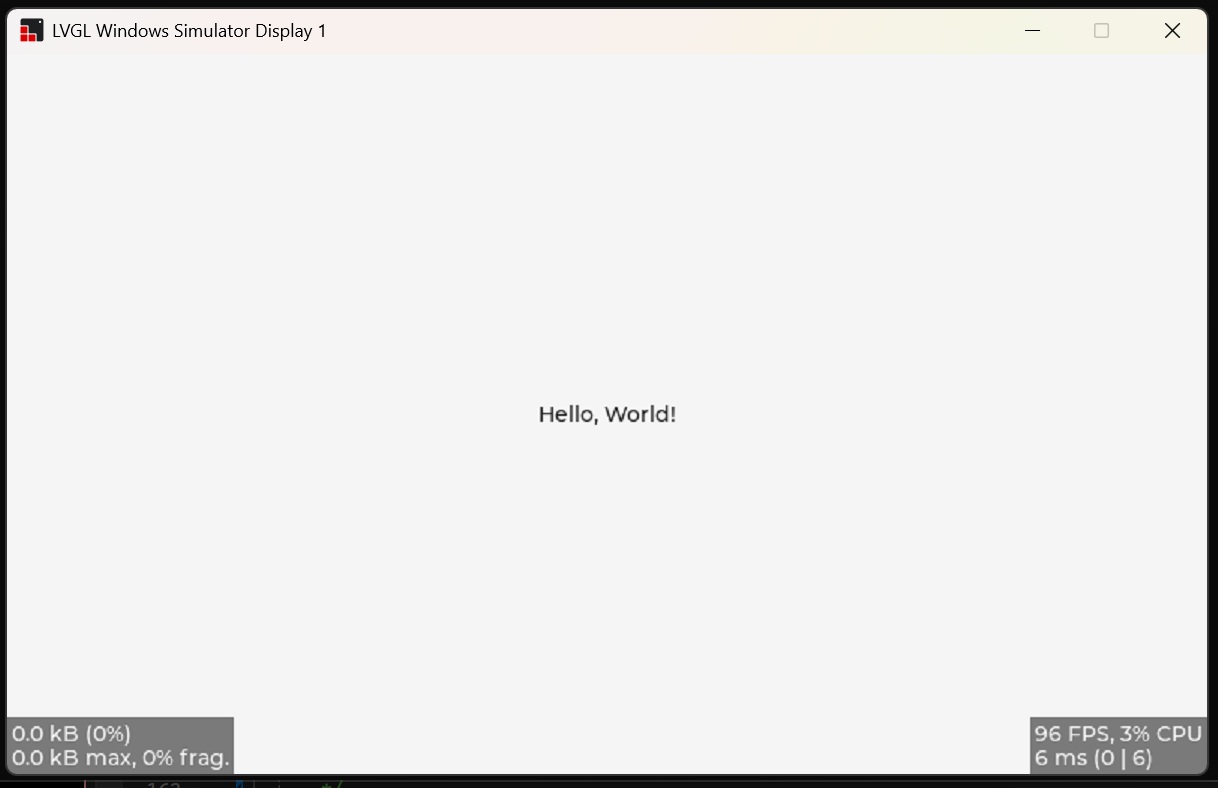
(My screenshots are from my MSVS simulator - see below)
#2 Counter
Let us make a slight modification to create a live counter in our label.
Add this variable and function to the global area above main():
Int Counter = 0;
void UpdateCounterTimer(lv_timer_t* timer)
{
lv_label_set_text_fmt(MyLabel, "Hello, World: %d", counter);
counter++;
}
And add this function underneath the other MyLabel code:
lv_timer_create(UpdateCounterTimer, 1000, NULL);
Build and run.
This code adds a timer that will call UpdateCounterTimer() every 1000 ms.
[Note, at least on my launchpad, it updates much faster. The interrupt is probably being called faster than every 1 ms]
When UpdateCounterTImer() is called, it sets a new text label with the counter value.
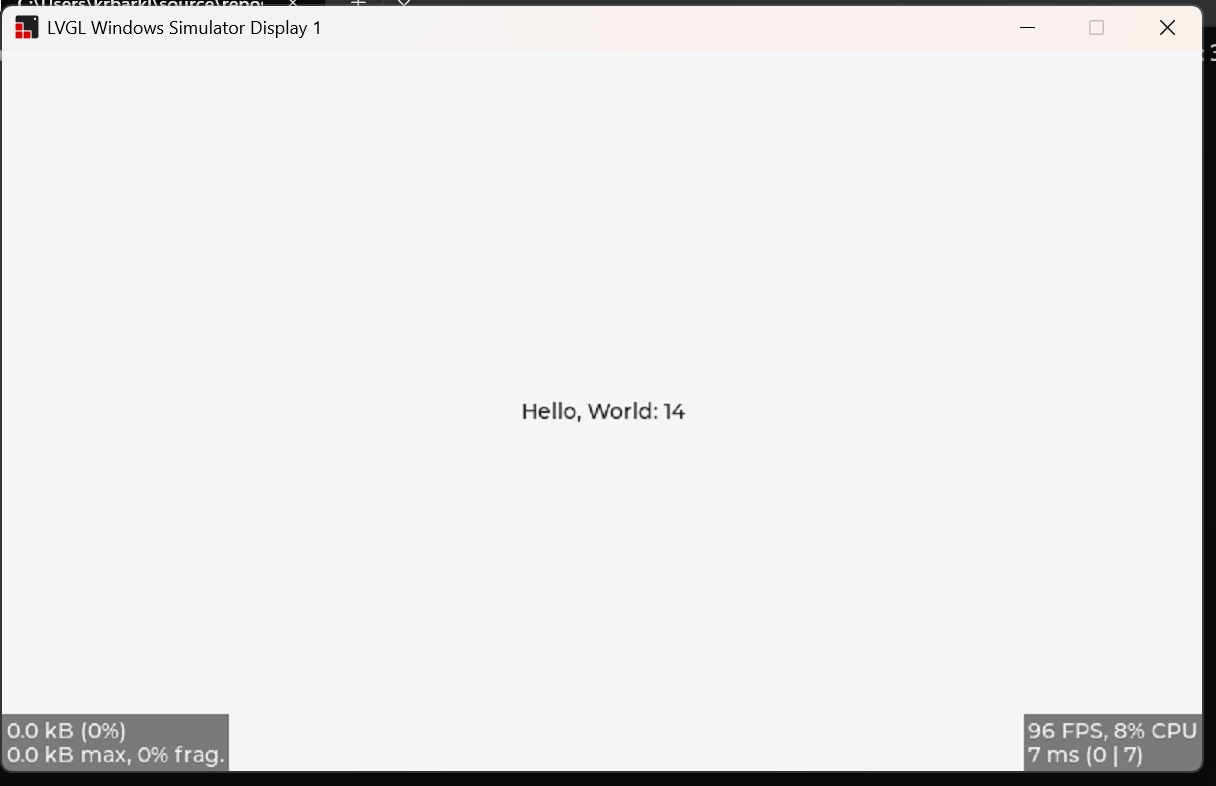
#3 Button
One final modification, let’s add a button.
In the global area, we need a button and Boolean to act as a flag:
lv_obj_t* Button;
volatile bool Flag = false;
And a function to handle our button event:
void Button_Event_Handler(lv_event_t* e)
{
lv_event_code_t code = lv_event_get_code(e);
if (code == LV_EVENT_CLICKED) {
if (Flag == false)
{
Flag = true;
}
else
{
Flag = false;
}
}
}
If we had more than one button we might need to add code to discriminate between buttons
Let us make a slight change in the UpdateCounterTimer() function by only updating the counter if the flag is false
void UpdateCounterTimer(lv_timer_t* timer)
{
lv_label_set_text_fmt(MyLabel, "Hello, World: %d", counter);
if (Flag == false)
{
counter++;
}
}
Finally, let us add the button startup code to main():
Button = lv_btn_create(lv_scr_act());
lv_obj_add_event_cb(Button, Button_Event_Handler, LV_EVENT_ALL, NULL);
lv_obj_align(Button, LV_ALIGN_CENTER, -100, -100);
lv_obj_t* label;
label = lv_label_create(Button);
lv_label_set_text(label, "Start//Stop");
lv_obj_center(label);
This creates a button as a child of the main screen. (“lv_scr_act()”) It is aligned above and to the left of the original label.
We then create a label that is a child of the button, and add some text.
Compile and run. You should see something like this:
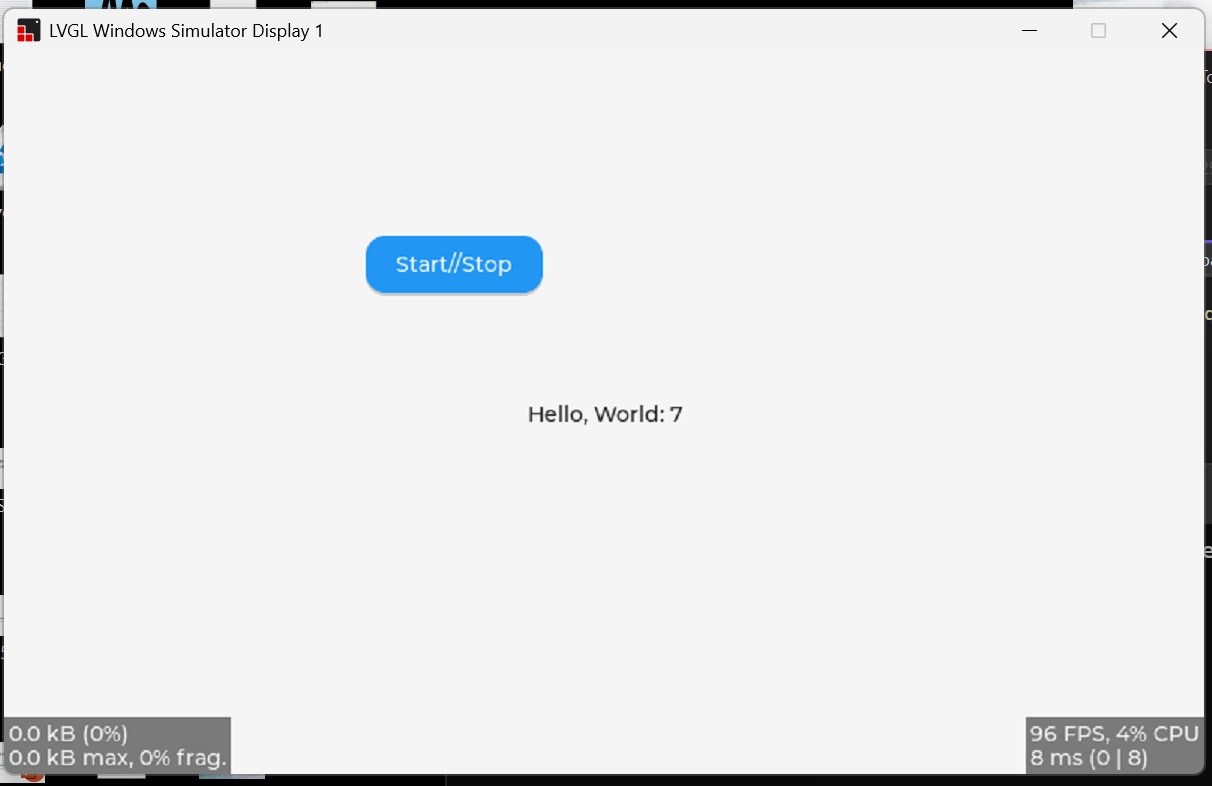
As you click the button you can start and stop the counter.
This should be enough to get you started.
But if you want to add more widgets and see more examples:
https://lvgl.io/docs/open/8.3/get-started/
(I point to the 8.3 docs, since that is the version currently supplied with the MSPM33 SDK.)
If you want to create any kind of complicated GUI's I strongly suggest getting a simulator to run on a host PC:
https://lvgl.io/docs/open/8.3/get-started/platforms/pc-simulator.html
There is also a large active users forum to help you with any other questions.
(Note: The imminent new SDK is coming and may change these instructions in unknown ways.)
*I had to disconnect the PWM/LED pin to get it to work.
--

