This thread has been locked.

If you have a related question, please click the "Ask a related question" button in the top right corner. The newly created question will be automatically linked to this question.

CCSTUDIO-THEIA: How to execute GUI Composer program as CCS Desktop View?

Part Number: CCSTUDIO-THEIA
Other Parts Discussed in Thread: TMS320F28377S, TMS320F28377D

I have created a program in GUI Composer to interact with the TMS320F28377S device.

The standalone application works but when I generate CCS Desktop View and load it in the CCS-Theia 20.3 none of the bindings are working. 

The CCS Desktop application is loaded as Plugin and is available in View-Plugins. It is also built using  GUI Composer Designer V3.

Please help to find information how to make it work from inside the CCS along with the regular debug view.

Thanks. 

  • Hi Valeriy,

    CCS 20.x supports GC v3 component library application. The GC Designer v3 supports both v2 and v3 component libraries application. Can you confirm that you are using the GC component library v3+?

    If your application uses the XDS transport, target access will be based on the current selected core in the thread view for the active debug session.

    Regards,
    Patrick

  • The only way I know to tell if the component library used is V3 is that my components all start with gc- (as in gc-widget-checkbox) and not ti-widget-checkbox for v2 component library. All my components start with gc-:


    If there is other way to identify the components, please let me know.

    I am using XDS 100v2 USB Debug Probe with configuration from .ccxml file. That works without issued for debugging. However, if I switch to the tab with my GUI Composer application called from the list of plugins, that application does not seem to have any access to the FW running in the debugger. All controls in GUI have a red x as not finding the correct variable in the code. The debugger does show all the same variables as available.

  • Widgets starts with "gc-widget" should be v3, you can also see the project version in the package.json file.

    Would you be able to provide an example project to reproduce the issue?

  • Before I create and provide example project of GUI and corresponding CCS project let me share another clue: As soon as I start debugging all GUI controls are showing "Cannot read value..." 

    Looks like my GUI plugin does not see the connection that is used by debugger. How can I check what connection my CCS Desktop plugin is trying to use?

  • The tooltip helps, it show that the selected core is not connected. Hence there is no symbols loaded and binding would not be able to read the target variables that you have configured in your GC application.

    The connection that you use for the GC app should be defined in the transport element, see the properties of this element in the Properties view. Make sure that it matches with the one that you use in CCS and you load the same program file from the GC app.

  • The Transport in GC is set and working when in standalone mode:

    When in CCS the debugger uses .ccxml file to configure communication.


    The GC plugin does not seem to find that connection when running from inside the CCS.

  • I don't have the F28377S device, but I have created a GC app for the F28379D device using XDS100v2 USB transport. The app uses the local ccxml file with the other CPU bypassed, so that I can test it in GUI Composer designer. In CCS Theia, it doesn't use the local ccxml file, it relies on the current debug session and the selected CORE to communicate with the target.

    The GC app will toggle the LED on the LaunchPad on/off when the toggle switch is clicked.

    GC app for CCS Theia: F28377_Demo.zip

  • I would like to try the project that you sent but not sure how to use it.

    Are there any instructions available, preferably with example, on how to generate CCS Desktop app then install it and run in CCS Theia? I only see this brief note and the "?" does not take me to any other page:

    I know that "CCS v7.0 or higher" statement is incorrect. Maybe there are other steps that are missing here.

  • The app that I provided can be drop into CCS Theia, just unzip it into the ccs_plugins folder. Use the ccxml file in the example folder to start a project-less debug session and load the .out file in the app folder.

    To try it in GC Designer, you can import it and run the project.

  • Hello Patrick,

    I am also working with Valeriy on this stuff.

    I tried downloading your code and did these steps.

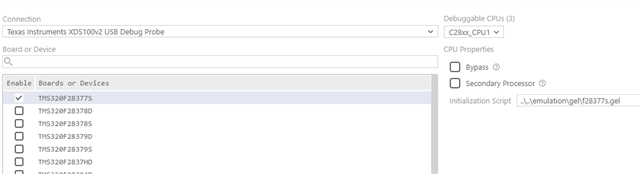
    1) Import the ccxml file from the archive. Then changed the device type to TMS320F28377S (the one we are using). I see the imported file is stored in C:\<User>\ti\CCSTargetConfigurations  (looks different compared to your original)

    2) Start the Project-less debug, connect under the thread   (if your original ccxml is connected it now issues a warning about a different device and possible issues with flashing)

    3) Start my plugin, I see there are errors "Cannot read value when target is disconnected"

    4) Close my plugin, start your plugin, I see there are errors "Missing identifier: on, it cannot be found in the target program's symbols."

    5) Run->Load -> "MyApplication.out"  (not the blinky because of the different hardware). My application has a volatile bool variable "on"

    6) I see that the toggling of the gui elements changes the "on" variable in watch window and vice versa, so yours seems to be working.

    What might be the issue with the connection to our app then?

    I was trying to look for the differences in the files and found out

    1) Project.json   yours was 3.8.0 mine 3.7.0, went to the GC and did an update, but the connection does not work

    2) index.gui   obviously a lot of differences because of the size of the gui but what I think is important for the connection is yours

    <!-- Add target communication configuration below this line -->
    <gc-transport-xds id="jtag" device-name="TMS320F28377S" connection-name="Texas Instruments XDS100v2 USB Debug Probe" ccxml-path="./TMS320F28377D.ccxml"></gc-transport-xds>
    <gc-model-program id="pm" program-or-bin-path="./led_ex1_blinky.out"></gc-model-program>
    <gc-target-connection-manager auto-connect active-configuration="jtag+pm"></gc-target-connection-manager>

    vs mine

    <!-- Add target communication configuration below this line -->
    <gc-target-connection-manager id="connection_manager" auto-connect active-configuration="xds+pm">
    <gc-transport-xds id="xds" device-name="TMS320F28377S" connection-name="Texas Instruments XDS100v2 USB Debug Probe" ccxml-path="./firmware/ahf.ccxml"></gc-transport-xds>
    <gc-model-program id="pm" core-name="C28xx_CPU1" program-or-bin-path="./firmware/AHF.out"></gc-model-program>
    </gc-target-connection-manager>

    Apart from the structure of the tags, the only difference is that my gc-model-program contains the attribute core-name="C28xx_CPU1" while yours does not and indeed if I remove it the plugin connects.

    I will now try to go to the GC modify it there and reexport the project

    Martin

  • Hi Martin, 

    In GC Designer or when running standalone, the way transport-xds is configured means that ccxml file will be used first. In this case device-name and connection-name is actually ignored. 

    Patrick's example specifies ccxml file, but if you inspect it in CCS, then you will notice that even though it is a dual cpu device and with two CLAs the ccxml file actually bypasses 3 out of 4 cores listed. Only first C28 CPU is activated when running standalone. This means that Patrick's GC app has only 1 valid CPU connection and does not need to list core-name. 

    In v3 component help model-program has core-name documented as an optional attribute (property) meaning that it does not need to be specified. It is typically used when dealing with multi-CPU devices and you only want to connect to a specific CPU. You should not need that for 28377S since I believe it is a single CPU device. 

    When running in CCS, as Patrick mentioned, this logic is somewhat bypassed to use currently selected CPU in Debug View for target access. 

    Martin