This thread has been locked.

If you have a related question, please click the "Ask a related question" button in the top right corner. The newly created question will be automatically linked to this question.

DCC File loading and usage

Other Parts Discussed in Thread: DM385

I am using DM385 IPNC RDK 3.5 and integrating a custom sensor onto it.

I'm trying to figure out how to use the DCC tool and apply the settings to the IPNC, however the documentation for it isn't very helpful.

I've tried using the "send dcc files to camera" feature in the tool itself but this has no effect.
After searching around the code I've found the file

Source/ipnc_rdk/ipnc_mcfw/demos/mcfw_api_demos/multich_usecase/ti_mcfw_ipnc_main.c 

and

Source/ipnc_rdk/ipnc_mcfw/demos/mcfw_api_demos/itt/itt_Capture.c

After searching around, I've noticed that the only dcc file in use is hardcoded as "dcc_default.bin"

Is there any other place where DCC files are loaded? If not, then how can I incorporate the separate DCC files such as "cid42_asamplesensor_ipipe_rgb2rgb_1_dcc.bin" into one dcc_default.bin file?

I've also tried testing the DCC Enable and DCC Disable commands on the DCC tool, with both the custom sensor and AR0331 and noticed no effect whatsoever.

Where in the code can I find the module that handles those commands?

  • I am facing the same problem.

    Is there any training video or material about using DCC tool to adjustment the sensor integrated with dm8127 and get more ideal quality image?

    As far as I know,dm365 have some traning video on tuning image quality.but The DCC tool usage is different to ImageTuningTools_DM365_Full.2.2.exe.

    pls ti experts give some advice about this.

    thanks.

  • Can anyone from TI help?

  • Hi,

    There are two ways you can achieve this. 

    1) using send dcc command from the tuning tool 

    Looks like you already tried this. Can you please make sure you are putting correct IP address (Check for any trailing spaces in the beginning and end) of camera?

    Can you ping the IPNC from the host PC where your tuning tool is running? 

    Can you please provide the version numbers of the tuning tool and RDK so that i will see if i can re create the scenario?  

    2) if all the above is failed then you take the dcc_default.bin file in the filesystem and do a binary append of your parameters to this file. 

    sample windows command is as follows. 

    copy /B file1 file2 file3 etc ... 

    if you have multiple plugins the you can append to the existing bin file. 

    If you dont want any defult parameters then create a new file under name dcc_default.bin and put all your tuning parameters appended to this in binary format.

    CAUTION: The RDK build make file picks up the sensor specific default setting at the time of build. Please make sure you disable this otherwise your setting file will be overwritten

    We will update the documentation regarding this in subsequent drops. 

     Regards.

    Uday 

  • Hi Uday,

    Thanks for your answer.

    1) I have already tried this. I can ping the camera and I can change and read registers using DCC tool, as well as use all the other DCC functions such as save RAW and enable/disable AEWB.

    I am using RDK 3.5 and DCC tool 2.0.4

    2) This seems to work. I have one more question though: Is it possible to overwrite a single plugin in an existing dcc_default.bin file? For example, I wish to use the dcc_default_ar0331.bin dcc file, but I need to replace the rgb2rgb plugin for it.

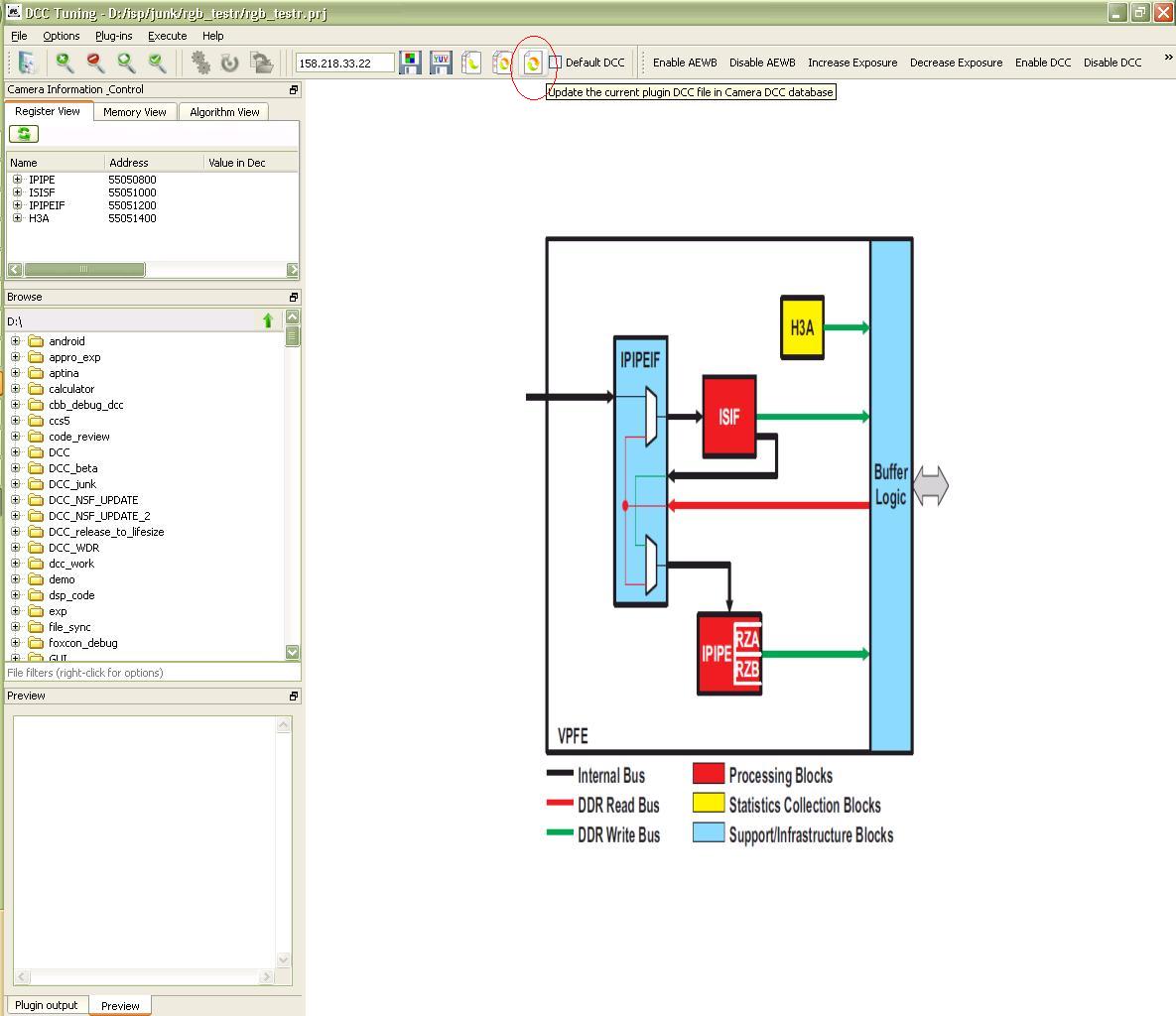
  • One can modify individual plugin but using update current plugin button.

    1) open the RGB2RGB plugin

    2) modify the parameters

    3) click process and export dcc

    4) click on the update current plugin.

    If you want to keep the settings written to the dcc_default.bin file please check the default tick mark.

    Regards,

    Uday

  • Hi Uday,

    I've tried that but it simply overwritten the dcc_default.bin file on the camera completely, making it the size of the rgb2rgb plugin file.

    I have made sure the Default DCC checkbox was selected.

  • Hi,

    Are you sure you used the below highlighted button. I think you pressed the first one.

    Just scroll over the button you will get help displayed like in attachment.

    Regards,

    Uday

  • Thanks Uday,

    I've tried this button and the one next to it (Update the select DCC file in camera database)

    After a few tries it seems to be working. I've added the default_dcc.bin file to the export folder and when updating I'm sending the default_dcc file to the camera first, and then use the update button.

  • is your problem solved?

    Regards,

    Uday