A related question is a question created from another question. When the related question is created, it will be automatically linked to the original question.
If you have a related question, please click the "Ask a related question" button in the top right corner. The newly created question will be automatically linked to this question.
I’m completely new to this product and planning to purchase the evaluation board. Could you please let me know if it’s possible to view the output waveform using a DSO? Or is a spectrum analyzer absolutely necessary?
Can we use the two outputs of LMX2571, to connect to load. The LM2571EVM also has two outputs, can both these be used? Does these outputs the same signal?
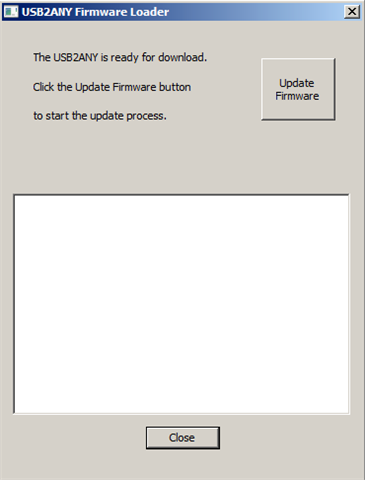
I received the LMX2571EVM board today. With the initial setup, I was getting error with USB2ANY adaptor. I am getting a dialogue box of USB2ANY Firmware loader. I tried locating BSL button by pressing it from adapter. But nothing identified. I am unable proceed. Kindly do the needful.
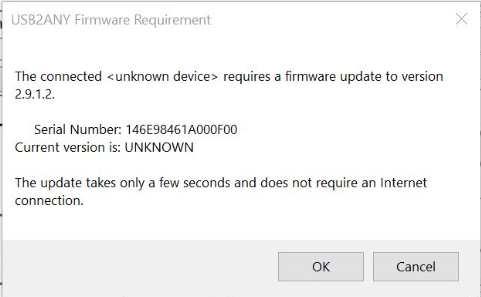
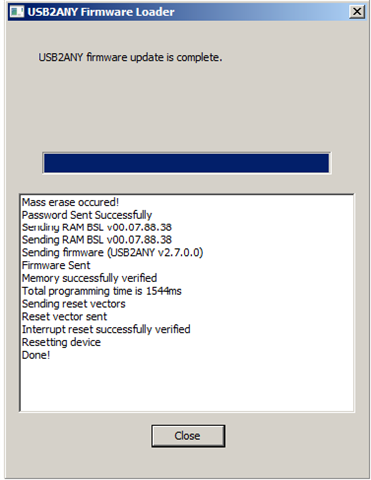
I have followed up the instructions given by you. When I connect USB cable to USB2ANY and press the BSL I am getting dialogue boxes as below. Clicking OK on first box, it move to second dialogue box and then nothing proceeds. Is there any requirement for any driver or firmware loader software for USB2ANY?