This thread has been locked.

If you have a related question, please click the "Ask a related question" button in the top right corner. The newly created question will be automatically linked to this question.

MSP-FET: Programmer/Debugger firmware update and recovery failures

Part Number: MSP-FET
Other Parts Discussed in Thread: MSP430G2230, MSP430FR5969, UNIFLASH, , MSP-EXP430G2ET, MSPDS

Tool/software:

I’m running into an issue while trying to program the MSP430G2230 in CCS v20.2.0 on a laptop with Windows 11 (Version 24H2).

I’ve tested with two different MSP-FETs as well as the ez-FET on an MSP430FR5969 LaunchPad, but in each case the debugger fails at the initial “update firmware” prompt and the recovery process does not succeed.

Troubleshooting steps I’ve tried so far:

  • Installed and tested with two older versions of CCS (10.4.0 and 12.8.1)

  • Updated all drivers

  • Attempted programming with UniFlash (v9.2.0), MSPFlasher (v1.3.20), and CCS Cloud

  • Followed the recovery procedures outlined in the user guides

Despite these attempts, I haven’t been able to get recovery to work.

I’ve attached screenshots and debug output for reference. Any suggestions or guidance would be greatly appreciated!
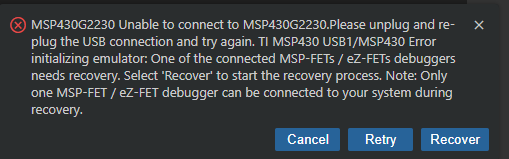
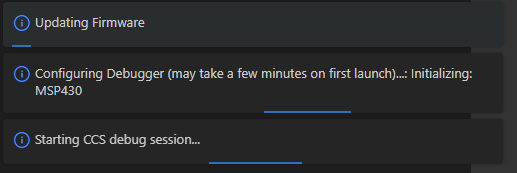
Debug Output:
    MSP430: Error initializing emulator: One of the connected MSP-FETs / eZ-FETs debuggers needs recovery. Select 'Recover' to start the recovery process.  Note: Only one MSP-FET / eZ-FET debugger can be connected      to your system during recovery.
    MSP430: Error: MSP-FET / eZ-FET recovery failed
  • Been running into the same problems myself.on Windows 10, tried all 3 with the same issue but on the MSP-EXP430G2ET.

    Had tried to flash a program, it asked about doing a debug update, although was running the demo beforehand, but I said yes and it seemed to flash it and then I got a new USB device notification and then... well it didn't work but every future time trying to flash it ran into the same issue.

    It seems like we're not alone though, this apparently has been a problem for a few years. I found this thread looking for a solution but unfortunately not really any luck here

    e2e.ti.com/.../ccs-msp-exp430fr2433-msp430-error-msp-fet-ez-fet-recovery-failed-firmware-bricked

    For me I noticed that I can't find the device any more in Device Manager (would be under the Ports section) although before the issue could and the demo program would run fine

  • Hi,

    Well, I would suggest to try a cold boot on the MSP-FET described in chapter 5.6.5.3 MSP-FET HID Cold Boot. https://www.ti.com/lit/ug/slau647o/slau647o.pdf

    Best regards

    Cash Hao

  • Yeah, this seems to be a persistent issue over the past couple of years with some pretty unusual fixes. I saw that thread recently, but I was hoping to avoid changing my OS. Still, I may need to try an older version of Windows to see if it works the same way it did for the other person in that thread. Thanks for the response!

  • Hi Cash,

    That is one of the recovery procedures I followed from the user guides, and it did not work unfortunately. 

    Best regards

    Dylan 

  • Hi Dylan,

    Understand. If this recovery procedure does not work. Then I am afraid you may change the OS or using another PC to try with. 

    Best regards,

    Cash Hao

  • Yeah, for me I had a somewhat odd recovery procedure. If it helps here is mine. You need both MSPFlasher on Windows and also to use mspdebug on Linux (you can use a VM, which I did use).

    Here's what I tried and what worked for me (mine was a MSP-EXP430G2ET, so not sure if this'll work for other things):

    ---

    You'll need a Linux VM. First stuff I found was for Arch but I'm running Debian on a VM currently so that'll do.

    1. sudo apt-get install mspdebug

    Attempting to run mspdebug at this point will give an error, probably saying that libmsp430.so can't be found.

    You also need to download MSPDS (www.ti.com/.../MSPDS).
    Go to Downloads -> Download Options -> View All Versions, then pick the latest one (at the time of this writing, 2025-09-08, this is 3.15.1.1).

    Download this ZIP file. In the ZIP file, copy libmsp430_64.so to /usr/lib. (I tried extracting it to an /opt directory and putting that in my PATH but that didn't work, you could probably mess with LD_LIBRARY_PATH if you want.)

    You'll also need to rename libmsp430_64.so to libmsp430.so

    Now take the Firmware.txt file from MSPFlasher on Windows and get it to your VM somehow (usually there is a File Sharing feature in most VM software).

    Then, and only then, connect your MSP via USB. You'll probably need to passthrough the USB device to the VM. Run this command

    ```
    sudo mspdebug tilib --require-fw-update <firmware-file>
    ```

    Replace `<firmware-file>` with a path to the Firmware.txt you saved earlier.

    It should flash then give you a debug prompt. You can now close the debug prompt with the exit command (or CTRL+D).

    Unplug and replug in the USB cable. Verify in Device Manager that there is a serial port (you should see 2 TI related ones).

    On Windows now:

    Run "Program MSP430 (example).bat".

    When it asks you for a firmware update, say "yes".

    It should update (you'll see the mode light flicker on and off a bunch).

    The demo program (or probably whatever program was previously flashed) should run again.

  • Thanks for sharing!

  • Hey Justine, thank you so much for posting your recovery steps, they bridged the gap I was missing. I was using a VM that already had mspdebug installed for programming these devices in Rust instead of C or assembly. I followed your steps for the most part and they worked with one small tweak. I didn’t need to copy over the Firmware.txt from Windows. Instead, I just used:

    sudo mspdebug tilib --allow-fw-update

    That let the update run directly, and after that I was able to use CCS (20.2.0) to program my MSP430G2ET without any issues.

    For anyone else who wants the exact process, here are the steps:

    1. Install mspdebug

      • Launch an Ubuntu (24.04.3) VM in Oracle VirtualBox.

      • Open a terminal and run:

        sudo apt-get install mspdebug
    2. Download MSP Debug Stack (MSPDS)

      • Go to the TI MSPDS Downloads page.

      • Under Downloads → Download Options → View All Versions, grab the latest ZIP (e.g., 3.15.1.1).

    3. Install the MSPDS shared library

      • Extract the ZIP file.

      • Copy and rename the library with:

        sudo cp libmsp430_64.so /usr/lib/libmsp430.so
    4. Connect the LaunchPad via USB

      • Pass the USB device through to your VM:

        • In the VM top menu, go to Devices → USB → [Texas Instruments / TI device]

        • Select it to attach to the VM.

    5. Run mspdebug with firmware update allowed

      • Open a terminal and run:

        sudo mspdebug tilib --allow-fw-update
      • This updates the ez-FET firmware automatically.

      • When complete, you’ll see the mspdebug prompt.

      • Exit with exit or CTRL+D.

    6. Reconnect the board

      • Unplug and replug the USB cable.

      • Back on Windows, open Device Manager and verify you see two TI serial ports.

    7. Install MSPFlasher and run example

      • Navigate to the MSPFlasher installation directory (default is C:\ti\MSPFlasher_1.3.20).

      • Run the example batch file:

        C:\ti\MSPFlasher_1.3.20\Program MSP430 (example).bat
    8. Program normally in CCS

      • Open Code Composer Studio (20.2.0).

      • You should now be able to build and flash programs to the MSP430G2ET.

      • The LaunchPad can also be used as a programmer for custom PCBs.

  • Hi Cash, I was able to fix the issue. Thank you for your assistance with this.

    Regards,

    Dylan

**Attention** This is a public forum