This thread has been locked.

If you have a related question, please click the "Ask a related question" button in the top right corner. The newly created question will be automatically linked to this question.

AM263P4-Q1: DEBUGSSM_0: Error initializing emulator: (Error -260 @ 0x0) An attempt to connect to the XDS110 failed.

Part Number: AM263P4-Q1
Other Parts Discussed in Thread: AM263P4

Hi Team,
While working with the Launchpad board(AM263p4-LP) facing JTag Issue, and we tried some streps based on XDS110SupportReadMe document but found 0 device, please see the below screen shot for your reference. Let me know how to resolve the issue.
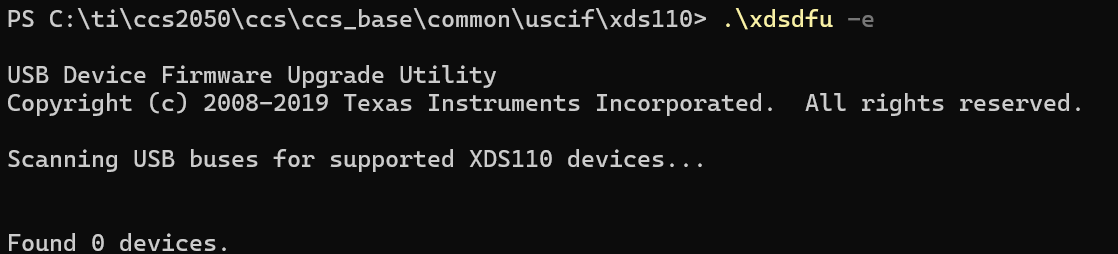
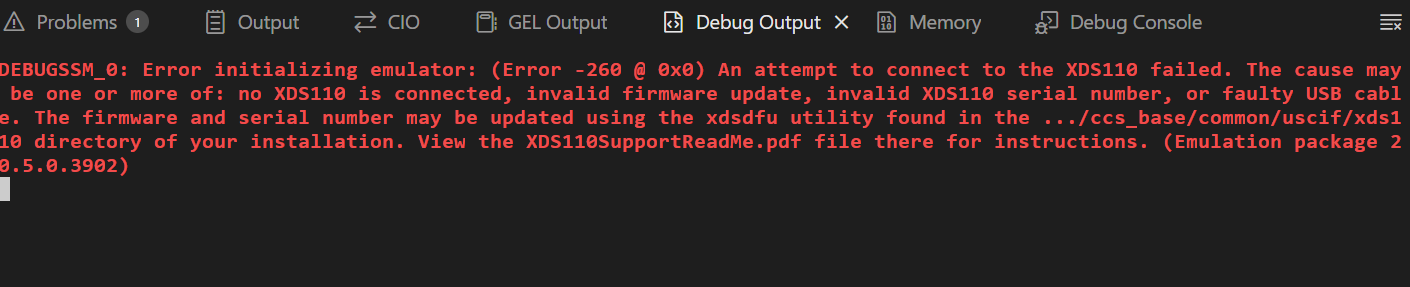
image.png

image.png

Best Regards,

Shilpa 

  • Hi Shilpa,

    Thank you for reaching out and providing the screenshots. The error message and the "Found 0 devices" result from xdsdfu -e indicate that the XDS110 on-board debugger is not being recognized by your PC at the USB level. This is typically a prerequisite issue before firmware updates can even be attempted.

    Please work through the following steps in order:


    1. Verify USB Connection / Hardware

    • Try a different USB cable — ensure it is a data-capable cable (not a charge-only cable). This is one of the most common causes.
    • Try a different USB port on your PC (preferably a USB 2.0 port directly on the motherboard, avoiding hubs).
    • Confirm the power LED on the AM263P4-LP LaunchPad is lit when connected.

    2. Check Device Manager (Windows)

    • Open Device Manager and look under:
      • Universal Serial Bus controllers
      • Other devices (may appear as unknown device with a yellow warning)
    • If the XDS110 is not listed at all, it confirms a USB/hardware recognition issue.
    • If it appears as an unknown device or with an error, try right-clicking and selecting Update Driver.

    3. Try Installing / Reinstalling XDS110 USB Drivers

    • Navigate to: C:\ti\ccs2050\ccs\ccs_base\common\uscif\xds110\
    • Run xds110_drivers_install.bat (if present) or install drivers manually via Device Manager pointing to that directory.
    • Alternatively, reinstall the drivers through CCS → Help → Install Drivers for XDS110.

    4. Test on a Different PC

    • If possible, connect the LaunchPad to a different computer to rule out a PC-specific USB/driver issue.

    5. Board Inspection

    • If none of the above resolves the issue, it is possible that the XDS110 on-board debugger has been damaged (e.g., due to ESD or a power issue). In that case, the board may need to be replaced.

    Could you please let us know:

    1. What OS and CCS version are you using?
    2. Does the board appear anywhere in Device Manager?
    3. Have you tried a different USB cable and port?

    This will help us narrow down the root cause further.

    Best Regards,

    Zackary Fleenor

  • Hi Fleenor,

    Thank you for your support. We followed all the steps you suggested, but unfortunately did not get any results.

    The power LED is blinking, however the XDS110 debugger LED is not blinking, and the XDS110 is not appearing in Device Manager. We are using Windows 11, and the version of Code Composer Studio is 20.5.0.

    Please let us know if there are any further steps we can try.

    Best Regards
    Shilpa

  • Hi Shilpa,

    Based on your symptoms — power LED blinking but XDS110 debugger LED not blinking, the device not appearing anywhere in Device Manager, and xdsdfu -e returning "Found 0 devices" even after trying different cables and ports — this strongly points to the on-board XDS110 debugger hardware being non-functional. However, there is one last recovery procedure worth attempting before concluding hardware failure.


    Try the TDO Pin Grounding Recovery

    This procedure has resolved bricked/unresponsive XDS110 debuggers on other TI EVMs where the XDS110 firmware became corrupted (e.g., from a failed CCS firmware update) [1]:

    1. Disconnect all cables from the LaunchPad.
    2. Locate the TDO pin of the XDS110 controller (TMD41294NCPDT) on your AM263P4-LP board. You'll need to identify the equivalent of Pin 97 (TDO) or a corresponding test point — check the LaunchPad schematic for the exact location.
    3. Ground the TDO pin — connect it to any ground point on the board (e.g., a GND test point).
    4. While TDO is grounded, connect the USB cable to the XDS110 USB port.
    5. Keep the pin grounded for about 5 seconds, then remove the ground connection. (Note: some users have reported needing to keep TDO grounded through the entire recovery process.)
    6. Run xdsdfu -e from C:\ti\ccs2050\ccs\ccs_base\common\uscif\xds110\ to check if the device is now detected.
    7. If detected, flash the firmware: xdsdfu -c 1 -f firmware_3.0.0.29.bin -r
    8. Verify with xdsdfu -e again to confirm the firmware version.

    If this procedure does not cause the XDS110 to appear, repeat steps 1–5 — the timing can be sensitive [1].


    If Recovery Fails

    If the TDO grounding procedure does not work, the evidence across similar cases is consistent: an XDS110 that doesn't appear in Device Manager after verifying USB connections and trying multiple cables/ports/PCs typically indicates hardware damage to the debugger [2][3]. In that case:

    • Request a board replacement through your TI sales channel or distributor if the on-board debugger is confirmed dead.

    To help refine this recommendation, it would be helpful to know:

    • Was this board ever successfully connected before, or is this a new out-of-box failure?
    • Was any firmware update attempted through CCS that might have bricked the XDS110?
    • Do you have access to an external XDS110 debug probe to verify the target MCU independently?
    • What is the board revision and manufacturing date? (This helps check for known hardware batch issues.)

    1. FAQ: J722SXH01EVM - Attempt to connect to XDS110 failed (TDO pin recovery procedure)
    2. J7200XSOMXEVM - Can't connect to XDS110 debugger
    3. LAUNCHXL-F2800157 - Error -260 with XDS110 after disconnection

    Best Regards,

    Zackary Fleenor

  • Hi Shilpa,

    How are you powering the device, are you trying to power the device on USBB C port using the Laptop?

    Please power power LP using a raspberry pie adapter or any 5V 3A adapter

  • Hi Anand,

    I connected with external adapter still debugger led not blinking and not detected 

    Best Regards

    Shilpa

  • Hi Shilpa,

    Thanks for confirming this, can you provide feedback for the additional Q's below?

    • Was this board ever successfully connected before, or is this a new out-of-box failure?
    • Was any firmware update attempted through CCS that might have bricked the XDS110?
    • Do you have access to an external XDS110 debug probe to verify the target MCU independently?
    • What is the board revision and manufacturing date? (This helps check for known hardware batch issues.)

    Best Regards,

    Zackary Fleenor

  • Hi Fleenor,

    Thank you for your support, The board is initially connected with no observed failures. The firmware update was completed successfully without any issues. I also have access to an external XDS110 debug probe. The board revision is PROC171A (001) with serial number 3225170157.
  • Hey Shilpa,

    Hi Shilpa,

    Thank you for providing those details. Based on the full picture — the board initially worked, firmware updated successfully, but now the XDS110 debugger LED is off, the device is invisible in Device Manager, and xdsdfu -e finds 0 devices even after trying different cables, ports, PCs, and an external 5V/3A adapter — this strongly indicates the on-board XDS110 debugger hardware has failed [1][2].


    I provided these instructions previously, but just in case, before concluding hardware failure, try this procedure which has recovered bricked XDS110 debuggers on other TI LaunchPads where the firmware became corrupted [1]:

    1. Disconnect all cables from the LaunchPad.
    2. Locate the TDO pin (Pin 97) of the XDS110 controller IC on your AM263P4-LP board — you'll need to reference the LaunchPad schematic for the exact test point or pad location on the PROC171A revision.
    3. Ground the TDO pin by connecting it to any GND point on the board.
    4. While TDO is grounded, connect the USB cable to the XDS110 USB port.
    5. Keep grounded for ~5 seconds, then release. (Some cases require keeping TDO grounded through the entire process.)
    6. Run xdsdfu -e to check if the device is now detected.
    7. If detected: xdsdfu -f firmware_3.0.0.29.bin -r to reflash firmware.

    Timing is sensitive — repeat the procedure several times if it doesn't work on the first attempt [1].


    Immediate Workaround: Use Your External XDS110 Probe

    Since you have an external XDS110 debug probe, you can bypass the failed on-board debugger entirely and continue development [3][4]:

    • Connect the external XDS110 probe to the JTAG header on the AM263P4-LP board.
    • Important: Ensure the probe's VTREF pin is connected to the target's 3.3V supply. Without this, you'll get an SC_ERR_XDS110_TARGET_SUPPLY error — the XDS110 requires sensing target voltage to set JTAG signal levels, and this check cannot be disabled in software [5][6].
    • This will let you verify whether the target AM263P4 MCU itself is functional, which would confirm the issue is isolated to the on-board debugger.

    If TDO Recovery Fails

    The symptom pattern — debugger LED off, no Device Manager enumeration, no response to xdsdfu — consistently points to hardware damage when all cable/port/power variables have been eliminated [2]. In that case:


    1. LAUNCHXL-F280039C: XDS110 bricked recovery via TDO pin grounding
    2. TMDSEMU110-U: Debug probe does not enumerate — hardware failure and return process
    3. AWR2944: Using external XDS110 debug probe to bypass onboard debugger
    4. FAQ: AM26x device FAQs including XDS110/JTAG troubleshooting
    5. IWR1443BOOST: XDS110 VTREF connection requirement
    6. LP-XDS110: VTREF check cannot be disabled in software
    7. AM263P4 Datasheet — Pin Configuration (TDO at ball C4)

    Best Regards,

    Zackary Fleenor

  • Hi Shilpa,

    I wanted to follow up on your XDS110 debugger issue to see if you've made any progress or need further assistance.

    Just to recap where we left off:

    Current Status:

    • On-board XDS110 debugger not appearing in Device Manager
    • Debugger LED not blinking despite proper power supply
    • xdsdfu -e returning "Found 0 devices"
    • Board revision: PROC171A (001), Serial: 3225170157
    • You have access to an external XDS110 debug probe

    Recommended Next Steps:

    1. If you haven't already tried the TDO pin grounding recovery procedure I outlined in my last response, this is worth attempting as it has successfully recovered bricked XDS110 debuggers in similar cases.

    2. Use your external XDS110 probe as an immediate workaround:

      • Connect it to the JTAG header on the AM263P4-LP
      • Ensure VTREF is connected to the target's 3.3V supply
      • This will allow you to continue development while we determine if the on-board debugger can be recovered
    3. If recovery fails, the symptoms strongly indicate hardware failure of the on-board XDS110, and you should initiate a board replacement through your TI sales channel or distributor.

    Could you please provide an update on:

    • Have you attempted the TDO recovery procedure?
    • Were you able to test with the external XDS110 probe?
    • Do you need a board replacement, or have you found a workaround?

    I'm here to help get you back up and running. Please let me know how I can assist further.

    Best Regards,

    Zackary Fleenor